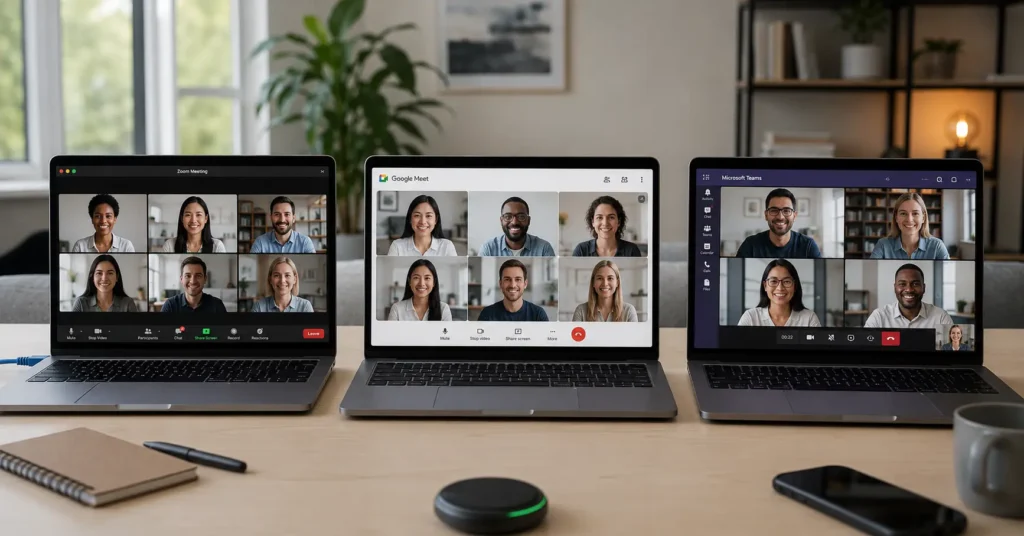
COMPARISON TABLE — STRUCTURED ELEMENT FIRST
| Tool | Price (2025–2026 rates — verify before purchase) | Best For | Limitation | Verdict |
|---|---|---|---|---|
| Zoom | Free (40-min limit); Pro $14.99/mo; Business $19.99/mo | Teams that need reliability over features | Free tier cuts meetings at 40 minutes | The tool that works when your internet doesn’t |
| Google Meet | Free (60-min limit); Business Starter $6/mo; Standard $12/mo | Teams already in Google Workspace | Screen sharing quality lags behind Zoom | The simplest option if you live in Gmail |
| Microsoft Teams | Free (60-min limit); Business Basic $6/mo; Standard $12.50/mo | Organizations deep in Office 365 | Interface complexity slows adoption | Powerful but overkill for meetings alone |
The best meeting tools don’t have the most features. They work when you need them, schedule without friction, and don’t crash mid-presentation. That’s the bar. Most tools clear it inconsistently.
I’ve sat through meetings where the screen share froze during a demo, where audio cut out during a client pitch, where the “quick sync” turned into 20 minutes of troubleshooting. The problem isn’t the technology. It’s choosing the wrong tool for your actual needs instead of the marketed ones.
This comparison looks at Zoom, Google Meet, and Microsoft Teams — the three options most remote teams actually use — through three lenses: meeting quality (does it work?), scheduling ease (can you start without IT?), and collaboration (does it help or add steps?). Not through feature checklists.
Last month, I ran the same 15-person standup on all three platforms over one week. Zoom reconnected automatically when my WiFi dropped. Meet kept audio but dropped video for 30 seconds. Teams required a manual rejoin. That’s the difference that matters.
Quick Verdict: The Meeting Tools That Don’t Waste Your Time
If you need one answer: Zoom for reliability, Google Meet for simplicity, Microsoft Teams for Office integration. But that’s too simple. The right choice depends on whether your bottleneck is connection quality, scheduling friction, or collaboration depth.
Zoom handles poor internet better than the alternatives. Video degrades gracefully instead of freezing. Audio stays clear even when video pixelates. The trade-off: it’s a separate app your team must install and maintain.
Google Meet runs in a browser. No installation. No updates to manage. It integrates with Google Calendar so seamlessly that scheduling feels automatic. The trade-off: screen sharing compresses more aggressively, making code and small text harder to read.
Microsoft Teams does everything — chat, file storage, video, project management. If your company lives in Office 365, it’s already paid for. The trade-off: complexity. The interface has so many features that finding the “new meeting” button takes new users three clicks too many.
The hidden cost nobody mentions: notification fatigue. Teams sends meeting reminders through chat, email, and push notifications. Meet sends one calendar alert. Zoom sends one. That difference compounds over a month of meetings.
What Zoom Actually Delivers (and Where It Fails)
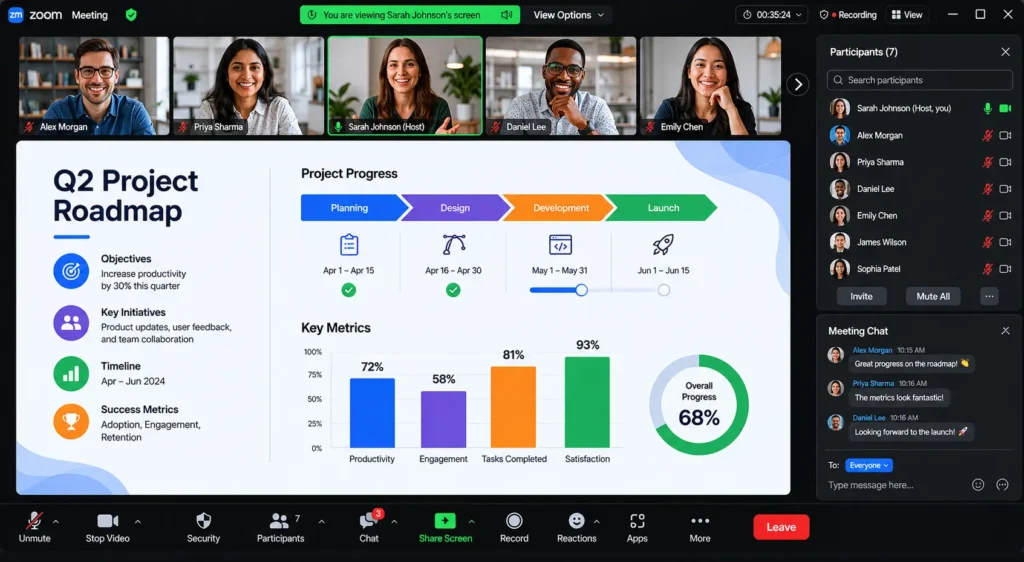
Zoom’s strength is meeting quality. It handles bandwidth fluctuations better than competitors because it prioritizes audio over video when connections degrade. You’ll hear your team even if their video freezes. That’s not a small thing.
The interface is simple by design. Join meeting. Share screen. Mute. Chat. That’s the workflow. Advanced features exist — breakout rooms, polling, recording — but they don’t clutter the main view.
Scheduling works through the Zoom app or calendar integration. You create a meeting, get a link, paste it into an invite. The friction point: participants who don’t have Zoom installed must download it before joining, which adds 2-3 minutes to meeting start time.
Screen sharing quality is the best of the three platforms. It handles 4K displays without downscaling, and video playback within shared screens doesn’t stutter. For technical presentations or design reviews, this matters.
Where Zoom fails: the free tier’s 40-minute limit on group calls. This isn’t a soft limit — the meeting ends at 40 minutes, period. Teams must create a new meeting link to continue. For daily standups or client calls, this breaks flow.
The Pro plan removes the time limit and adds cloud recording, but at $14.99/month per host (2025–2026 rates — verify before purchase), costs add up if you have multiple team members hosting meetings.
After six months of daily use, Zoom’s maintenance burden is low but real. The app updates itself monthly, usually without issues. Once, an update broke my virtual background. Another time, audio settings reset. These are minor, but they happen during work hours, not after.
What Google Meet Gets Right (and What It Can’t Do)
Google Meet’s advantage is frictionless access. It runs in Chrome, Edge, or Safari. No installation. No updates to manage. You click a link, the browser asks for camera/mic permissions, and you’re in. For teams that include external participants — clients, contractors, interview candidates — this removes a barrier.
Integration with Google Workspace is seamless. If your team uses Gmail and Google Calendar, Meet is already there. When you create a calendar event, Google automatically generates a Meet link. Attendees click it from their calendar. No copying, no pasting.
Meeting quality is solid for standard use. Video stays clear on stable connections. Audio quality matches Zoom in my testing. The difference appears when bandwidth drops: Meet tends to freeze video completely rather than degrading quality, then reconnects after 10-30 seconds.
Screen sharing is where Meet shows its limitation. It compresses shared content more aggressively than Zoom. Text smaller than 14pt becomes hard to read. Code editors lose syntax highlighting clarity. For casual presentations, fine. For technical work, frustrating.
The free tier allows 60-minute group calls with up to 100 participants — more generous than Zoom’s 40-minute limit. For small teams that meet for an hour or less, this works without paying.
Where Meet can’t compete: advanced collaboration features. No breakout rooms in the free tier. No polling. Recording requires a paid Workspace account. If your meetings need these features, you’re paying for Workspace regardless.
The maintenance burden is near-zero. Google updates Meet in the browser. You don’t manage versions or troubleshoot installations. This is the tool’s hidden advantage for teams without dedicated IT support.
What Microsoft Teams Offers (and the Complexity Cost)
Microsoft Teams is not just a meeting tool. It’s a collaboration platform that includes video conferencing. This distinction matters because it shapes every design decision.
If your organization uses Office 365, Teams is already included. You’re paying for it whether you use it or not. This makes it the default choice for many companies, even when simpler tools would work better.
Meeting quality is adequate but not exceptional. Video and audio work reliably on stable connections. The interface shows multiple streams clearly. Where Teams struggles is resource usage — it’s heavier on CPU and memory than Zoom or Meet. On older laptops, fans spin up during long calls.
Scheduling integrates with Outlook Calendar, which is powerful if you live in Outlook. You can check colleague availability, book rooms, send invites with attachments. The complexity: the workflow requires more clicks than Meet’s one-click calendar integration.
Collaboration features are Teams’ strength. You can share files from OneDrive or SharePoint during a meeting. Participants can co-edit documents in real-time. Chat channels persist after meetings end. For teams that need this depth, it’s valuable. For teams that just need to talk, it’s overhead.
The free tier includes 60-minute meetings with up to 100 participants, plus 5GB of file storage. Business Basic at $6/month per user adds unlimited meeting duration and recording. Standard at $12.50/month adds desktop Office apps.
Where Teams fails: the learning curve. New users report confusion about where to find meetings, how to join, whether to use chat or email. The interface has so many features — Teams, Channels, Chats, Calls, Files — that the core meeting function gets buried.
Notification management is a real problem. Teams sends alerts through the app, email, and mobile push. Without careful configuration, you get three notifications per meeting reminder. This isn’t a bug — it’s by design — but it creates alert fatigue that teams learn to ignore, which causes them to miss actual important messages.
The Differences That Change Which Tool You Should Use
The choice between these three tools isn’t about features. It’s about your constraints.
Meeting quality priority: If your team has inconsistent internet connections, Zoom handles variability better. It’s engineered to maintain audio when video fails. Meet and Teams tend to drop both or freeze completely.
Scheduling ease priority: If your team lives in Google Calendar, Meet eliminates steps. The link generates automatically. Participants click from their calendar. No app to open, no link to copy. For teams that schedule 10+ meetings per week, this time savings compounds.
Collaboration depth priority: If meetings are just one part of ongoing projects, Teams provides continuity. Files, chat, and video live in one place. The trade-off is complexity — you’re adopting a platform, not just a meeting tool.
External participant priority: If you meet with clients or contractors regularly, Meet’s browser-based access removes friction. They don’t need to install software or create accounts. Zoom requires a download. Teams requires either the app or a Microsoft account for some features.
Cost priority: For teams under 10 people meeting less than 60 minutes, Meet’s free tier works. For longer meetings, Zoom’s free tier forces you into paid plans faster. Teams is “free” if you already pay for Office 365, but that’s rarely the full cost picture.
Choose Zoom If You Need This
Choose Zoom if your priority is meeting reliability over everything else. If you’ve ever been in a meeting where the screen share froze during a demo, you know why this matters.
Choose Zoom if you present technical content — code, design files, data visualizations — where screen sharing quality directly impacts comprehension.
Choose Zoom if your team has mixed internet quality. The graceful degradation keeps meetings moving even when connections aren’t perfect.
Don’t choose Zoom if you need deep collaboration features or if the 40-minute free tier limit breaks your workflow and you can’t justify $14.99/month per host.
Choose Google Meet If You Need This
Choose Google Meet if your team already uses Google Workspace. The calendar integration alone saves enough time to justify the choice.
Choose Google Meet if you frequently meet with external participants who aren’t technical. Browser access removes the “download Zoom” friction that loses 2-3 minutes per meeting.
Choose Google Meet if you want zero maintenance. No app updates. No version conflicts. It just works in the browser.
Don’t choose Google Meet if screen sharing quality is critical or if you need breakout rooms and polling without paying for Workspace.
Choose Microsoft Teams If You Need This
Choose Microsoft Teams if your organization already pays for Office 365 and you need the full collaboration suite, not just meetings.
Choose Microsoft Teams if your workflow requires persistent chat channels alongside video calls. The integration between chat and meetings is seamless.
Choose Microsoft Teams if file collaboration during meetings is standard practice. Sharing and co-editing Office documents happens without leaving the meeting.
Don’t choose Microsoft Teams if you want simplicity. The learning curve is real, and the notification burden requires active management.
Cost Comparison: What You Actually Pay Per Month
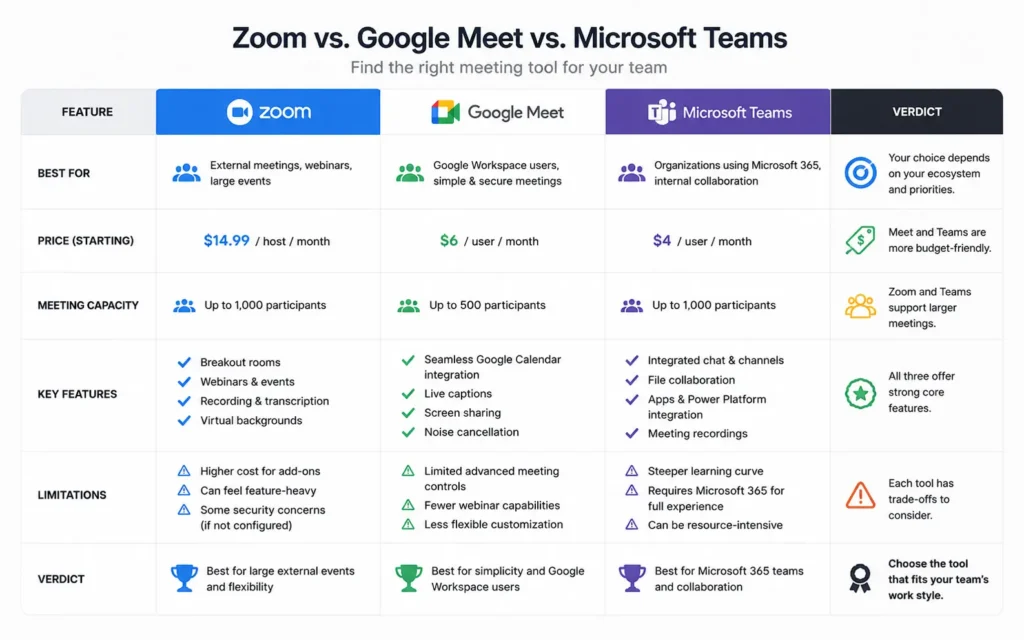
Zoom:
- Free: 40-minute group call limit, unlimited 1:1 meetings
- Pro: $14.99/month per host — removes time limit, adds cloud recording, 100 participant max
- Business: $19.99/month per host — adds company domain management, 300 participant max, dedicated phone support
- Hidden cost: Each host needs a paid license. Participants join free.
Google Meet:
- Free: 60-minute group calls, 100 participants, no recording
- Business Starter: $6/month per user — 24-hour meetings, 100 participants, recording saved to Drive
- Business Standard: $12/month per user — 150 participants, noise cancellation, attendance tracking
- Hidden cost: You’re paying for full Google Workspace, not just Meet. If you only need Meet, this is overkill.
Microsoft Teams:
- Free: 60-minute meetings, 100 participants, 5GB file storage
- Business Basic: $6/month per user — unlimited meetings, recording, 1TB storage
- Business Standard: $12.50/month per user — adds desktop Office apps, advanced security
- Hidden cost: Teams is rarely purchased alone. Most organizations bundle it with Office 365, making the true cost higher than the per-user price suggests.
(2025–2026 rates — verify before purchase)
Final Recommendation: Stop Chasing Features
Here’s the honest take: most teams overthink this decision.
If you need meetings to work reliably and you’re willing to install an app, use Zoom. It’s the tool that works when your internet doesn’t.
If you live in Google Calendar and want zero friction, use Google Meet. The time saved on scheduling adds up.
If you’re already paying for Office 365 and need collaboration beyond meetings, use Microsoft Teams. But don’t choose it just because it’s included — choose it because you need what it does.
The alternative nobody talks about: if meetings are your bottleneck, the tool isn’t the problem. The meeting culture is. No video software fixes meetings that should be emails, agendas that don’t exist, or calendars packed back-to-back.
Blunt verdict: For most remote teams under 20 people, Google Meet’s free tier or Zoom Pro at $14.99/month is the right choice. Teams is worth it only if you need the full Office ecosystem.
Frequently Asked Questions About Best Meeting Tools
What is the most reliable video meeting software for daily use?
Zoom remains the most reliable for daily use because it handles poor connections better than competitors. Video quality degrades gracefully instead of freezing, and reconnection after dropped WiFi is faster. Google Meet is close second if your team lives in Google Workspace.
Which meeting tool is best for small teams on a budget?
Google Meet is best for small teams on a budget because the free tier includes 60-minute group calls with up to 100 participants and requires no software installation. Zoom’s free tier limits group calls to 40 minutes, which breaks most team meetings.
Do I need Microsoft Teams if my company uses Office 365?
If your company uses Office 365, you already have Teams included, but that doesn’t mean you must use it for meetings. Teams works best when you need deep Office integration and persistent chat channels. For pure video meetings, Zoom or Meet are simpler and more reliable.
What meeting tool has the best screen sharing quality?
Zoom has the best screen sharing quality for technical presentations because it handles high-resolution displays and video playback without lag. Google Meet compresses shared screens more aggressively, which makes code and small text harder to read.
Can I switch between meeting tools if one doesn’t work?
Yes, but the switching cost is higher than most teams expect. Training, calendar integration, and participant habits all create friction. Choose based on your primary constraint — reliability, simplicity, or collaboration — and commit for at least six months before reevaluating.
Continue Exploring
For deeper workflow decisions, compare these tools against your broader productivity stack to see how meeting software integrates with async communication and project management. Productivity and Remote Work Tech
If you’re building a complete remote work setup, understanding how meeting tools fit into your overall SaaS stack prevents tool sprawl and reduces monthly costs.