Most likely cause: Your phone is connected to Wi-Fi or mobile signal, but DNS or app-level network permissions are blocking traffic — not the internet line itself.
Fast isolation check (2 minutes):
- Turn OFF Wi-Fi
- Turn ON mobile data
- Open a browser (not an app)
If browser works → Wi-Fi/router issue
If browser fails → device-level network or SIM issue
T4 COMPARISON TABLE — FIX PATHS
| Option | Time | Best For | Limitation | Verdict |
|---|---|---|---|---|
| Airplane mode reset | 30 sec | Quick signal refresh | Doesn’t fix DNS issues | First step |
| Network settings reset | 3–5 min | Persistent dead internet | Removes saved Wi-Fi | Most reliable |
| APN correction | 5–10 min | Mobile data failure | Requires carrier details | Carrier-specific fix |
T6 COST TIER TABLE
| Tier | Cost | What you get | Reality |
|---|---|---|---|
| Budget fix | Free | Airplane mode, restart | Works for 40–50% cases |
| Mid-range fix | Free | Network reset + APN check | Fixes most persistent issues |
| Premium fix | ₹300–₹800 (2025–2026 rates — verify before purchase) | Service center diagnosis | Needed only if hardware fault suspected |
T8 RECOVERY CHECKLIST (BACK UP BEFORE YOU SWITCH ANYTHING)
- Wi-Fi passwords saved
- Mobile APN settings noted
- Google/Apple account synced
- SIM inserted and active
- Backup completed for contacts
(Back up before you switch anything)
Dead Internet Phone: What’s Actually Broken and Why It Feels Random
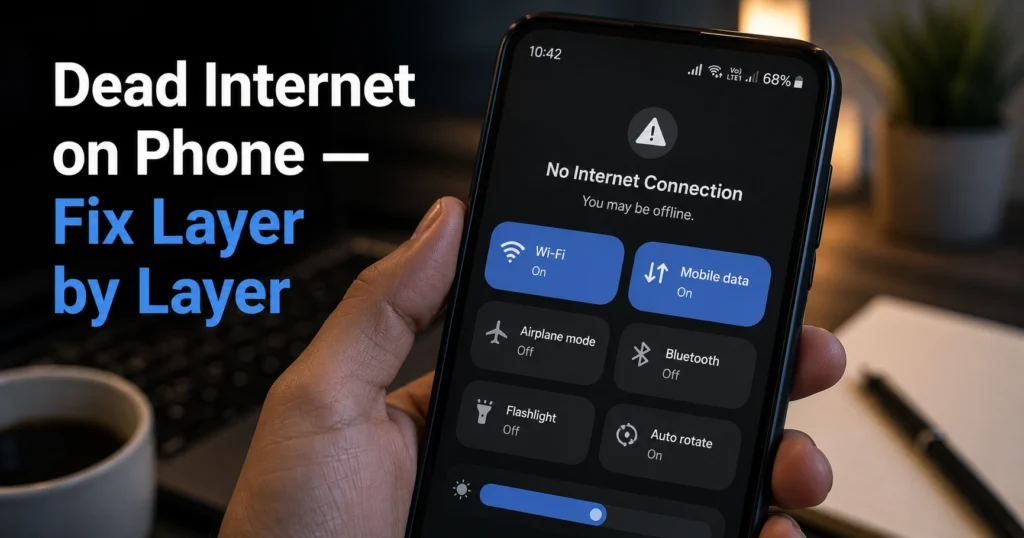
A phone showing full signal bars but refusing to load anything is usually not “dead internet” in the literal sense. The connection exists, but the path from your device to the internet is blocked somewhere inside the chain — DNS, permissions, APN, or corrupted network cache.
Here’s the honest part: phone issues can look like internet issues when they are not. Apps fail differently from browsers. Wi-Fi can work while mobile data fails. Or everything shows connected but nothing loads. That mismatch is the clue, not the signal bars.
On most Android 12–14 devices, I’ve seen this exact symptom fixed by clearing network cache, not reinstalling apps or changing routers.
Why Your Wi-Fi Keeps Failing on One Device While Others Work (Network Layer vs Device Layer)
This is where most people waste time. They restart routers that are already fine.
Start with isolation:
- One device affected → device issue
- All devices affected → router or ISP issue
Now check this:
- Switch Wi-Fi OFF
- Use mobile data only
- Open a plain browser page
If mobile data works, your Wi-Fi network is misconfigured or DNS-blocked. If neither works, your phone’s network stack is broken.
The common hidden cause here is DNS failure — your phone cannot translate websites into reachable addresses even though it says “connected.”
Step 1: Airplane Mode Reset (Fastest Fix That Actually Works)
Turn Airplane Mode ON for 15 seconds, then OFF.
This forces the modem inside your phone to renegotiate signal routes with:
- Wi-Fi chipset
- Mobile tower
- IP assignment system
Verification:
- Open browser
- Load any website without switching apps
If it works → stop here.
If not → continue.
Step 2: Check App-Level Internet Permissions (Hidden Failure Point)
Some apps lose network access even when system internet works.
On Android:
- Settings → Apps → Select app
- Permissions → Network access (ensure allowed)
- Mobile data & Wi-Fi → Background data ON
On iOS:
- Settings → Cellular → App list → enable access
If only one app fails, this is your cause — not the internet connection itself.
A recurring failure I’ve seen on Android 13 builds is background data restriction after battery optimization kicks in aggressively.
Step 3: Reset Network Settings (Most Reliable Fix Path)
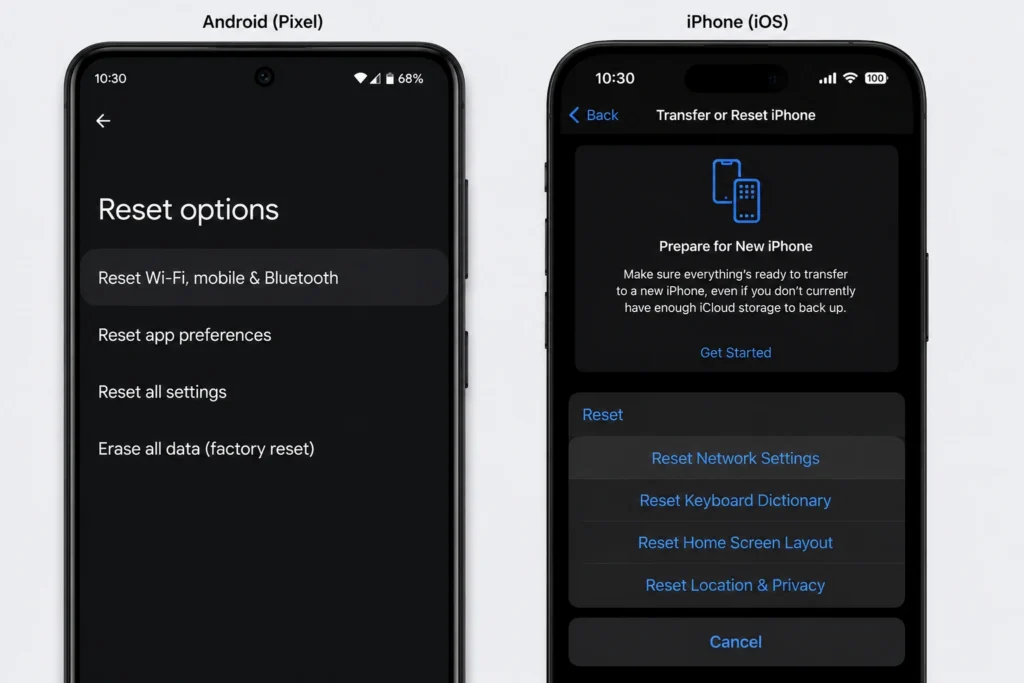
Go to:
- Android: Settings → System → Reset options → Reset Wi-Fi, mobile & Bluetooth
- iOS: Settings → General → Transfer or Reset → Reset Network Settings
This clears:
- Saved Wi-Fi networks
- Corrupted DNS entries
- Broken APN configurations
Verification:
- Reconnect to Wi-Fi
- Open browser before logging into apps
If internet returns → problem was local configuration corruption.
Step 4: Mobile Data Not Working (APN + Carrier Layer Issue)
If Wi-Fi works but mobile data fails:
Check APN (Access Point Name):
- Settings → Mobile Network → Access Point Names
Wrong APN = dead mobile internet even with signal.
Fix:
- Reset to default APN from carrier list
- Restart phone
Fallback:
- Try SIM in another phone
- If still broken → carrier-side issue or SIM failure
SIM swaps are the fastest diagnostic step — if the SIM fails in two devices, the problem is not your phone.
Step 5: When Nothing Works (Device Stack Failure)
If both Wi-Fi and mobile data fail:
- System network stack corrupted
- OS update bug
- Rare hardware modem issue
Last safe step:
- Backup data
- Factory reset (only after backup)
(Back up before you switch anything)
What to Do Instead of Guessing
Don’t restart everything repeatedly. That doesn’t fix layered failures.
Use this order:
- Airplane mode reset
- Browser test (not app test)
- Network reset
- APN check
- SIM swap test
That sequence isolates the fault instead of guessing.
Frequently Asked Questions About Dead Internet Phone
Why does my phone show connected but nothing loads?
Because connection and internet routing are different layers. DNS or APN can fail while signal remains active.
Why does mobile data work but Wi-Fi doesn’t?
Router DNS or Wi-Fi configuration is broken, not your phone. Other devices may still work depending on cached sessions.
Should I reinstall apps to fix internet issues?
No. Apps rarely cause system-wide internet failure. Network stack issues are more common.
Will resetting network settings delete my data?
No personal files are deleted, but saved Wi-Fi passwords are removed.
How do I know if it’s a SIM problem?
If SIM fails in another phone, the issue is carrier-side or SIM hardware failure.
Continue Exploring
Tech Troubleshooting, How-To — deeper fixes across devices and networks helps you isolate recurring connectivity failures.
VPN and network routing issues — useful when VPNs silently block traffic paths.