Quick Diagnostic Sequence for Random Internet Drops
- Test one device with Ethernet instead of Wi-Fi.
- Restart the modem first, then the router after 60 seconds.
- Check whether all devices disconnect or only one.
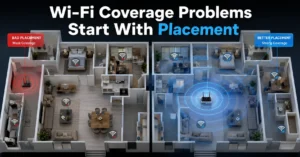
- Move the router away from walls, TVs, microwaves, or metal shelves.
- Update router firmware. (Check current version support before publishing)
- Test different DNS servers.
- Check your ISP outage page or line status.
- Verify whether drops happen at specific times.
If your internet keeps dropping, the pattern matters more than the symptom. Random disconnects are rarely random. They usually follow one layer failing repeatedly: Wi-Fi interference, ISP instability, overheating hardware, bad firmware, or a device holding onto a broken network profile.
The mistake most people make is changing five settings at once. Then the connection stabilises for ten minutes and nobody knows what actually fixed it. Start with one device. One test. One layer at a time.
A quick example. If Ethernet stays stable for two hours while Wi-Fi disconnects every 15 minutes, the internet line is probably fine. Your problem lives in the wireless layer instead.
And that changes the fix completely.
Why Your Wi-Fi Keeps Dropping on One Device and Not the Others
If only one phone, laptop, or tablet loses connection while every other device stays online, stop rebooting the router. The issue is probably local to that device.
The most common causes are:
- corrupted saved Wi-Fi profiles
- outdated Wi-Fi drivers
- aggressive battery optimisation
- VPN conflicts
- roaming between 2.4 GHz and 5 GHz bands badly
2.4 GHz Wi-Fi travels farther but runs slower and picks up more interference. 5 GHz is faster but weaker through walls. Some devices bounce badly between them — especially older Windows laptops and low-cost Android phones.
A real-world symptom: the device says “Connected, no internet” for 20–30 seconds before recovering. That often points to DNS failure or a bad saved network profile, not a dead internet line.
Try this sequence:
- Forget the Wi-Fi network on the affected device.
- Reconnect using a fresh password entry.
- Disable VPN software temporarily.
- Update the Wi-Fi driver or operating system.
- Test again within 2 metres of the router.
Verification matters here. If the disconnects stop only near the router, the issue is probably signal strength or interference, not the device itself.
Router Placement Problems Most People Never Test Properly
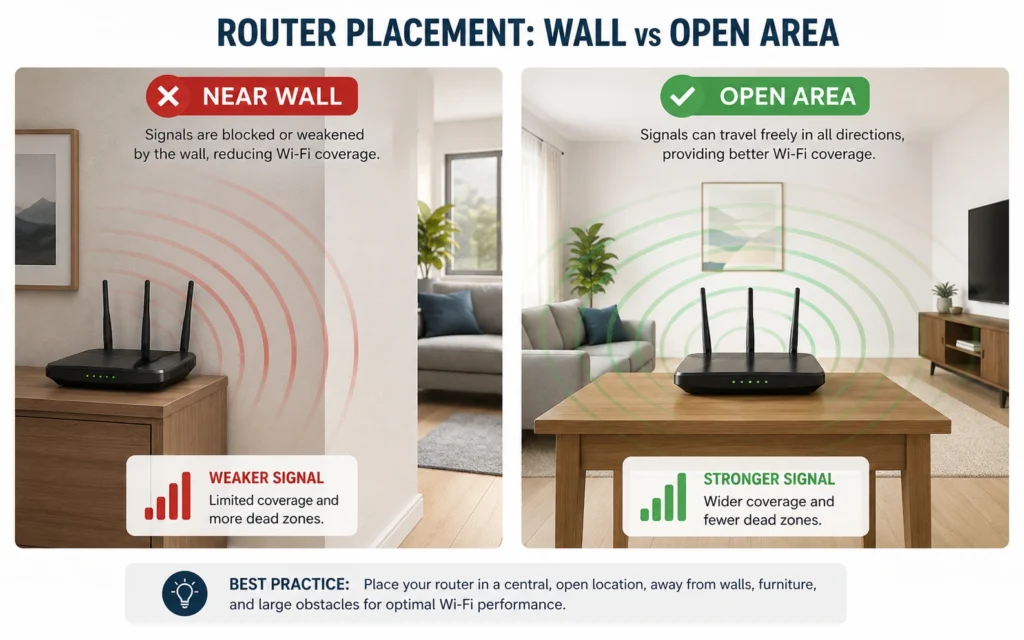
The router sitting behind a TV cabinet is not a harmless detail. It changes signal behaviour.
Wi-Fi signals weaken through:
- concrete walls
- mirrors
- refrigerators
- metal shelving
- water pipes
- microwave interference
- dense furniture
And yes, fish tanks. That one surprises people every time.
The strongest routers still struggle when placed inside cabinets or on the floor. Wi-Fi spreads outward and downward poorly from enclosed positions. A router placed chest-high in an open area often performs better than a more expensive router hidden in a corner.
One of the easiest tests:
- Move the router into open space temporarily.
- Test for 24 hours.
- Watch whether connection drops reduce.
That sounds too simple. Still, router placement fixes more “internet disconnects” than most firmware tweaks.
The honest negative: intermittent drops can absolutely come from ISP instability or buggy firmware instead. Placement is not a universal fix. But it is the fastest variable to eliminate.
Verification step:
Run a speed test and a video stream from the same room before and after repositioning the router. Watch for buffering, packet loss, or signal fluctuations.
Firmware, DNS, and the “Everything Looks Fine” Problem
This is where troubleshooting gets annoying.
The router lights look normal. Devices reconnect automatically. Speed tests sometimes pass. And yet the connection drops continue every few hours.
That often points to:
- outdated router firmware
- failing DNS resolution
- memory leaks in older routers
- overheating hardware
Firmware is the router’s operating system. Some older models develop stability problems after ISP updates or security patches. Consumer routers running continuously for 12–24 months without a firmware update are common failure points.
(Check current version support before publishing)
A practical fix sequence:
- Log into the router admin panel.
- Check the firmware version.
- Compare it against the manufacturer support page.
- Install the latest stable release.
- Restart the router after the update.
Don’t factory reset immediately unless updates fail. That wipes custom DNS, port forwarding, and ISP authentication settings.
DNS problems deserve separate attention. DNS translates website names into addresses. When DNS fails, the internet connection may still exist even though websites refuse to load.
Try switching temporarily to:
- Google DNS: 8.8.8.8
- Cloudflare DNS: 1.1.1.1
Verification:
If websites start loading instantly after DNS changes while Wi-Fi signal strength remains unchanged, you found the failure layer.
When the ISP Is Actually the Problem
Not every network issue starts inside your home.
ISP-side failures usually show patterns like:
- disconnects at the same time daily
- evening slowdowns
- modem signal loss
- neighborhood outages
- packet loss during peak usage
Cable internet connections often degrade under congestion during evening hours. Fiber connections tend to remain more stable but still suffer from line maintenance or regional outages.
One detail people miss: modem lights matter.
A blinking upstream or downstream light usually points to line instability between the modem and ISP — not your Wi-Fi settings.
Use the ISP’s outage page or app first before changing hardware. Many people waste hours resetting routers during known regional outages.
Verification step:
Connect directly through Ethernet during a dropout. If the wired connection also fails, the issue is upstream from Wi-Fi.
How to Tell Whether the Problem Is Wi-Fi or the Internet Line
This single distinction saves the most time.
Wi-Fi is the wireless connection between your device and router.
The internet line is the connection between your modem/router and the ISP.
Those are different layers. And the symptoms overlap badly.
| Symptom | Likely Cause |
|---|---|
| Wi-Fi signal disappears completely | Router or wireless issue |
| Connected to Wi-Fi but websites fail | DNS or ISP issue |
| Ethernet stable but Wi-Fi unstable | Wireless interference |
| All devices disconnect together | Router, modem, or ISP |
| One device disconnects alone | Device-specific issue |
| Drops during gaming/video calls only | Packet loss or congestion |
A common mistake is replacing the router before testing Ethernet. Don’t do that.
An Ethernet cable test isolates the Wi-Fi layer immediately. If Ethernet remains stable for hours while wireless keeps failing, focus on:
- router placement
- wireless channels
- interference
- firmware
- device roaming behaviour
Common Mistakes That Make Connection Drops Worse
Restarting the router ten times in one hour hides patterns instead of revealing them.
So does changing DNS, Wi-Fi channels, device settings, and VPN apps all at once.
Other common mistakes:
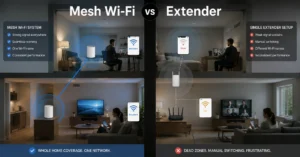
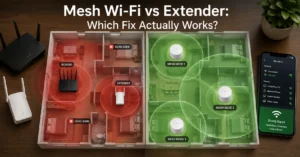
- placing mesh nodes too far apart
- mixing old Wi-Fi 4 devices with Wi-Fi 6 routers badly
- leaving routers in direct sunlight
- ignoring overheating
- using ISP-provided routers from six or seven years ago
Here is the blunt verdict.
A large number of “random internet problems” are actually old router problems.
Especially routers with:
- outdated firmware
- weak cooling
- overloaded ISP combo hardware
- low memory capacity
But replacing hardware before proper testing wastes money. Verify first.
What to Replace — and What Not to Replace Yet
Replace the router if:
- firmware updates fail repeatedly
- Ethernet also disconnects
- overheating persists
- the router reboots itself
- the hardware is older than 5–6 years
- Wi-Fi 5 or Wi-Fi 6 support matters for your workload
Do not replace the router first if:
- only one device disconnects
- ISP outages are confirmed
- signal strength changes by room
- VPN software triggers drops
- DNS fixes solve the issue
The honest alternative is less dramatic than most people expect. Sometimes the real fix is moving the router two metres higher, separating it from the modem, or updating firmware that nobody touched since installation day.
And yes — that boring fix is often the correct one.
(Back up before you switch anything)
Frequently Asked Questions About Internet Connection Drops
Why does my internet keep disconnecting every few minutes?
Repeated disconnects usually come from Wi-Fi interference, unstable ISP lines, overheating routers, or firmware bugs. Test Ethernet first. That tells you whether the failure is inside your Wi-Fi network or upstream with the internet connection itself.
Can a bad router cause intermittent internet drops?
Yes. Older routers often develop overheating, memory, or firmware stability problems after years of continuous use. Random disconnects, delayed reconnections, and frequent restarts are common signs.
Why does my internet only drop at night?
Evening drops often point to ISP congestion or neighborhood bandwidth load. Cable internet connections are especially affected during peak hours when many households are online simultaneously.
Should I factory reset the router immediately?
No. Factory resets erase custom settings and ISP configurations. Try firmware updates, DNS testing, and placement changes first. Reset only after simpler fixes fail.
Why does Ethernet work while Wi-Fi keeps disconnecting?
That usually means the internet line itself is stable. The problem is likely wireless interference, poor router placement, overloaded Wi-Fi channels, or device roaming behaviour.
Continue Exploring
- Tech Troubleshooting, How-To helps you isolate stubborn connectivity failures, router issues, and device-specific network problems before replacing hardware blindly.
- VPN troubleshooting and connection fixes explains why VPN apps often trigger DNS conflicts, unstable routing, and sudden disconnect loops that look like ISP failures.