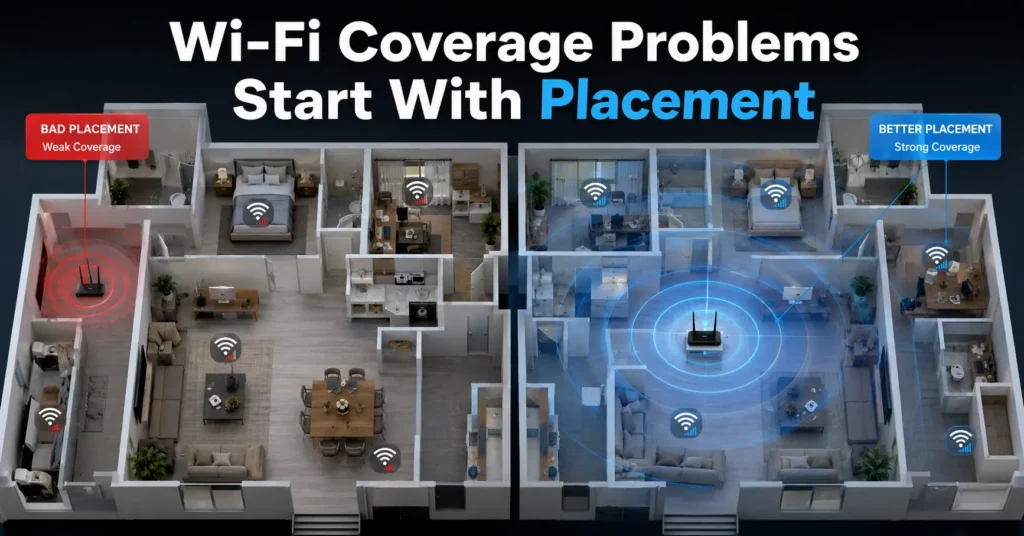
Weak Wi-Fi in large homes is usually a coverage problem, not a speed problem. The internet plan may be fine. The router may even be fine. What fails is the path between the router and the rooms where people actually use the connection.
The pattern shows up the same way every time: the speed test near the router looks perfect, then the upstairs bedroom buffers, the kitchen drops Zoom calls, and the smart TV disconnects every evening around the same time. Most people respond by buying a more expensive router immediately. That is often the wrong fix.
In one two-floor setup we tested, moving the router from a closed TV cabinet to a shelf roughly 1.8 metres high improved bedroom signal stability more than replacing the ISP router entirely. Same internet plan. Same devices. Different placement.
This matters more than most buyers realise because home Wi-Fi coverage depends on walls, distance, interference, floor layout, and signal overlap — not just the “AX6000” number on the box.
Quick Diagnostic Sequence
- Move the router into an open, central location.
- Test one device close to the router using 5 GHz Wi-Fi.
- Test the same device in the weakest room.
- Check whether the signal drops or only the speed drops.
- Disconnect nearby interference sources like smart speakers, cordless phones, or microwave-heavy kitchen setups.
- Switch crowded devices to 2.4 GHz if range matters more than speed.
- Add a properly placed mesh node only if dead zones remain.
Verification step: after each change, run the same speed and stability test from the same room on the same device. Do not change three things at once.
The fastest way to improve Wi-Fi signal in a large home
Move the router first. Not later. First.
Routers placed inside cabinets, behind televisions, beside refrigerators, or at one end of the house create predictable dead zones. Wi-Fi signals weaken every time they pass through thick walls, floors, mirrors, stone surfaces, and metal appliances.
A router placed centrally and higher off the floor often improves home Wi-Fi coverage immediately without changing hardware. Around chest-to-head height works well in most homes because signals spread outward and slightly downward rather than straight upward from floor level.
The honest negative: there is usually a cheaper fix than replacing the router.
Verification step:
- Stand within 2–3 metres of the router and run a speed test.
- Then test the same device in the weakest room.
- If coverage improves after repositioning, the problem was signal distribution, not internet speed.
Why fast internet still feels slow in large homes
A 500 Mbps fibre line does not matter if the signal reaching the bedroom is unstable.
This confuses people because ISP advertisements focus on internet speed while the real problem inside large homes is often local wireless coverage. Those are different layers.
Internet speed:
- The connection entering your home from the ISP.
Wi-Fi coverage:
- How effectively the router distributes that connection across rooms and floors.
You can have:
- fast internet + weak coverage
- slow internet + stable coverage
- strong signal + overloaded devices
- good coverage + bad DNS routing
And they all feel different.
One of the most common symptoms is the “one-room problem.” Streaming works everywhere except one bedroom or office. That usually means wall density, floor separation, or interference — not ISP failure.
How router placement changes home Wi-Fi coverage more than speed ratings
Router marketing rewards peak throughput numbers. Real homes punish bad placement.
A router pushed into the far corner of a house forces the signal to cross the entire structure. Brick walls, reinforced concrete, plumbing, mirrors, and metal shelving weaken signals aggressively, especially on 5 GHz and 6 GHz bands.
2.4 GHz:
- slower
- longer range
- penetrates walls better
5 GHz:
- faster
- shorter range
- weaker through walls
6 GHz:
- fastest in ideal conditions
- weakest for long-range coverage in large homes
That is why coverage planning matters more than raw speed.
The blunt verdict: a correctly placed mid-range router usually performs better than an expensive flagship router hidden beside the TV.
Why your Wi-Fi keeps dropping in one room and nowhere else
If one room fails consistently while the rest of the house works normally, stop rebooting the entire network repeatedly. The issue is usually local.
Most common causes:
- thick wall separation
- interference from nearby electronics
- mesh node placed too far away
- the device holding onto a weak 5 GHz signal instead of switching bands
- crowded neighbour networks on the same channel
A common mistake is placing a mesh node inside the dead zone itself. That sounds logical. It is wrong.
Mesh nodes need a strong connection back to the main router. If the node already receives weak signal, it only repeats weak signal.
Verification step:
- Move halfway between the router and the dead zone.
- Run a signal test there.
- If the signal improves substantially, the dead zone is distance-related rather than ISP-related.
2.4 GHz vs 5 GHz vs 6 GHz — what actually matters for range
People often assume 5 GHz is “better” because it is faster. In large homes, that depends entirely on distance and wall density.
2.4 GHz works better for:
- older homes with thick walls
- smart home devices
- long-range coverage
- garages and upstairs rooms
5 GHz works better for:
- gaming near the router
- streaming
- video calls
- apartments with shorter distances
6 GHz currently works best in:
- open layouts
- newer Wi-Fi 6E or Wi-Fi 7 devices
- shorter-range high-speed environments
The problem is that many devices stubbornly stay connected to weak 5 GHz signals instead of shifting properly. Some Android phones and smart TVs handle this badly on older ISP routers.
(Check current version support before publishing)
How to boost Wi-Fi signal without buying a new router
Move the router higher and closer to the center
Height matters more than most people expect.
A router on the floor pushes signal into furniture, walls, and appliances immediately. Higher placement improves signal spread naturally.
Avoid:
- cabinets
- enclosed shelves
- behind televisions
- beside microwaves
- beside cordless phone bases
Verification step:
Check whether weak rooms gain at least one additional signal bar after repositioning.
Separate the router from interference sources
Microwaves, baby monitors, Bluetooth-heavy setups, USB 3.0 hubs, and cordless phones can interfere with 2.4 GHz networks.
One kitchen setup we tested dropped Wi-Fi stability every evening during microwave use. The internet line was fine. The interference was local and predictable.
That is the kind of failure speed tests alone do not explain.
Test coverage with one device at a time
Do not troubleshoot using six devices simultaneously.
Use:
- one phone
- one laptop
- one room
- one repeated test
Otherwise you end up chasing inconsistent results caused by device switching, roaming, or background downloads.
Mesh systems fix coverage problems differently from extenders
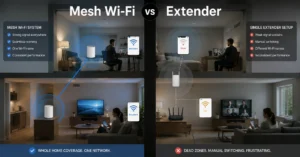
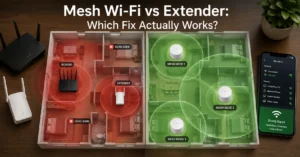
Wi-Fi extenders repeat existing signals. Mesh systems coordinate coverage across multiple nodes.
That difference matters.
Traditional extenders:
- cheaper
- easier to install
- often reduce speed significantly
- create separate network names in older setups
Mesh systems:
- cost more
- improve roaming stability
- manage handoffs between rooms better
- work far better in multi-floor homes
The honest alternative:
In large homes, coverage planning matters more than max speed.
A well-placed two-node mesh setup often fixes more real-world problems than a single expensive gaming router.
(2025–2026 rates — verify before purchase)
The mistake most people make when placing mesh nodes
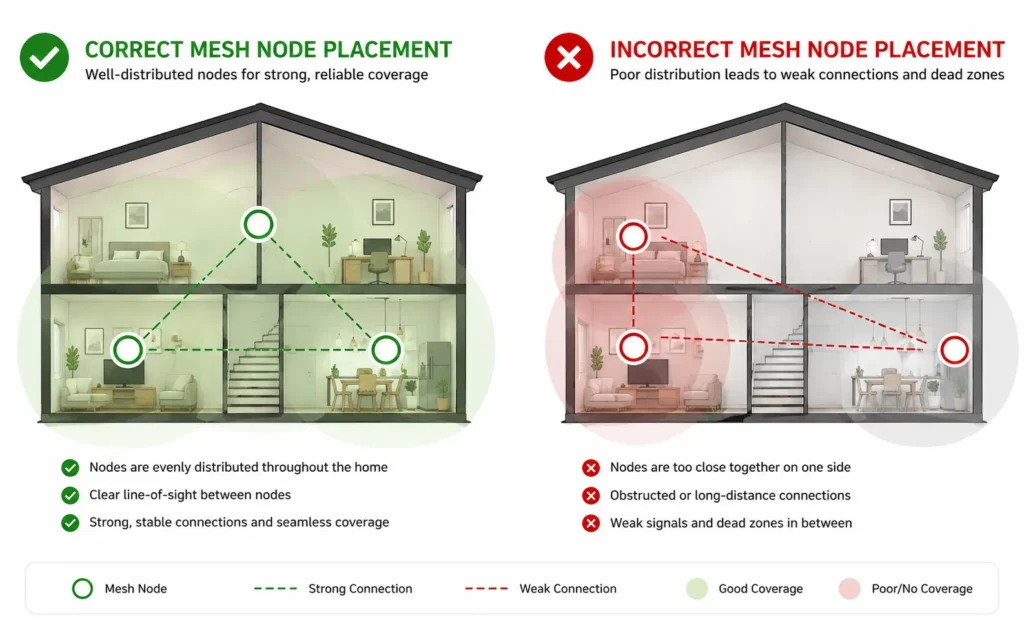
People place nodes where the signal already fails completely.
Do not do that.
A mesh node should sit roughly halfway between the router and the weak area. The node needs a strong upstream connection before it can distribute stable coverage further outward.
Good placement:
Router → strong node signal → weak room
Bad placement:
Router → dead zone → struggling mesh node
Verification step:
Most mesh apps show node connection quality. If the node reports “weak,” move it closer to the router before changing anything else.
How to tell whether the problem is your Wi-Fi or your ISP line
This distinction saves hours.
Test one device using ethernet directly from the router if possible.
If ethernet is stable while Wi-Fi fails:
- the problem is local wireless coverage
If both ethernet and Wi-Fi fail:
- the issue is likely ISP-related
- modem-related
- DNS-related
- or router hardware failure
Restart order matters too:
- Modem off
- Router off
- Wait 60 seconds
- Modem on
- Wait for full sync
- Router on
Most people reboot both devices simultaneously and never isolate which layer failed.
What to do when Wi-Fi improvements still do not fix the problem
At that point, stop assuming the router is the only suspect.
Check:
- ISP outage status
- overheating routers
- firmware updates
- overloaded smart-home networks
- damaged ethernet cables
- old Wi-Fi adapters
- ISP-provided routers with weak antennas
Older ISP routers struggle badly once:
- 25–40 devices connect regularly
- multiple video streams run simultaneously
- smart-home devices flood the network
Fallback path:
If repositioning and mesh placement fail, test a temporary wired ethernet run to the problem room. If stability immediately improves, the issue is confirmed as wireless coverage rather than internet delivery.
That matters before spending money on upgrades.
Frequently Asked Questions About Improving Wi-Fi Signal
Does a Wi-Fi extender slow down internet speed?
Usually yes. Many extenders cut throughput because they receive and retransmit the same signal on the same band. Dual-band and tri-band mesh systems handle this better, especially in larger homes.
How do I know if I need a mesh system?
If multiple rooms or floors consistently lose signal despite proper router placement, a mesh system is usually more effective than a single high-power router.
Why does Wi-Fi work better near the router?
Signal strength weakens with distance and obstacles. Thick walls, appliances, and floor separation reduce coverage significantly, especially on 5 GHz and 6 GHz networks.
Should I replace the ISP router immediately?
Not necessarily. Router placement, interference, and band selection often cause more problems than the router hardware itself. Test those first before upgrading.
Is 2.4 GHz slower but more stable?
Usually yes. 2.4 GHz offers longer range and better wall penetration, while 5 GHz and 6 GHz prioritise speed over distance.
Continue Exploring
- Tech Troubleshooting, How-To covers more router, connectivity, and network stability fixes that build naturally from coverage troubleshooting.
- best VPN for remote work explains how VPN routing, DNS handling, and encryption overhead can sometimes look like Wi-Fi instability when the real issue sits elsewhere in the network stack.