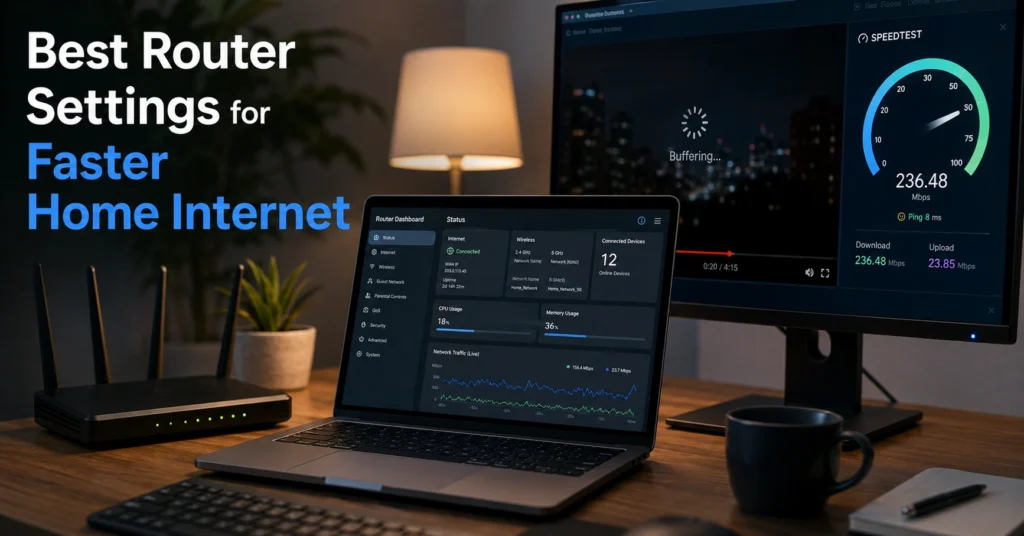
Most slow home internet setups are not actually internet problems. They are router problems layered on top of otherwise decent broadband. The line coming into the house is fine. The router settings are not. And the fastest-looking settings are often the least stable ones.
One of the easiest ways to wreck a working network is changing six settings at once because a forum thread promised “gaming performance.” That usually ends with random disconnects, smart-home devices falling offline, and one laptop refusing to reconnect until you reboot the router again. The real goal is stability first, speed second, convenience third. That order matters.
This guide walks through the best router settings for faster home internet, which settings help, which ones usually hurt, and how to verify each change actually improved your network.
Quick Diagnostic: The Router Settings That Usually Matter Most
| Problem | Most Likely Cause | First Setting to Check | Verification |
|---|---|---|---|
| Slow Wi-Fi in one room | Weak 5 GHz signal | Split 2.4 GHz and 5 GHz bands | Device stays connected without dropping |
| Fast speed tests but laggy apps | Bad DNS resolution | Change DNS servers | Websites open faster consistently |
| Random disconnects | Channel interference | Manually set Wi-Fi channel | Fewer reconnects over 24 hours |
| Smart-home devices dropping | 5 GHz-only setup | Enable separate 2.4 GHz SSID | Devices reconnect normally |
| Slow speeds everywhere | Old router hardware | Firmware update or replacement | Stable speeds across multiple devices |
If only one room is slow
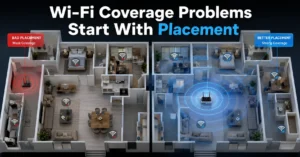
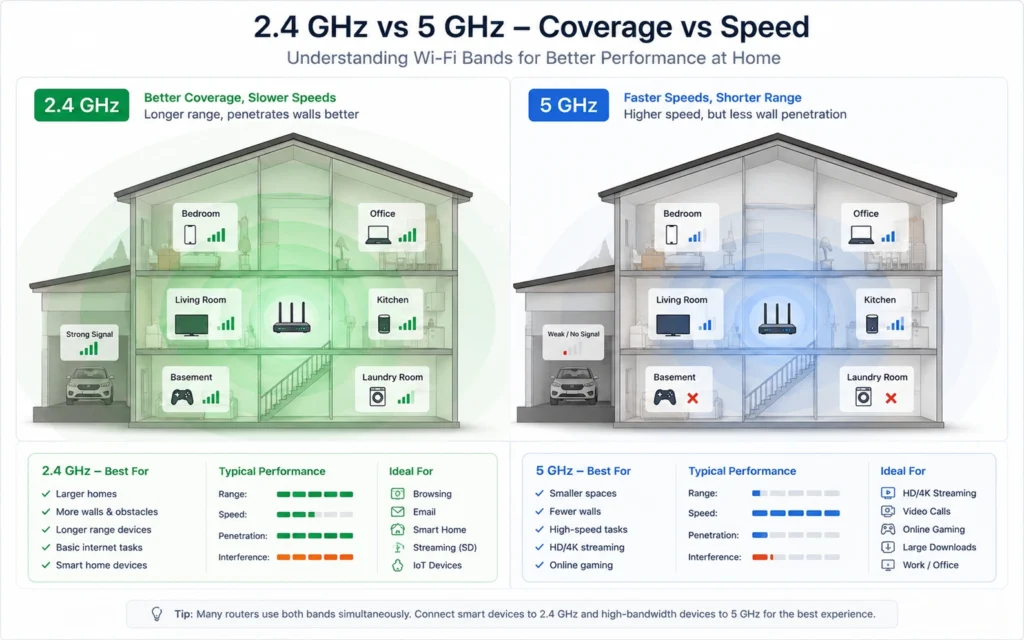
That is usually a signal problem, not an ISP problem. A 5 GHz signal loses strength quickly through brick walls, concrete, mirrors, and floors. If the bedroom at the far end of the house struggles while the living room works perfectly, the router placement or band selection matters more than your broadband plan.
If every device is unstable
Start with the router itself. Reboot the modem first, then the router, then reconnect devices one at a time. A modem converts the ISP line into internet access. The router distributes that connection around the home.
And yes — reboot order matters more than most people think.
If speed tests look fine but apps lag
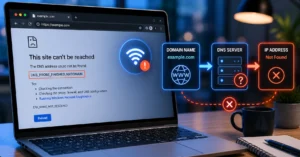
This is often DNS. DNS (Domain Name System) translates website names into addresses devices can actually connect to. A poor DNS server can make websites feel slow even when download speeds look normal.
Most Slow Wi-Fi Problems Start With Stability, Not Speed
The biggest mistake in router optimization is chasing maximum speed before fixing connection stability.
A stable 250 Mbps connection is better than an unstable 700 Mbps connection that drops during calls, buffers on video meetings, or disconnects smart-home devices every few hours. That sounds obvious until you see how many routers ship with aggressive defaults enabled.
Why random disconnects matter more than peak speed
Most home users never saturate a modern broadband line. What they notice instead:
- buffering
- packet loss
- reconnect delays
- roaming failures
- video call freezes
Those are stability problems.
One Asus Wi-Fi 6 router we tested pushed higher benchmark speeds with 160 MHz channel width enabled. It also started dropping older IoT devices twice a day. Disabling the wider channel reduced top-end speed slightly and fixed the network immediately.
Fast settings can still be unstable if they are misconfigured.
The 2.4 GHz vs 5 GHz mistake most homes make
2.4 GHz Wi-Fi travels farther but is slower and more crowded.
5 GHz Wi-Fi is faster but weaker through walls.
Most routers combine both bands into one network name using “band steering.” In theory, devices pick the correct band automatically. In practice, some devices cling to weak 5 GHz signals long after they should switch.
The stability-first approach:
- Separate the network names.
- Connect stationary devices to 5 GHz.
- Leave smart-home devices on 2.4 GHz.
That setup is less convenient initially. It is usually more reliable long term.
(Check current version support before publishing)
The Best Router Settings for Faster Home Internet
These settings improve most home networks without turning troubleshooting into a full-time hobby.
Use separate names for 2.4 GHz and 5 GHz
This is still one of the most effective changes for mixed-device homes.
Example:
- HomeWiFi-2G
- HomeWiFi-5G
Then:
- TVs, laptops, consoles → 5 GHz
- Smart-home devices → 2.4 GHz
Verification step:
Walk around the house and confirm devices remain connected without roaming failures.
Change the DNS servers
Many ISP DNS servers are slow during peak hours.
Common alternatives:
- Cloudflare: 1.1.1.1
- Google DNS: 8.8.8.8
The improvement is usually response time, not raw download speed.
Verification step:
Open multiple websites repeatedly and compare page load consistency before and after the change.
Pick the correct Wi-Fi channel
Wi-Fi channels are radio lanes. Too many nearby routers on the same channel create interference.
For 2.4 GHz:
- Use channels 1, 6, or 11 only.
For 5 GHz:
- Use the least congested channel available.
Apartment buildings especially suffer from automatic channel selection that keeps changing under load.
One practical observation: “Auto” channels often work well at 2 a.m. and badly at 7 p.m. when every neighboring router wakes up.
Update the router firmware
Firmware is the router’s operating system.
Old firmware causes:
- memory leaks
- disconnect bugs
- security problems
- poor device compatibility
Check the manufacturer dashboard monthly.
(Policies change without notice)
Enable WPA2 or WPA3 security only
Avoid mixed legacy modes like:
- WPA/WPA2 mixed
- WEP
Older security standards reduce compatibility and performance.
Verification step:
Reconnect devices and confirm there are no authentication errors after the change.
Why Your Wi-Fi Keeps Dropping on One Device and Not the Others
When only one phone, laptop, or tablet disconnects repeatedly, the router is often not the real problem.
Saved network profiles
Devices sometimes store corrupted Wi-Fi settings.
Forget the network completely:
- Windows: Settings → Network & Internet → Wi-Fi → Manage Known Networks
- iPhone: Settings → Wi-Fi → Forget This Network
- Android: Wi-Fi → Saved Networks
Then reconnect manually.
This fixes more “mystery Wi-Fi” problems than most advanced tweaks.
Driver and OS problems
Wi-Fi drivers control how devices communicate with the router.
Older Intel laptop drivers especially can behave badly with newer Wi-Fi 6 routers. The symptom usually looks like:
- random disconnects
- unstable roaming
- inconsistent speeds
Update both:
- device operating system
- wireless adapter driver
(Check current version support before publishing)
Roaming and band steering issues
Band steering tries to move devices automatically between 2.4 GHz and 5 GHz.
Some devices handle this badly. Especially older printers, cameras, and budget Android phones.
If one device constantly disconnects:
- disable Smart Connect or band steering temporarily
- manually place the device on one band
Verification step:
Test the device for at least 24 hours before deciding the issue is fixed.
Better Wi-Fi Settings That Actually Help in Real Homes
Some router settings sound technical but barely matter. These ones usually do.
Channel width settings
For 2.4 GHz:
- 20 MHz is usually more stable.
For 5 GHz:
- 80 MHz is the practical sweet spot in most homes.
Wider channels can benchmark faster while performing worse in crowded environments.
That trade-off surprises people every time.
QoS and bandwidth priority
QoS stands for Quality of Service. It prioritizes certain traffic types.
Useful examples:
- video calls
- gaming traffic
- work VPN traffic
Bad QoS settings can throttle the entire network. Good ones help prevent one device from consuming all available bandwidth.
Use it carefully.
Router placement
A router hidden behind a television cabinet is already handicapped.
Best placement:
- central location
- elevated surface
- open air
- away from microwaves and thick walls
The “router in the corner of the house” setup is still common — and still terrible for signal consistency.
Router Optimization Settings That Often Make Things Worse
Not every advanced setting deserves to stay enabled.
Automatic “gaming acceleration”
Many routers advertise gaming acceleration features that simply prioritize traffic aggressively without improving actual latency.
Sometimes they help. Often they create instability for every non-gaming device in the house.
The safer starting point is standard QoS.
Max channel width everywhere
160 MHz channels look attractive in marketing screenshots.
They also:
- increase interference risk
- reduce compatibility
- destabilize crowded apartment networks
Stability-first settings are often the best starting point.
Too many smart-home devices on one band
Cheap smart-home devices overload weak routers surprisingly quickly.
Symptoms:
- delayed commands
- intermittent disconnects
- slow response times
Separating IoT devices onto 2.4 GHz usually improves overall stability immediately.
What to Buy Instead of Constantly Tweaking Bad Hardware
Sometimes the settings are fine. The router is simply outdated.
A 2017 entry-level router handling:
- 4K streaming
- remote work
- 30 smart devices
- gaming
- cloud backups
…is already overloaded.
When the router is the bottleneck
Common warning signs:
- router requires frequent reboots
- speeds collapse under multiple devices
- overheating
- firmware no longer updated
If the hardware is the limit, optimization only gets you so far.
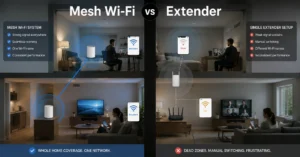
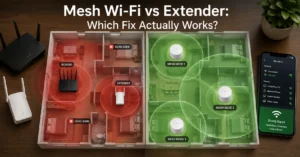
Mesh systems vs single routers
Mesh systems work best for:
- larger homes
- thick walls
- multi-floor layouts
Single routers still work well in:
- apartments
- small homes
- open-plan spaces
And this is the blunt verdict: buying a better router often helps more than endlessly tweaking a weak one.
(2025–2026 rates — verify before purchase)
Frequently Asked Questions About Best Router Settings
What router setting improves Wi-Fi speed the most?
Separating 2.4 GHz and 5 GHz bands usually improves real-world stability first. After that, manual channel selection and DNS changes often produce the most noticeable improvements.
Should I leave Wi-Fi channels on auto?
Auto channels work reasonably well in low-density neighborhoods. In apartments or crowded areas, manual channel selection is usually more stable during peak evening usage.
Does changing DNS actually speed up internet?
Not usually for download speed. It improves how quickly websites and apps resolve connections, which makes browsing feel faster and more responsive.
Is WPA3 better than WPA2?
WPA3 is more secure if all your devices support it. Mixed compatibility environments still work more reliably with WPA2 in many homes.
How often should I reboot my router?
Only when needed. Frequent reboots masking deeper stability problems usually indicate firmware issues, overheating, or failing hardware.
Continue Exploring
- Tech Troubleshooting, How-To
More router fixes, Wi-Fi diagnostics, account recovery walkthroughs, and software troubleshooting guides built for real-world problems instead of generic checklists. - VPN troubleshooting on home networks
Useful if your internet only slows down while connected to a VPN or work tunnel.