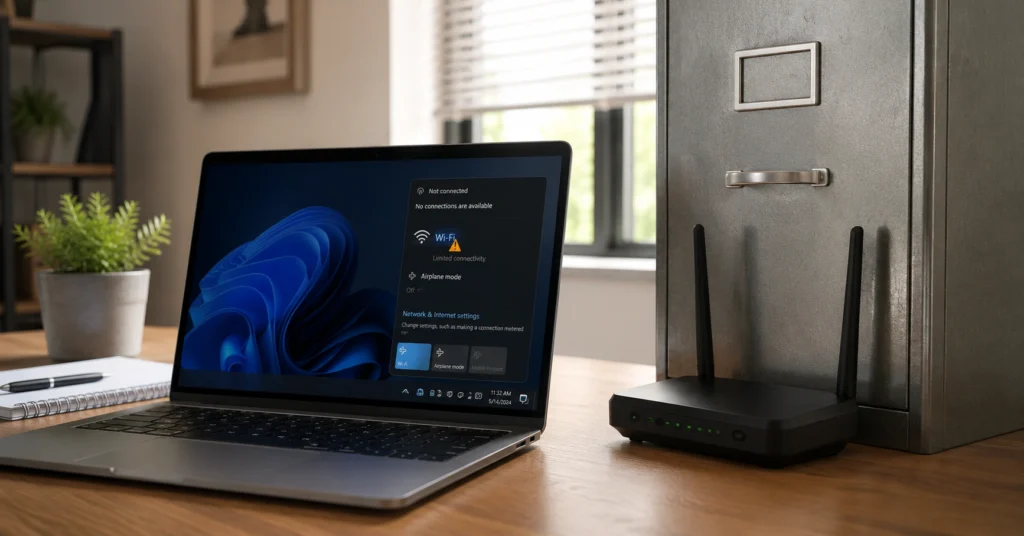
A laptop disconnecting from Wi-Fi repeatedly is almost always caused by an aggressive system power-saving profile or a stale software driver, rather than a broken internal antenna.
Operating systems frequently downclock the internal wireless network adapter to stretch battery configurations, breaking the data lease sequence with your access point. When this happens, your machine drops the link, forces a clean handshake, and restarts the data cycle every few minutes. Wiping your home router config does nothing here because the error lives inside the local operating system’s hardware execution table.
The data below serves as your baseline assessment. Do not run out to purchase a replacement motherboard before validating whether a simple five-minute driver configuration change solves your local laptop network fix.
Quick Diagnostic Matrix
| Evaluation Layer | Failure Presentation | Verification Metric | Immediate Remediation Path |
| Wi-Fi Card (Hardware) | All local networks vanish instantly from the OS tray | Device Manager status error code 10 or 43 | Re-seat internal M.2 card or buy external USB dongle |
| Driver (Software) | Drops happen precisely when downloading huge media files | System event log throws a WLAN-Autoconfig error | Roll back to factory OEM driver, avoid generic packages |
| Signal (Environment) | Disconnects happen only when moving past specific walls | Ping response latency spikes beyond 200ms before drop | Hardcode router channel widths down to 40MHz or 20MHz |
What Your Hardware Rewards and What It Punishes When Troubleshooting Drops
Isolating a wireless issue requires methodical deduction because your operating system hides hardware faults behind the exact same interface messages it uses for weak signals.
If you change your DNS settings, update your drivers, and reset your router IP tables at the exact same time, you create an unresolvable diagnostic mess. The local network infrastructure rewards operators who test one specific variables path at a time and punishes those who throw wholesale software resets at localized hardware quirks.
Laptops frequently fail because background power management engines aggressively disable components without informing the user interface. Your computer thinks it is saving milliwatts of electricity during a minor network lull, but the remote router views that transmission pause as a dropped packet dead end.
The router closes the connection port to protect local area network efficiency. When the laptop wakes up a millisecond later to fetch data, it finds its lease terminated, resulting in that sudden drop animation in your taskbar.
What to Know About Your Network Stack Before You Start Wiping Settings
Every laptop handles networking through four distinct layers: the physical mini-PCIe or M.2 card, the kernel-level device driver, the operating system configuration layer, and the radio frequency workspace.
A failure in any single point of this pipeline breaks your internet session completely. Wiping out your network configuration files without understanding this stack is a fast way to turn a minor driver bug into an unbootable authentication cycle.
[Physical M.2 Card] ──► [Kernel Device Driver] ──► [OS Network Stack] ──► [RF Workspace]
The component that drops the connection is the wireless network adapter—the actual silicon chip seated inside your laptop frame. This card is connected to two distinct antenna lines that run up through the screen hinge to capture radio frequency signals.
If your screen hinge has worn loose from years of travel, those physical copper leads can crimp or shear, leading to instant drops whenever you adjust the angle of the laptop display. Before you touch a software configuration utility, confirm whether moving your laptop screen physically causes the wireless networks list to refresh or disappear.
The Three Failure Layers Worth Building a Fix Around
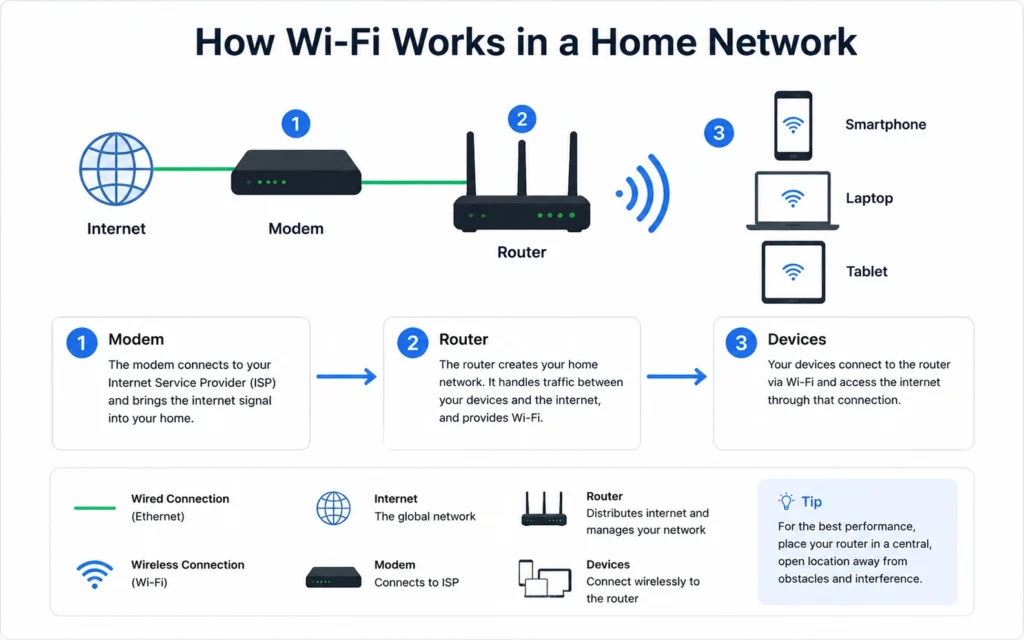
To stop a laptop disconnecting from wifi loops, you must isolate whether your machine is dropping the link due to a failing physical card, a corrupted driver layer, or localized radio frequency degradation. Treat these layers as completely separate problems. Fixing a software issue with a hardware replacement is a waste of money, and chasing a signal problem inside your operating system settings is a waste of time.
1. The Wireless Card Layer (Physical Hardware)
When your internal M.2 card begins to fail or suffers from overheating, the operating system loses total communication with the chip. You will click the network icon only to find that the entire wireless sub-menu has vanished from existence, replaced by a generic globe icon with a red strike through it.
Open your system’s hardware utility panel. If you see a warning symbol over your Intel, Qualcomm, or Realtek adapter listing an Error Code 10, the chip failed to start because it has either slipped from its internal slot or suffered an internal hardware breakdown.
2. The Driver Layer (Kernel Software)
This is the most common point of failure for modern machines. A device driver is the translation software that allows your operating system to issue raw execution commands to the network silicon chip. When Microsoft or Apple pushes a background operating system update, they often overwrite stable, manufacturer-certified drivers with generalized performance packages.
These generic variants look stable on paper but break down when handling high-throughput actions like video calls or massive file transfers. The driver hits an unhandled memory exception, stops responding for a fraction of a second, and the local link crashes out.
3. The Signal Layer (Radio Frequency Environment)
Your laptop might drop links because it is trying to hold onto a 5 GHz band connection that lacks the physical capability to punch through home infrastructure. High-frequency bands deliver immense speed but degrade the moment they encounter brick walls, concrete support beams, or large appliance enclosures.
If your laptop’s internal card has its roaming aggressiveness configuration slider set too high, it will constantly drop a stable, slow 2.4 GHz link to hunt for a fast 5 GHz node that is just out of physical range. The laptop disconnects from wifi because it cannot stop hunting for a better signal.
Where the Costs Fall: Software Repairs, Utility Tools, and Hardware Tiers
Fixing a laptop wireless issue does not require deep capital outlays if you work systematically from the software layers downward. Most drops are corrected via free structural toolsets built into the operating system or clean OEM code updates. If the physical card itself has degraded due to age or heat cycling, structural changes require explicit replacement costs. (2025–2026 rates — verify before purchase)
Connection Repair Pricing Framework
| Budget Tier | Direct Cost Range | What It Delivers | Limitations & Risks |
| The Software Fix | $0 (Free built-in tools) | Rollback drivers, configuration adjustments, and power-saving disable commands | Requires manual configuration; does not fix sheared antenna wires |
| The External Workaround | $15 – $30 | USB 3.0 external wireless network adapter dongle with high-gain antennas | Consumes a physical USB port; protrudes from the laptop chassis edge |
| The Internal Overhaul | $25 – $50 | Replacement Intel Wi-Fi 6E/7 M.2 card and fresh internal line leads | Requires opening the case; voids active manufacturer warranties if sealed |
How to Repair the Laptop Connection Failure Systematically
Follow this exact sequential diagnostic line to isolate the failure and stabilize your machine. Do not skip steps; jumping directly to hardware modifications before verifying software components guarantees wasted time. (Back up before you switch anything)
1. Kill the Network Power Management Triggers
Stop your laptop from turning off its radio components during micro-pauses in data transmission.
- Open the system hardware management console and locate the Network Adapters sub-folder.
- Right-click your active wireless hardware element and open its properties panel.
- Access the Power Management tab at the top of the interface block.
- Uncheck the field marked “Allow the computer to turn off this device to save power” and hit OK.
2. Adjust Roaming Aggressiveness to Stop Signal Hunting
Force the card to stay locked onto your current router node rather than constantly dropping data to scan for alternative signals.
- Return to the device configuration properties panel and select the Advanced settings column.
- Scroll through the property parameters until you select Roaming Aggressiveness or Roaming Sensitivity.
- Lower the value drop-down menu from Highest or Medium-High down to Lowest or Medium-Low.
- Click apply, wait for the card link to cycle, and monitor if your laptop network fix holds.
3. Reset the Network Configuration Blocks
Purge the entire operating system sockets structure to wipe out stale routing conflicts from old VPN software.
- Open your system’s advanced command terminal using administrative elevation privileges.
- Input
netsh winsock resetand press enter to clear the core interface sockets. - Type
netsh int ip resetto rebuild your base internet protocol routing directory. - Execute an operating system restart to initialize the clean network stack components.
What to Use Instead of Replacing Your Entire Wireless Setup
Driver updates often fix what users think is a hardware failure. If you have spent hours running configuration routines and your laptop network fix still fails to hold a link for more than an hour, do not look into buying an entirely new laptop motherboard. The most logical path is an inexpensive workaround that bypasses the internal system architecture completely.
Buy a low-profile external USB wireless network adapter that plugs into an open external port. These thumb-drive-sized units contain their own independent radio chips, their own internal driver execution packages, and their own distinct antenna systems.
Once you plug the USB adapter into an open port, go back into your main device configuration panel and manually select Disable on your old, unstable internal M.2 card. This completely removes the corrupted internal hardware component from your operating system’s routing decisions, passing 100% of your internet data through the stable external USB bus.
It saves you from having to break open laptop chassis clips or deal with delicate internal antenna wires that break if handled roughly.
Frequently Asked Questions About Laptops Disconnecting from Wi-Fi
Why does my laptop drop Wi-Fi every few minutes but reconnect immediately?
This symptom points to an aggressive network adapter power-saving mode or a corrupted DHCP lease. The operating system turns off the card components during idle moments, forcing a complete renegotiation sequence that looks like a sudden connection drop.
How can I tell if my laptop wireless issue is hardware or software?
If the laptop completely loses sight of all available networks and the device manager shows a warning symbol next to the adapter, the software layer has crashed or the card has detached. If networks are visible but won’t hold data, the issue is a software driver mismatch or environment interference.
Will upgrading to Windows 11 resolve my laptop disconnecting from Wi-Fi?
An operating system upgrade might resolve the issue, but only because the process installs a clean, standard driver configuration. If the primary problem is old router firmware or physical structural interference, an OS change will not stabilize the connection layer.
Continue Exploring
- apply structural device repair mechanics to networking issues Review our core guide to troubleshooting complex hardware errors without breaking operating system installations.
- configure localized name resolution channels Learn how adjusting internal routing metrics stops single-device dropped session packages.