T7 — Quick Diagnostic Block
| Symptom | Most Likely Cause | Fast Check | Fix Priority |
|---|---|---|---|
| Drops 20–40% in idle | Background apps or poor signal | Check battery usage screen | High |
| Drains overnight | Sync + weak network + push email | Airplane mode test overnight | High |
| Gets hot + drains fast | CPU-heavy app or update loop | Check “top battery users” | High |
| Sudden drain after update | OS indexing or buggy version | Wait 24–48 hrs + restart | Medium |
| Always poor battery life | Battery aging (capacity loss) | Battery health tool | Replace likely |
T4 — Fix Comparison Table
| Fix Option | Cost | Best For | Limitation | Verdict |
|---|---|---|---|---|
| Background app restriction | Free | Normal drain cases | May break notifications | Most effective first step |
| Battery replacement | ₹2,000–₹8,000 (2025–2026 rates — verify before purchase) | Old phones (<80% health) | Not reversible software fix | Long-term solution |
| Factory reset | Free | Software corruption | Data loss risk (Back up before you switch anything) | Last resort |
| Power saving mode only | Free | Temporary relief | Doesn’t fix root cause | Short-term fix only |
T6 — Cost Tier Table
| Tier | Cost | What you get | Reality |
|---|---|---|---|
| Budget | ₹0 | Settings tweaks, app control | Works if issue is software-driven |
| Mid-range | ₹500–₹3,000 | Battery health apps, diagnostics tools | Helps identify root cause |
| Worth-the-splurge | ₹2,000–₹8,000 | Battery replacement or service | Only real fix for aging battery |
T8 — Battery Recovery Checklist
| Step | Action | Why it matters | Risk |
|---|---|---|---|
| 1 | Check battery usage screen | Identifies top drain app | None |
| 2 | Disable background activity for top 3 apps | Cuts silent drain | May delay notifications |
| 3 | Switch to 4G/Auto instead of weak 5G | Prevents signal hunting drain | None |
| 4 | Turn off always-on sync for unused apps | Reduces constant wake cycles | Low |
| 5 | Test overnight idle drain | Confirms network vs app issue | None |
| 6 | Check battery health percentage | Decides replacement need | None |
DIRECT ANSWER BLOCK
Battery draining fast usually comes from three layers: background apps, weak network signal, or a battery that has already lost capacity. The fastest fix is to check battery usage in settings and restrict the top 2–3 apps consuming power. If drain continues overnight even in airplane mode, the issue is not apps — it’s battery health or hardware aging.
Now the breakdown.
Why Your Battery Draining Fast Is Not One Problem
Most users assume one app is responsible. That’s rarely true.
The first thing you notice on a real device is this: the battery doesn’t fail evenly. It drops fast in certain conditions — moving between Wi-Fi and mobile data, switching towers, or sitting in low-signal rooms. That’s not software behaving badly. That’s the phone working harder just to stay connected.
Signal instability alone can increase drain by 20–30% in a single day. You won’t see it in app lists. It hides under “mobile network standby” or “system services.”
On mid-range Android devices (Android 12–14 builds), mobile network standby often appears in the top 3 battery consumers when signal strength is below two bars for extended periods.
Why Your Battery Drains Fast Even When You’re Not Using Your Phone
This is where most confusion starts.
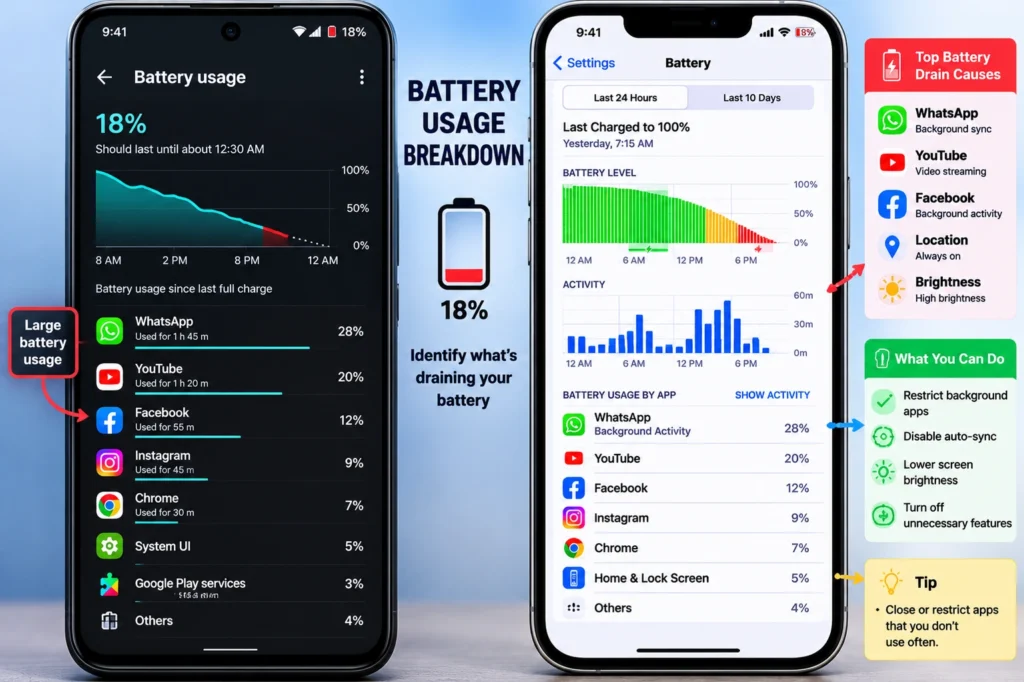
Idle drain is usually caused by apps that never actually sleep. Messaging apps, email sync, cloud backup, and social media refresh cycles wake the phone repeatedly. Each wake is small. Together, they behave like a constant leak.
If you leave your phone overnight and lose 10–15% battery, that’s not “normal.” That’s background activity plus network polling.
A simple test: turn on airplane mode for 6–8 hours. If drain drops significantly, the issue is network + sync. If it doesn’t, it’s battery health.
Airplane mode isolation testing is one of the most reliable ways to separate network drain from battery degradation without any tools or apps.
How to Fix Battery Drain Without Guessing
Start with the highest-leverage change: background app control.
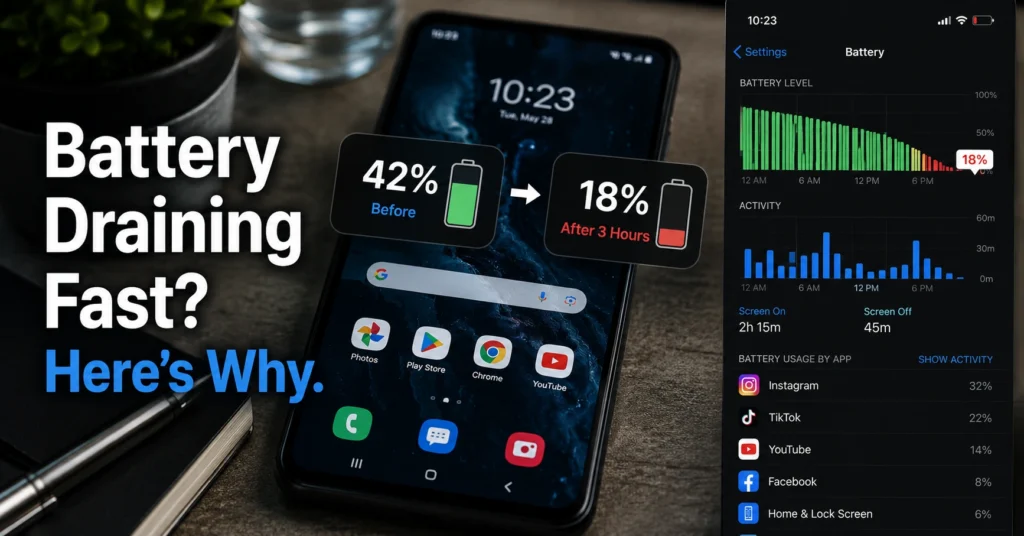
Go to battery settings and sort by usage. Focus only on the top 3 apps. Not ten. Not “all apps.” Just the top three.
Then restrict background activity for those apps. On Android, this means setting “restricted” battery mode. On iOS, it means disabling background app refresh for specific apps.
Verification step:
After changes, monitor overnight drain. A healthy fix reduces idle loss to under 5–8% in 6–8 hours.
Fallback path:
If nothing changes after restriction, the problem is not apps. Move to network or battery health diagnosis.
The Hidden Cause Most People Miss: Battery Age
Lithium-ion batteries don’t fail suddenly. They degrade.
Once a battery falls below ~80% capacity, software fixes stop being effective. You can reduce drain slightly, but you can’t restore lost capacity.
That’s where many troubleshooting guides fail — they treat aging batteries like configuration problems.
Honest negative: If your phone is 2–3 years old and drains fast even after optimization, the issue is not settings. It’s chemistry.
Honest alternative: A battery health check (system tool or service center report) will tell you immediately whether replacement is justified.
What Actually Works (And What Doesn’t)
Power saving mode helps, but only by limiting performance. It does not fix drain. Closing apps constantly also doesn’t help — most modern systems restart them efficiently anyway.
The only reliable fixes fall into three categories:
- Reduce background activity load
- Stabilize network conditions
- Replace degraded battery
Everything else is temporary relief.
Common Mistakes That Waste Time
People usually overcorrect in the wrong direction.
They uninstall apps randomly without checking battery stats. They install “battery saver” apps that add more background processes. They reset settings without isolating whether the problem is network or hardware.
The correct order is always:
- Diagnose top drain source
- Test network impact (airplane mode)
- Restrict top apps
- Check battery health
- Replace if needed
Skip this order and you’re guessing.
Frequently Asked Questions About Battery Draining Fast
Why does my phone battery drain fast all of a sudden?
Sudden drain is usually caused by a recent app update, OS update indexing, or a background service getting stuck. The fastest check is battery usage stats. If system services spike, restart and wait 24–48 hours before making changes.
Does fast charging damage battery life?
Fast charging generates heat, and heat is the real factor that affects battery degradation. Occasional fast charging is fine. Constant high-heat charging cycles over months accelerate capacity loss.
How do I know if my battery needs replacement?
If your phone drops below 80% health, shuts down at 20–30%, or drains rapidly even in airplane mode, replacement is likely the only real fix.
Can apps really drain battery in the background?
Yes. Messaging, email, and social apps constantly sync data. Each sync wakes the device. The impact is cumulative, not immediate.
Continue Exploring
Tech Troubleshooting, How-To — deeper breakdown of device-level fixes and system diagnostics.