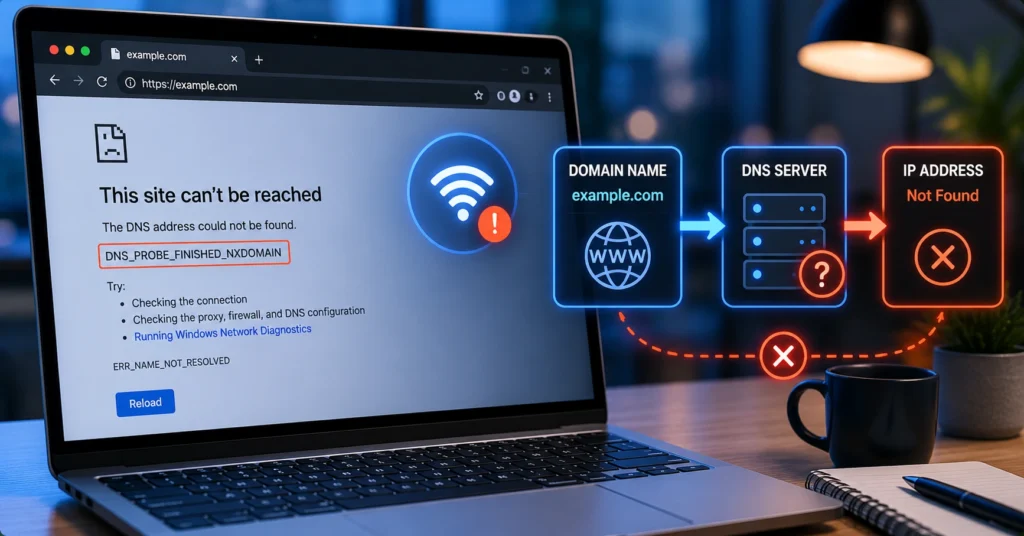
dns problems often stop a site from loading not because the site is down, but because your device can’t translate the domain name into an IP address. DNS is the translation layer that turns google.com into something like 142.250.185.78. When that translation fails, the browser shows a DNS error and the page won’t open.
The fastest first move is to test one other site, flush your DNS cache, and try a public DNS like 1.1.1.1. If that works, the problem is DNS. If not, the failure is elsewhere—router, ISP, firewall, or the site itself.
Some links in this post earn Blutap Digital a small commission — at no cost to you. We only recommend what we’d actually use.
dns explained: how DNS works as a translation layer
DNS is short for Domain Name System. It’s the phonebook of the internet. Your browser doesn’t connect to “example.com”; it connects to an IP address. DNS is the service that maps the name you type to that numeric address.
Here’s the flow in plain terms:
- You type example.com.
- Your device asks a DNS resolver (often your ISP’s, or a public one like 1.1.1.1) for the IP.
- The resolver returns an A record (IPv4) or AAAA record (IPv6).
- Your browser connects to that IP and loads the site.
The first thing you notice with most connectivity problems is that the symptom looks like “the internet is broken.” The second thing you notice is that only one domain fails, or it fails on one device. That usually points to DNS resolution, not the internet line.
The honest admission: I’ve spent an hour chasing a “DNS problem” only to find the actual cause was an MTU issue on the router, a firewall rule blocking port 53, or the site’s server being down. DNS is often blamed for issues caused elsewhere.
A specific symptom-to-cause connection—errors like “DNS_PROBE_FINISHED_NXDOMAIN” or “server DNS address could not be found” indicate a name-to-IP translation failure, while “timed out” or “can’t reach this server” may be routing/server issues.
Why site not loading is often a DNS problem—but not always
When a site won’t load, the failure can live in five layers: your device, your local network (Wi‑Fi/ethernet), the router, the ISP, or the remote server. DNS lives between your device and the resolver. If the resolver can’t return an IP, the browser fails before it even tries to connect.
Common DNS-error patterns:
- “DNS_PROBE_FINISHED_NXDOMAIN” → the domain doesn’t resolve (bad record, typo, or propagation lag).
- “DNS server not responding” → your resolver isn’t answering (ISP DNS down, firewall block, or wrong dns settings).
- “This site can’t be reached” + “connection timed out” → might be routing/MTU/server, not DNS.
The quickest diagnostic is isolation:
- Test another site on the same device. If others load, your internet is up; the problem is likely DNS for that domain.
- Test the same domain on another device on the same network. If it fails there too, it’s network/DNS, not your device.
- Test the same domain on mobile data. If it works on mobile but not Wi‑Fi, the router or DNS server is the suspect.
A verification step that proves DNS is the issue—try a public DNS (1.1.1.1) and if the site starts loading, the failure was your previous resolver.
The exact DNS settings that change how your device finds websites
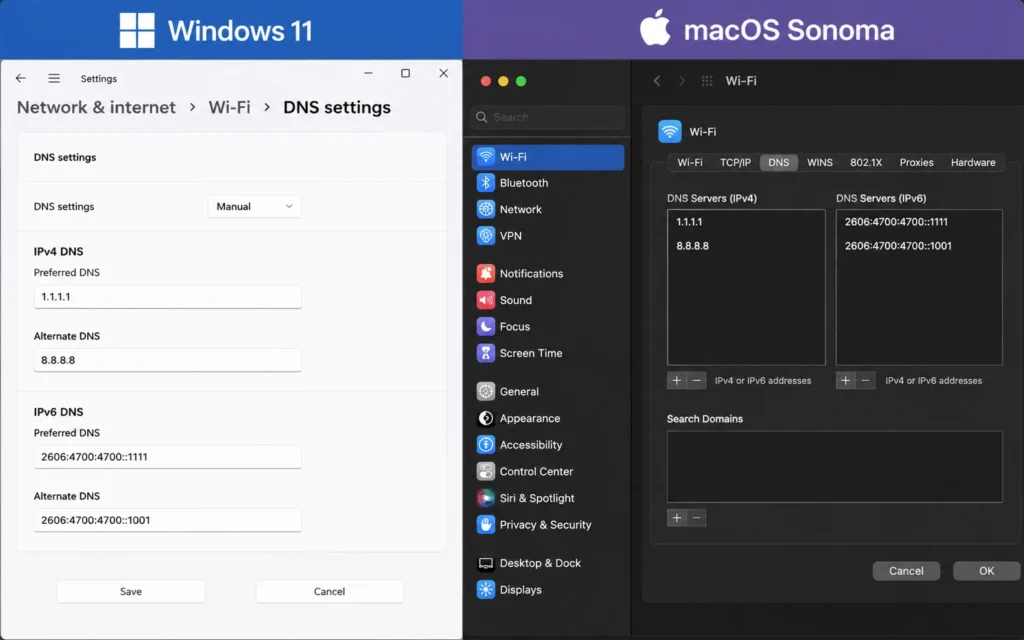
Your device gets DNS either automatically (via DHCP from your router) or manually (you set Preferred DNS and Alternate DNS). The exact setting names differ by OS, but the logic is the same.
Windows 10/11 (Wi‑Fi or Ethernet):
- Settings → Network & Internet → your active connection → Edit DNS.
- Switch from Automatic to Manual.
- Turn on IPv4. Set Preferred DNS to 1.1.1.1 and Alternate DNS to 1.0.0.1 (Cloudflare), or 8.8.8.8 and 8.8.4.4 (Google).
macOS:
- System Settings → Network → your interface (Wi‑Fi/Ethernet) → Details → DNS.
- Add 1.1.1.1 and 1.0.0.1 (or 8.8.8.8 / 8.8.4.4).
- Click OK → Apply.
Router-level DNS (changes everything on the network):
- Log into the router admin page (often 192.168.1.1 or 192.168.0.1).
- Find WAN/Internet settings → DNS server assignment.
- Set Manual DNS to 1.1.1.1/1.0.0.1 or 8.8.8.8/8.8.4.4.
- Save and reboot the router.
One detail that looks useful until you try to automate it: some routers don’t let you set custom DNS unless DHCP is configured in a specific way. And if you’re on a corporate network, group policy can force DNS and ignore your changes.
A named version/platform that changes the fix—Windows 10/11 uses “Edit DNS” under Network & Internet; macOS uses Network → DNS details; older routers may require PPPoE/WAN DNS explicitly.
How to flush DNS and test whether resolution is the real issue
Flushing DNS clears the local cache so your device fetches fresh records instead of reusing stale ones.
Windows:
- Open Command Prompt as admin. Run: ipconfig /flushdns
- Then test the site again.
macOS:
Linux:
Test resolution explicitly:
- Windows: nslookup example.com
- macOS/Linux: dig example.com
If nslookup/dig returns an IP and the browser still fails, the problem is likely not DNS. If nslookup/dig fails or times out, DNS is the bottleneck.
A blunt verdict: if flushing DNS and switching to 1.1.1.1 makes the site load, your previous DNS server was the problem. If nothing changes, don’t keep toggling DNS—go after the next layer.
When changing DNS won’t fix loading (and what to check instead)
Changing DNS won’t fix every loading issue. Here are the common non-DNS failures that look like DNS problems:
- ISP line or modem failure: no internet at all, not just one site. Check modem lights and try another device on ethernet.
- Router placement or Wi‑Fi band issues: 2.4 GHz vs 5 GHz behavior, dead zones, or a device stuck on a broken profile. Reboot the router, forget the network, and rejoin.
- MTU / TCP MSS mismatch: some sites load and others don’t, large packets drop. Try setting TCP MSS clamp to ~1200 on the router and test.
- Firewall or security suite blocking port 53 (DNS) or port 443 (HTTPS). Temporarily disable to test.
- Site server down: use “Down for Everyone or Just Me” or try the site on mobile data.
- Bad hosts file: a local hosts entry can override DNS and point a domain to 127.0.0.1. Check C:\Windows\System32\drivers\etc\hosts on Windows or /etc/hosts on macOS/Linux.
If you’re still seeing site not loading after these checks, the faster path is to test one device on one ethernet cable. If that works, the problem is the Wi‑Fi layer, not the internet line.
For deeper diagnostics and step-by-step fixes across networks and devices, see Tech Troubleshooting, How-To. And if your Wi‑Fi drops on one device but not others, follow why Wi‑Fi drops on one device. When DNS and routing both seem involved, your next stop is router and connectivity fixes.
Frequently Asked Questions About DNS Problems
What is a DNS problem and why does it stop sites from loading?
DNS translates website names like example.com into numeric IP addresses your browser uses to connect. A DNS problem means that translation fails or times out, so the browser can’t find the server—even if the site is up. Errors like “DNS_PROBE_FINISHED_NXDOMAIN” or “server DNS address could not be found” are typical.
How do I know if my site not loading is a DNS problem?
If other sites load on the same network but one domain won’t, and you see DNS-specific errors, it’s likely DNS. Flush DNS, test with a public DNS (1.1.1.1), and run nslookup/dig. If nslookup fails but the site works on mobile data, the issue is your network’s DNS resolver.
Which DNS settings should I check first?
Check whether your device or router uses Automatic DNS (via DHCP) or Manual DNS. If Manual, confirm Preferred DNS and Alternate DNS values. Common public DNS: Cloudflare (1.1.1.1, 1.0.0.1) and Google (8.8.8.8, 8.8.4.4).
Does changing DNS fix every loading issue?
No. Changing DNS won’t fix ISP outages, firewall blocks, broken routing/MTU, server downtime, or local browser/cache/host-file issues. It helps only when the failure is in name-to-IP translation. That’s the honest alternative: changing DNS is not a universal fix.
Should I use my ISP’s DNS or a public DNS like 1.1.1.1?
ISP DNS isn’t always reliable; it can be slow or overloaded. Public DNS (1.1.1.1, 8.8.8.8) is often faster and more consistent. (Policies change without notice) and some networks force their own DNS, so test before committing.
CONTINUE EXPLANING
- Tech Troubleshooting, How-To — Depth: get step-by-step fixes for network, device, and account issues in one place.
- router and connectivity fixes — Breadth: if DNS and Wi‑Fi both seem involved, start where the line meets the router.