The first WordPress host you choose usually decides how your next technical problem feels. Minor inconvenience. Or three tabs open at 1:12 a.m. while your SSL certificate fails, your email stops sending, and support replies with a knowledge-base article you already read twice.
Most beginners do not need advanced controls. They need recovery. Good onboarding. Working backups. Clear dashboards. Fast support. And a setup that does not collapse the first time DNS records, plugins, email routing, and WordPress updates all collide at once.
That changes the ranking completely.
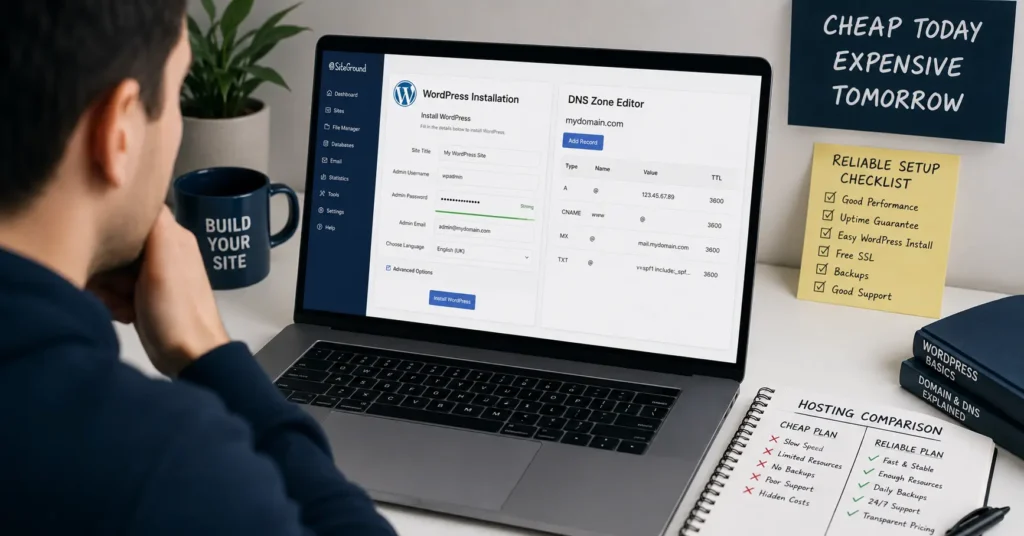
The best wordpress hosting for beginners is not the cheapest plan with “unlimited everything” on the homepage. It is the host that helps you survive your first real mistake without rebuilding the site from scratch. And for most people starting today, that usually means paying slightly more for better support and cleaner infrastructure.
This comparison focuses on:
- setup simplicity,
- support quality,
- migration flexibility,
- performance under beginner workloads,
- and the hidden costs that show up later.
Quick Verdict: Start Simple, but Don’t Trap Yourself in Cheap Hosting
If you want the safest beginner recommendation overall, use SiteGround StartUp. The dashboard is cleaner than most shared hosting panels, staging and backups work reliably, and support usually understands WordPress problems instead of reading scripts back to you.
If your budget matters more than long-term flexibility, Hostinger Premium is cheaper and easier to launch quickly. But support quality becomes inconsistent during actual outages or migration problems.
If setup speed matters most and you want fewer technical decisions, managed WordPress hosting is worth considering immediately — especially for freelancers, small business owners, or anyone who already knows they hate infrastructure work.
Beginners need frictionless setup more than advanced controls. That is the honest trade-off.
Comparison Table: Beginner WordPress Hosts Compared by Setup, Support, and Exit Flexibility
| Option | Price | Best For | Limitation | Verdict |
|---|---|---|---|---|
| SiteGround StartUp | ~$3.99–$17.99/mo (2025–2026 rates — verify before purchase) | Beginners who want reliable support and backups | Renewal pricing climbs fast | Best overall beginner-safe setup |
| Bluehost Basic | ~$2.95–$11.99/mo (2025–2026 rates — verify before purchase) | Cheap first WordPress site | Performance and support consistency | Fine for simple launches |
| Hostinger Premium | ~$2.99–$8.99/mo (2025–2026 rates — verify before purchase) | Budget-conscious beginners | Support quality varies under pressure | Strong value if you stay simple |
| WP Engine Startup | ~$20–$25/mo (2025–2026 rates — verify before purchase) | Managed WordPress simplicity | Higher cost | Best frictionless experience |
| Cloudways DigitalOcean 1GB | ~$14–$16/mo (2025–2026 rates — verify before purchase) | Beginners willing to learn slightly more | More infrastructure decisions | Better scaling path |
What Bluehost Is Actually Like After the First Week
Bluehost works best when your site is small, your traffic is low, and your expectations are modest.
The onboarding is smooth. WordPress installs quickly. Domain connection is straightforward because Bluehost pushes beginners toward keeping hosting and DNS inside one account. That matters more than most reviews admit. Fewer dashboards means fewer ways to break things accidentally.
But the cracks show during recovery situations.
The first time you restore backups, troubleshoot caching conflicts, or move email away from the default setup, the dashboard starts feeling optimized for upsells instead of control. And support quality varies heavily depending on queue volume.
A common beginner mistake: buying hosting and business email together without understanding that the domain registrar, DNS host, website host, and email provider are separate layers. Bluehost does not explain those boundaries clearly enough.
Still, for a very small WordPress site, it launches fast and cheaply.
Use Bluehost if:
- budget matters most,
- this is your first WordPress install,
- and you want the shortest path from purchase to published site.
Do not use it if you already expect growth, staging environments, or cleaner migration paths later.
Why SiteGround Costs More — and Why Beginners Usually Notice the Difference Fast
SiteGround feels different during problems. That is the actual value.
The support team generally understands WordPress-specific failures instead of treating every issue like generic shared hosting. Plugin conflicts. Cache purging. PHP version mismatches. SSL propagation delays. Those conversations move faster because the platform is built around WordPress instead of treating it as one application among hundreds.
The setup flow is also cleaner than most beginner hosts. DNS settings, SSL activation, backups, staging, and email are organized logically. That sounds minor until you are trying to undo a broken plugin update in under ten minutes.
Here is the blunt verdict:
Most beginners benefit more from reliable recovery tools than raw performance metrics.
SiteGround also handles email more predictably than many low-cost hosts. But you still need SPF, DKIM, and DMARC configured correctly if you send invoices, forms, or customer mail from your domain. Shared hosting mail reputation alone is not enough anymore.
And yes, the renewal pricing hurts. The jump after the promotional term catches many first-time buyers off guard.
That is the real negative.
Hostinger Is Cheap Until You Need Support During a Real Problem
Hostinger has improved a lot. Faster dashboards. Better onboarding. Cleaner UI than older budget hosts.
And for simple WordPress hosting, it is genuinely competitive.
The hPanel interface is easier for beginners than traditional cPanel because it removes some clutter and reduces the chance of editing the wrong setting accidentally. WordPress installs are quick. SSL activation is simple. DNS management is straightforward enough for first-time site owners.
But budget hosting usually reveals itself during pressure.
A staging restore that fails. DNS propagation confusion. SMTP mail issues. Migration downtime. That is where premium support teams separate themselves from low-cost infrastructure businesses.
The difference between a cheap host and a stable beginner platform is rarely homepage speed. It is how fast you recover when something breaks.
Hostinger is still a strong option if:
- you want simple WordPress hosting,
- your budget is tight,
- and you are comfortable learning gradually.
But if your business depends on uptime, faster support often pays for itself.
Managed WordPress Hosting Removes Friction — but Costs More Than Most Beginners Expect
Managed WordPress hosting exists for people who already know they do not want to manage infrastructure.
That includes:
- automatic updates,
- server-level caching,
- security monitoring,
- staging environments,
- backups,
- and WordPress-specific support.
WP Engine and similar platforms reduce setup friction aggressively. You can feel it almost immediately. Fewer configuration problems. Better default performance. Cleaner recovery workflows.
The trade-off is cost and control.
You will pay more monthly. Some plugins are restricted. Email hosting is often separated entirely, which means you still need domain DNS, business email routing, SPF, DKIM, and DMARC configured independently.
That surprises many beginners.
Managed WordPress hosting does not remove infrastructure. It reorganizes it.
Still, if setup speed matters most, managed WordPress may absolutely be worth the premium.
The Difference Between “Easy Setup” and “Easy Recovery”
This is the part most comparison posts ignore.
Launching WordPress is easy now. Almost every host can install WordPress in under five minutes. That stopped being the hard part years ago.
Recovery is harder.
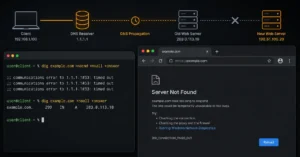
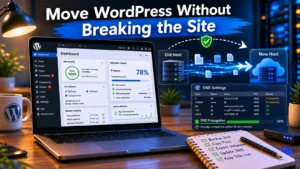
Restoring backups cleanly. Moving DNS without downtime. Reissuing SSL certificates after migration. Fixing email deliverability after changing nameservers. Rolling back broken plugins safely.
That is where hosting quality becomes visible.
One specific beginner trap:
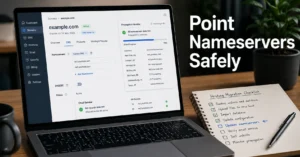
changing nameservers without checking existing email records first.
When that happens, business email often stops working because MX records, SPF, DKIM, and DMARC settings disappear during DNS replacement. The site stays online. Email silently fails. And most beginners notice only after customers stop receiving replies.
Use a separate inbox. Especially for business.
What Beginners Usually Forget About Domains, DNS, and Email
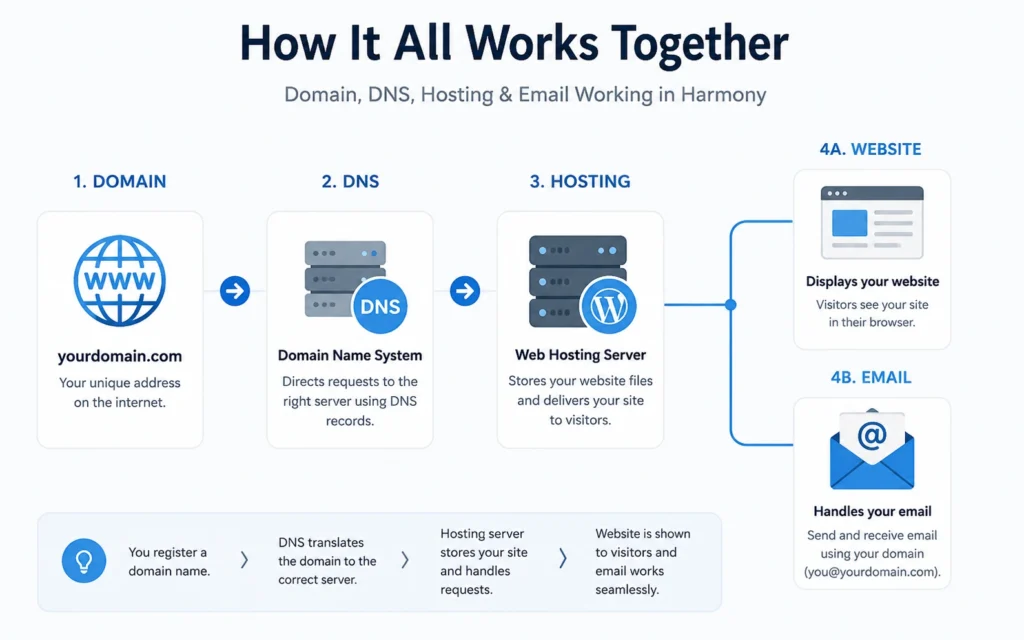
Your WordPress host is only one layer of the stack.
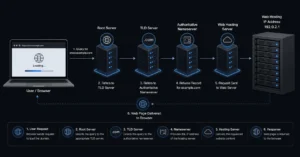
A normal beginner setup usually includes:
- domain registrar,
- DNS host,
- website host,
- email provider,
- SSL certificate provider.
Sometimes one company handles all five. Sometimes they are split across multiple services.
The confusion starts when support teams only control one layer.
Example:
Your website host cannot always fix missing DNS records if the domain registrar controls nameservers elsewhere. And your email provider cannot fix deliverability if SPF or DKIM records are missing from DNS.
This dependency chain matters more than server benchmarks for beginners.
Safe beginner default:
- Keep hosting and DNS together initially.
- Use separate business email if possible.
- Avoid moving nameservers during major site changes.
- Lower DNS TTL values before migrations if you expect cutovers later.
That last point sounds technical, but it matters. Lower TTL settings reduce propagation delay during future DNS changes.
Choose This Setup if You Want the Safest Beginner Stack
For most beginners starting WordPress today:
Best Overall Beginner Setup
- SiteGround StartUp
- Separate Google Workspace email
- Domain registered independently
- Daily backups enabled immediately
Cheapest Safe Beginner Setup
- Hostinger Premium
- Free email forwarding only
- Lightweight theme
- Separate backup plugin installed day one
Fastest Frictionless Setup
- WP Engine Startup
- Managed WordPress workflow
- External business email
- Minimal plugin stack
And here is the part many beginners need to hear early:
Do not optimize your first hosting choice for advanced server controls you may never use. Optimize for clarity, recovery, and support quality instead.
That usually saves more time than chasing lower monthly pricing.
Frequently Asked Questions About Best WordPress Hosting
What is the best wordpress hosting for complete beginners?
SiteGround is usually the safest beginner recommendation because onboarding, backups, SSL setup, and support are easier to manage during real problems. Bluehost and Hostinger are cheaper, but support and recovery workflows are less consistent once the site becomes more important.
Is managed WordPress hosting worth it for beginners?
Yes, if you value setup speed and lower technical overhead more than monthly savings. Managed WordPress hosting removes many maintenance tasks automatically. The trade-off is higher pricing and less server-level control.
Should I buy my domain and hosting from the same company?
For beginners, usually yes at first. Keeping domain registration and hosting together reduces DNS confusion during setup. Later, many site owners separate them for better portability and registrar pricing.
What happens if I switch WordPress hosts later?
Migration affects DNS, SSL certificates, backups, caching, and sometimes email delivery. Good hosts provide migration tools or free migration assistance to reduce downtime and mail disruption.
Does cheap WordPress hosting hurt SEO?
Not automatically. But slow server response, downtime, overloaded shared hosting, and poor caching can affect site speed and reliability over time. Support quality also matters because unresolved technical failures can keep pages offline longer.
Continue Exploring
- Web Hosting, Domains, Email Infrastructure — broader hosting, DNS, migration, and email setup decisions that affect WordPress stability later.
- Managed WordPress hosting vs shared hosting — the trade-offs become clearer once updates, backups, and recovery workflows enter the picture.