Quick Facts: DNS Core Architecture Reference
| System Layer | Default Behavior | Standard TTL | Failure Mode | Recommended Default |
| Domain Registrar | Holds nameserver pointers | 86,400 seconds | Domain completely vanishes | Cloudflare / Namecheap |
| A Record | Maps text to IPv4 address | 3,600 seconds | “Site cannot be reached” | Direct dedicated server IP |
| CNAME Record | Aliases one text name to another | 14,400 seconds | Broken subdomains/redirects | Root domain proxy target |
| MX Record | Directs mail to specific servers | 3,600 seconds | Emails bounce with 550 errors | Google Workspace / M365 |
| TXT Record | Holds verification (SPF/DKIM) | 3,600 seconds | Outbound mail hits spam folders | Strict syntax string format |
The setup looks simple until the domain, DNS, hosting, and email all start asking for different credentials. That’s when the real cost of a “one-click setup” shows up—usually in broken support tickets and a business day lost to propagation lag.
If you are launching a business site, configuring an e-commerce platform, or taking over a corporate domain portfolio, understanding what is dns is not an academic exercise. It is the boundary between an online store that processes transactions and a dead page that drops customer connections.
DNS feels completely invisible until it breaks, leaving you staring at a generic browser error with zero context on whether your web host went dark or your registrar configuration expired. Many site owners mistakenly treat their domain name and their web hosting as the exact same service, assuming a single monthly fee covers everything.
They only discover the difference when they attempt to migrate servers or set up secure business email inboxes. This guide breaks down exactly how the Domain Name System functions, what individual records do, where the setup commonly breaks, and what infrastructure moves you should make instead to keep your systems online.
How the Internet Finds a Site Before the Technical Layer
To understand what is dns, you must first understand how computers communicate across physical hardware networks. Every device connected to the internet—whether it is an enterprise server in a Northern Virginia data center or the phone in your hand—is assigned a unique numerical label known as an IP (Internet Protocol) address.
A standard IPv4 address looks like a string of numbers separated by periods, such as $192.0.2.1$, while newer IPv6 addresses use longer alphanumeric strings separated by colons.
Computers thrive on these numbers; they cannot route traffic without them. Humans, however, cannot remember thousands of numerical strings just to visit their daily work tools. The Domain Name System solves this gap by acting as a decentralized translation layer.
When you type a human-readable domain name into your browser URL bar, your computer does not inherently know where that website lives. It cannot fetch the images, scripts, or databases required to render the page until it translates that text into a machine-readable IP address. The entire system functions like a phone directory for web-connected infrastructure.
It decouples your business brand from the physical metal server hosting your files—meaning you can switch your server provider tomorrow, update a single line of text in your directional directory, and keep your customers routed to the correct destination without changing your public web address.
The Four Servers That Power the Domain Name System
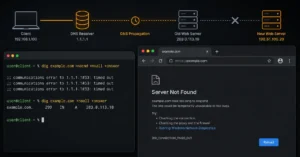
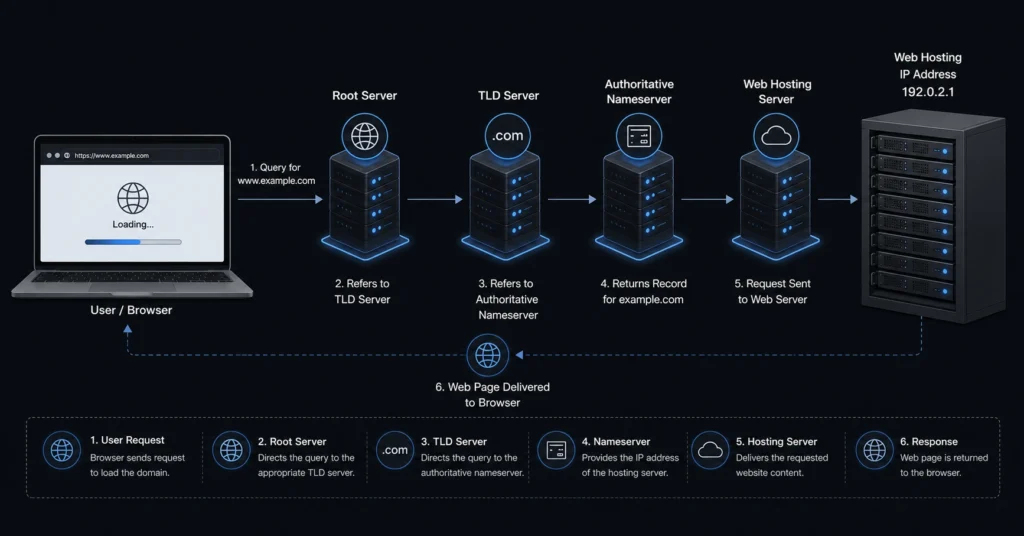
The path from typing a URL to loading a layout takes milliseconds, but it requires a coordinated handoff across four distinct types of server infrastructure. When your computer looks for an IP address, it queries these components in a strict, unyielding order.
[User Browser] ➔ [DNS Recursor] ➔ [Root Nameserver] ➔ [TLD Nameserver] ➔ [Authoritative Nameserver]
- The DNS Recursor: Think of this as your personal courier. Usually operated by your Internet Service Provider (ISP) or a dedicated third-party service like Cloudflare or Google, the recursor is the first stop for your browser’s query. It is responsible for traveling across the web to track down the exact location of the target records.
- The Root Nameserver: This is the first structural point of the global directory. It does not store web host details; instead, it reads the tail end of your requested domain name and points the recursor to the correct regional registry.
- The TLD (Top-Level Domain) Nameserver: This server manages specific domain extensions like
.com,.org, or.net. If your site ends in.com, the TLD nameserver reads your request and directs the recursor to the specific company or platform holding your direct configuration records. - The Authoritative Nameserver: This is the final destination and the absolute source of truth for your domain. It is the specific database where you, your developer, or your system administrator saves your web settings. It reads the domain request, pulls the matching physical IP address out of its database, and hands it back to the recursor to deliver to your browser.
The Core DNA of DNS Basics: Records You Must Know
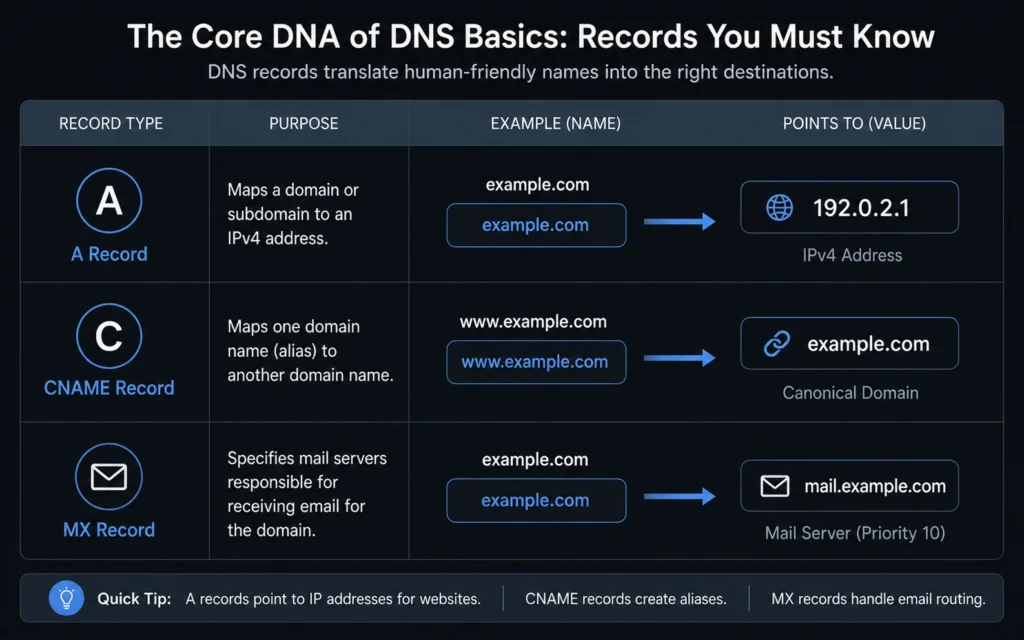
Managing a domain means configuring individual rows of data inside your authoritative nameserver control panel. These rows are called resource records, and each has a highly specific job to perform within the ecosystem of DNS basics.
A Records and AAAA Records
The “Address” record is the foundational link of internet addressing. An A record maps your root domain or a subdomain to a specific numerical IPv4 address. If your web host changes your server assignment, this is the exact line you must update. AAAA records perform the exact same task but point exclusively to newer IPv6 network addresses.
CNAME Records
A Canonical Name record acts as a text alias rather than a hard physical pointer. Instead of pointing a name to a number, it points a name to another name. For example, you use a CNAME record to route your [www.yourdomain.com](https://www.yourdomain.com) traffic directly to your root yourdomain.com. This ensures that if your primary server IP changes, you only have to update the main A record once, and all your subdomains follow automatically.
MX Records
Mail Exchanger records dictate where inbound company emails should land. Unlike website traffic, which targets a web server, email traffic requires an MX record pointing directly to your enterprise email provider’s intake gateways.
⚠️ Critical Delivery Note: If you misconfigure your MX records by even a single letter, your website will remain perfectly live, but your corporate inbox will instantly stop receiving inbound messages, bouncing internal and external communications back to the sender with a delivery failure error.
TXT Records
Text records allow domain administrators to attach plain text notations to a domain name. While originally designed for general comments, they are now the primary mechanism for security and verification.
You use TXT records to host domain validation strings for Google Search Console, as well as critical email authentication frameworks like SPF (Sender Policy Framework), DKIM (DomainKeys Identified Mail), and DMARC (Domain-based Message Authentication, Reporting, and Conformance) to prove to global email networks that your outbound server is authorized to send mail under your name.
How to Troubleshoot What Is DNS When Routing Fails
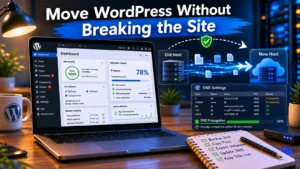
The single greatest frustration with domain modifications is propagation lag—the time it takes for new records to distribute across every server node globally. When you update an IP address, the change is instant on your authoritative nameserver, but your local computer might still pull a cached, outdated address for hours.
[Old Server IP: 192.0.2.1]  ➔  (Cached in Local ISP Router / TTL Active)
                                      ▼
[New Server IP: 198.51.100.5] ➔  (Not Visible Until TTL Clock Hits Zero)
This caching behavior is controlled by a value on every record called the TTL (Time to Live), measured strictly in seconds. If your record has a TTL of 86,400 seconds (24 hours), your local machine will refuse to check the live authoritative nameserver for a new address until that 24-hour countdown timer runs completely down to zero.
To bypass local caching issues during a high-stakes migration, use a clean third-party testing utility like Google Admin Toolbox Dig or public tools like dnschecker.org. These platforms query authoritative edge servers directly, showing you exactly what your live records look like to the rest of the world independent of your local network or ISP cache.
If these tools show your new IP address but your office computer still loads the old site, your DNS is working perfectly—you are simply waiting out your local TTL clock.
Where the Standard Domain Setup Breaks for Beginners
The most common point of structural failure occurs when site owners confuse their control layers. Your domain registrar (where you buy the name, like Namecheap) does not have to be your DNS host, and your DNS host does not have to be your web host (where your site files live, like Kinsta or WP Engine).
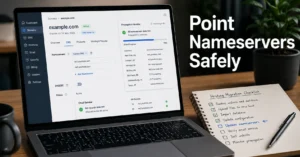
A classic beginner trap is buying a domain at registrar A, setting up web hosting at provider B, and attempting to paste server records into both dashboards at the same time. This creates conflicting lookup paths. Whichever platform holds your active nameserver pointers controls your records. If your registrar points its nameservers to your web host, any records you edit inside your registrar dashboard are completely ignored by the internet.
Another common point of failure involves duplicate records. If your authoritative zone contains two different A records for the exact same root domain pointing to two different servers, routers will randomly alternate between them.
Half your customers will land on your new, functional website, while the other half will pull your old, decommissioned server layout. Always clear out legacy tracking pointers before saving fresh routing configurations.
Strategic Alternatives: What to Do Instead of Default Registrar DNS
Most site owners leave their domain nameservers pointed to the default infrastructure provided by their domain registrar. While functional for basic hobby blogs, standard registrar DNS platforms are historically slow, lack advanced routing control, and can fail entirely under high traffic or targeted network attacks.
Instead of relying on basic registrar settings, the standard operational default for business sites is to route nameservers through a dedicated, global anycast network like Cloudflare.
[Your Registrar] ➔ Point Nameservers ➔ [Dedicated Anycast Network (Cloudflare)] ➔ Routes Traffic Securely
Moving your DNS layer to a dedicated speed provider gives you three distinct advantages:
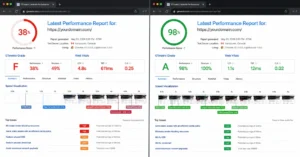
- Sub-Second Changes: Changes propagate globally in seconds rather than hours, because their network does not force long arbitrary cache times on authoritative updates.
- Layer 7 Security: Proactively blocks malicious traffic, automated scrapers, and volumetric DDoS (Distributed Denial of Service) attacks before those requests ever hit your physical web host.
- Granular Edge Control: Allows you to build custom redirection rules, set strict SSL behaviors, and manage subdomains without touching raw server code.
Frequently Asked Questions About DNS
Why does my website still show an old host after changing DNS settings?
Your local computer, internet service provider, and regional routers save copies of old DNS lookups to save speed. This is called caching. Until your specified Time to Live value expires—which commonly takes anywhere from 300 seconds to 48 hours—routers will ignore your new server records.
Can an incorrect DNS record completely stop my business emails from arriving?
Yes. If your Mail Exchanger records point to an expired address or lack valid sender verification files like SPF or DKIM, incoming email delivery will fail instantly. External mail servers will reject your messages or discard incoming traffic because they cannot verify your domain identity.
What happens if my primary domain registrar nameservers go completely offline?
If your authoritative nameservers fail, your entire web operation vanishes from the internet. Browsers cannot resolve your domain to an IP address, rendering your web host, client portals, and cloud-hosted email systems entirely unreachable worldwide until service is restored or records are moved.
Continue Exploring Infrastructure Setup Basics
To ensure your web presence remains stable beyond the initial domain name configuration, you need to understand how these mapping records bind directly to your hosting server and email routing tables. If your infrastructure handles customer data or critical transaction records, mapping your nameservers cleanly is only the first step.
- Web Hosting, Domains, Email Infrastructure
Read through our technical core layout guides to understand exactly how to secure your domain pointer records and verify your email authentication strings before your next site launch.