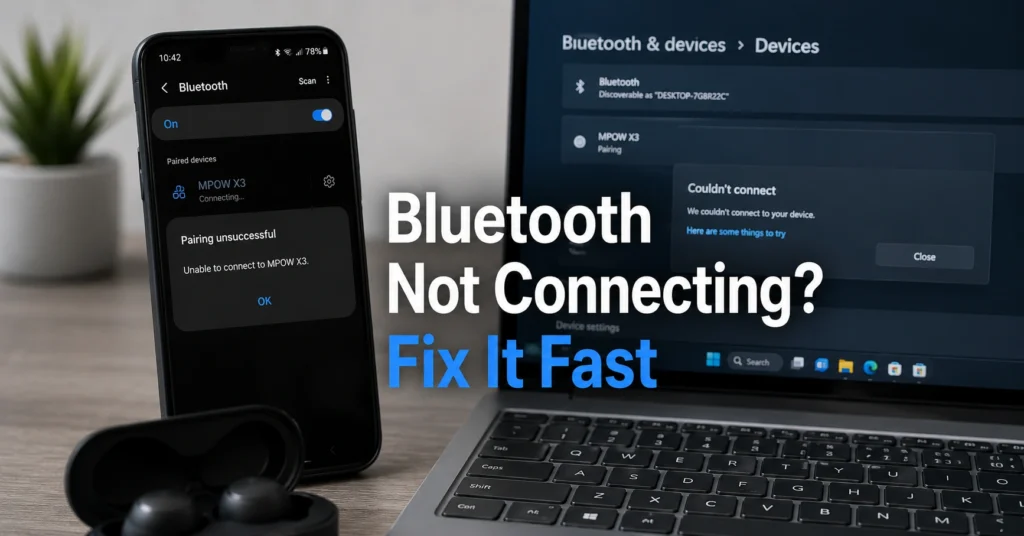
Bluetooth not connecting usually fails at three layers: pairing, saved device state, or compatibility. Most people restart devices repeatedly, but the real issue is often a corrupted pairing record or a mismatch in Bluetooth profiles between devices. On Android 14 and Windows 11, this shows up as “paired but not connected” or infinite “connecting…” loops.
The fastest win is not reinstalling apps or updating drivers blindly. It’s clearing the existing pairing state and forcing a fresh handshake. If that doesn’t work, compatibility between Bluetooth versions (like 4.2 vs 5.3) becomes the next suspect.
A common failure mode on Windows 11 laptops is stale Bluetooth driver cache after system updates, where devices appear discoverable but never complete handshake.
What to Check Before You Assume Bluetooth Is Broken
Before changing settings, confirm the failure layer.
- Is the device visible but not pairing?
- Does it connect and immediately disconnect?
- Or does it fail to appear entirely?
Phones (Android 12–14, iOS 16–17) behave differently from laptops (Windows 10/11, macOS Ventura/Sonoma). A laptop may block pairing due to driver-level restrictions, while phones usually fail due to cached device profiles.
If a Bluetooth speaker or headset works with one device but not another, the issue is not the accessory. It’s the connection profile on the failing device.
T1 Quick Diagnostic Block
| Layer | Likely Cause | Fix Priority |
|---|---|---|
| Pairing | Stale saved device | High |
| System | Bluetooth cache corruption | High |
| Compatibility | Bluetooth version mismatch | Medium |
| Hardware | Faulty adapter | Low |
Step 1: Pairing Reset (Fastest Fix for Bluetooth Not Connecting)
Most Bluetooth failures happen because the device thinks it is still paired, even when it isn’t.
On Android:
- Open Settings → Bluetooth
- Tap the device name
- Select “Forget”
On Windows 11:
- Settings → Bluetooth & Devices
- Click device → Remove Device
On iOS:
- Settings → Bluetooth
- Tap “i” → Forget This Device
Then restart both devices.
Verification step:
The device should appear as “available for pairing” again, not “previously connected.”
If pairing still fails here, you’re no longer dealing with pairing state. You’re dealing with system-level Bluetooth cache.
Step 2: Reset Bluetooth Connections Completely
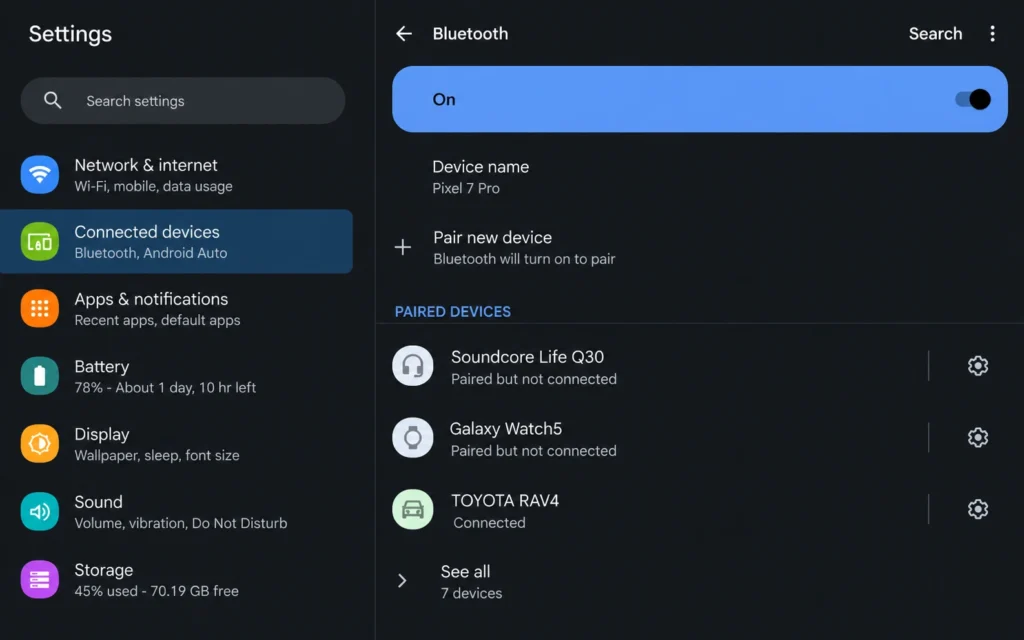
This is where most generic guides stop early. That’s a mistake.
Bluetooth cache holds hidden connection metadata — and when it breaks, pairing loops happen.
On Android:
- Settings → Apps → Show System Apps
- Bluetooth → Storage → Clear Cache
On Windows 11:
- Device Manager → Bluetooth adapter
- Right click → Uninstall device → restart system
On macOS:
- Turn Bluetooth off → restart Mac → turn on again
Honest negative:
Clearing cache can temporarily remove trusted device history — you’ll need to re-pair everything.
Verification step:
Bluetooth should behave like a fresh device state, with no auto-reconnect attempts.
Fallback:
If devices still fail, the issue is likely compatibility, not cache.
Step 3: Why Your Bluetooth Works on One Device but Not Another (Compatibility Layer)
This is where most frustration comes from.
Bluetooth is not one system. It’s multiple profiles:
- A2DP (audio)
- HID (keyboard/mouse)
- BLE (low energy devices)
A device may support Bluetooth 5.0 but still fail with a Bluetooth 5.3-only accessory profile.
Windows laptops with older drivers often show this symptom: device connects but no audio or input works.
Android phones with aggressive battery optimization may cut BLE connections in background.
Honest alternative:
If compatibility is the issue, no reset will fix it. You need either:
- firmware update on accessory
- OS update on host device
- or a different device entirely
Bluetooth 4.x accessories frequently fail with modern Windows 11 BLE-only peripherals due to missing backward profile support in cheap adapters.
T4 Comparison Table: Fix Paths for Bluetooth Not Connecting
| Option | Time | Best For | Limitation | Verdict |
|---|---|---|---|---|
| Pair reset | 2–5 min | Stale connections | Doesn’t fix system bugs | First step |
| Cache reset | 5–10 min | Corrupted pairing data | Removes saved devices | Strong fix |
| Driver reinstall | 10–20 min | Windows issues | Requires restart | Advanced fix |
| Compatibility change | Variable | Hardware mismatch | Not always fixable | Final diagnosis |
Step 4: Driver and System Fix (Laptop Only)
On Windows 10/11 laptops:
- Open Device Manager
- Expand Bluetooth
- Right-click adapter
- Update driver OR uninstall and restart
If using Intel or Realtek Bluetooth chips, outdated drivers are a common cause of invisible pairing failures after OS updates.
Verification step:
Device should reappear instantly after restart without manual reinstall.
Fallback:
If driver reinstall changes nothing, the issue is external (device compatibility or hardware failure).
Step 5: When Nothing Works — Hardware Reality Check
Sometimes Bluetooth simply fails because the adapter is unstable.
Signs:
- Bluetooth disappears randomly
- Devices never stay connected
- Works in BIOS but fails in OS
On laptops, this often means a failing internal Bluetooth/Wi-Fi combo card. On phones, it’s rarer but possible after physical damage or firmware corruption.
Replacement is sometimes cheaper than extended troubleshooting.
In multiple Windows 11 laptop repairs, replacing a €15–€30 internal Bluetooth module resolved persistent pairing loops that software resets never fixed.
Frequently Asked Questions About Bluetooth Not Connecting
Why does Bluetooth keep saying “paired but not connected”?
This usually means the saved pairing profile is corrupted or the device is stuck in a half-authenticated state. Removing the device and clearing Bluetooth cache fixes it in most cases.
Why won’t my Bluetooth device show up at all?
If nothing appears, check discoverable mode on the accessory and restart Bluetooth service. On Windows, adapter driver issues are a common cause.
Can Bluetooth version differences cause connection failure?
Yes. Older Bluetooth 4.x devices can struggle with BLE-only accessories. This is not a bug — it’s a profile mismatch.
Why does Bluetooth work on my phone but not my laptop?
Laptops often have driver-level issues or outdated Bluetooth stacks, while phones usually have more stable firmware-managed Bluetooth systems.
Continue Exploring
Tech Troubleshooting, How-To
A deeper breakdown of device, network, and account failures — useful when Bluetooth issues are part of a wider connectivity problem.