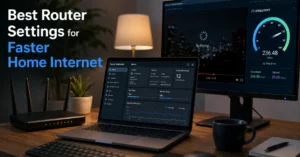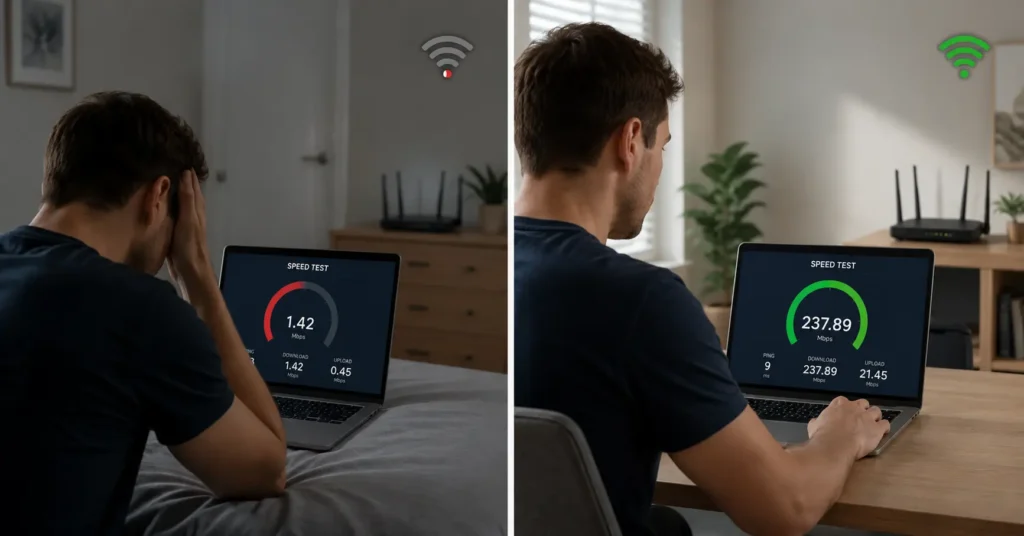
Before you buy anything, run this 3-minute test:
- Connect one laptop directly to your modem with an ethernet cable.
- Run a speed test at fast.com or speedtest.net.
- Disconnect the cable, connect to Wi‑Fi in the problem room, run the test again.
If ethernet speed matches your plan but Wi‑Fi is 50% slower or worse, your bottleneck is signal, congestion, or placement—not your ISP. If both tests are slow, the problem is your internet line. (Check current version support before publishing)
The Fastest Slow WiFi Fix (Start Here)
Most slow wifi fixes waste time on the wrong problem. You restart the router, call your ISP, or buy new hardware—only to discover the real issue was that your router sits behind a metal TV stand in a corner, or that 18 devices are fighting for bandwidth on the 2.4 GHz band.
The fastest fix: move your router to a central, elevated location and switch bandwidth-heavy devices to 5 GHz. That costs nothing and works more often than a $300 router upgrade. But only if that’s actually your problem.
Here’s what most guides skip: a slow connection is not always the router’s fault. Sometimes it’s your ISP’s line. Sometimes it’s congestion from your own devices. Sometimes it’s concrete walls. The fix depends on which bottleneck you have, and you can diagnose that in under 10 minutes without calling anyone.
This post walks through the four real bottlenecks—signal, congestion, placement, and ISP issues—and gives you exact steps to identify which one is killing your speed, then fix it.
The Four Real Bottlenecks: Signal, Congestion, Placement, ISP
Wi‑Fi problems break down into four layers, and each requires a different fix:
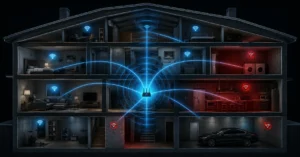
Signal degradation happens as distance increases. A 5 GHz network loses strength faster than 2.4 GHz but offers higher speeds at close range. If your router is in the basement and you’re on the second floor, the signal has to punch through floors, walls, and appliances. By the time it reaches you, it’s weak.
Congestion occurs when too many devices share the same channel or band. Your laptop, phone, smart TV, Ring doorbell, and three IoT devices all compete for airtime. Even idle devices create background traffic. On a crowded 2.4 GHz network with 15+ devices, speed drops even if your internet plan is fast.
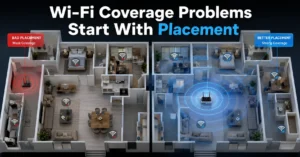
Placement mistakes block or reflect signals. Metal, concrete, brick, water (fish tanks), and mirrors absorb or scatter Wi‑Fi. A router in a closet, behind a TV, or under a desk performs worse than the same router on an open shelf at chest height.
ISP issues mean your actual internet line is slow. This has nothing to do with Wi‑Fi. If your modem receives 25 Mbps on a 100 Mbps plan, no router tweak will fix that.
The honest negative: a slow connection is not always the router’s fault. The honest alternative: a better router placement may solve what speed upgrades cannot.
How to Diagnose Which Bottleneck You Actually Have
Stop guessing. Run these tests in order:
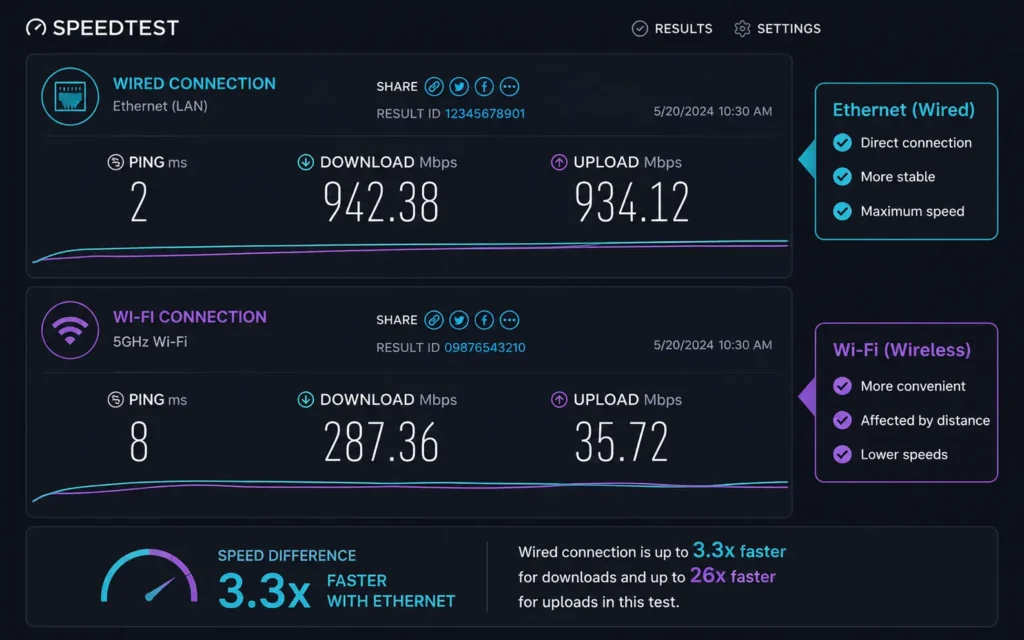
Step 1: Establish your baseline ISP speed Connect one computer directly to your modem using an ethernet cable. Turn off Wi‑Fi on that computer. Go to fast.com or speedtest.net and run a test. Write down the download speed.
If this number is less than 80% of what you pay for, your ISP is the bottleneck. Skip to the ISP section. If it matches your plan, continue.
Step 2: Test Wi‑Fi speed in the problem location Disconnect the ethernet cable. Connect to Wi‑Fi in the room where you experience slowness. Run the same speed test. Compare the result to your ethernet baseline.
If Wi‑Fi is 30–50% slower than ethernet, you have a signal or placement problem. If it’s 70%+ slower, you likely have congestion or severe signal degradation.
Step 3: Check device count and band usage Log into your router’s admin panel (usually 192.168.1.1 or 192.168.0.1—check the sticker on your router). Look for “connected devices” or “client list.” Count how many devices are active.
If you see 10+ devices on 2.4 GHz, congestion is likely. Modern routers show which band each device uses. If everything is on 2.4 GHz, that’s your problem.
Step 4: Test at different distances Run a speed test next to the router. Then run it in the problem room. If speed drops by more than 50% over a short distance, signal degradation from walls or interference is the culprit.
(Policies change without notice)
Signal Problems: Why Your Router Can’t Reach That Room
Signal strength decays with distance and obstacles. Here’s what actually blocks Wi‑Fi:
Walls and floors: Drywall reduces signal by 10–20%. Concrete and brick reduce it by 50–70%. Metal studs or foil-backed insulation can block it entirely. Two floors between you and the router often kills 5 GHz completely.
Appliances: Microwaves, refrigerators, and fish tanks absorb 2.4 GHz signals. Cordless phones and baby monitors create interference on the same frequency.
Router age: A router older than 4–5 years likely doesn’t support Wi‑Fi 6 (802.11ax) or MU-MIMO (multi-user, multiple input, multiple output), which helps manage multiple devices efficiently.
The fix:
- Switch devices that need speed (laptop, phone, streaming box) to 5 GHz if they’re within 30 feet of the router.
- Keep 2.4 GHz for smart home devices and anything in far rooms—it travels farther but is slower.
- If your router is single-band (only 2.4 GHz) and older than 2019, replace it with a dual-band or tri-band model.
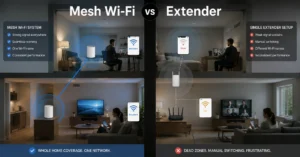
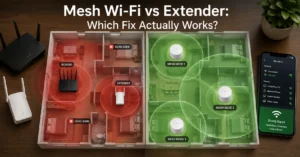
- For large homes or multiple floors, consider a mesh system (Eero, Google Nest Wifi, or TP-Link Deco) instead of a single router.
Verification: After switching bands or upgrading, run the speed test again in the problem room. You should see at least a 20–30% improvement if signal was the bottleneck.
Congestion: When Your Own Devices Are the Problem
Wi‑Fi is a shared medium. Every device takes turns transmitting. More devices mean longer wait times, even if they’re not actively downloading.
The congestion threshold: On 2.4 GHz, performance degrades noticeably after 8–10 active devices. On 5 GHz, you can push 20–25 before seeing slowdowns, but it depends on router quality.
Hidden bandwidth hogs:
- Cloud backup services (iCloud, Google Photos, OneDrive) syncing in the background
- Windows or macOS updates downloading automatically
- Smart TVs checking for firmware updates
- Security cameras uploading footage
- Game consoles downloading patches
The fix:
- Enable QoS (Quality of Service) in your router settings. This prioritizes critical traffic like video calls over background updates.
- Move high-bandwidth devices (streaming boxes, gaming consoles, work laptops) to 5 GHz.
- Schedule large downloads and backups for off-hours (2–6 AM).
- Disconnect devices you don’t use. That old tablet in a drawer still pings the network.
- If your router supports it, enable band steering to automatically push capable devices to 5 GHz.
Verification: After enabling QoS and redistributing devices, monitor speed during peak usage (evening hours). If video calls stop dropping and streaming buffers less, congestion was the issue.
Placement Mistakes That Kill Speed (Even With Good Hardware)
You can have a $400 Wi‑Fi 6E router and still get terrible speeds if it’s in the wrong place.
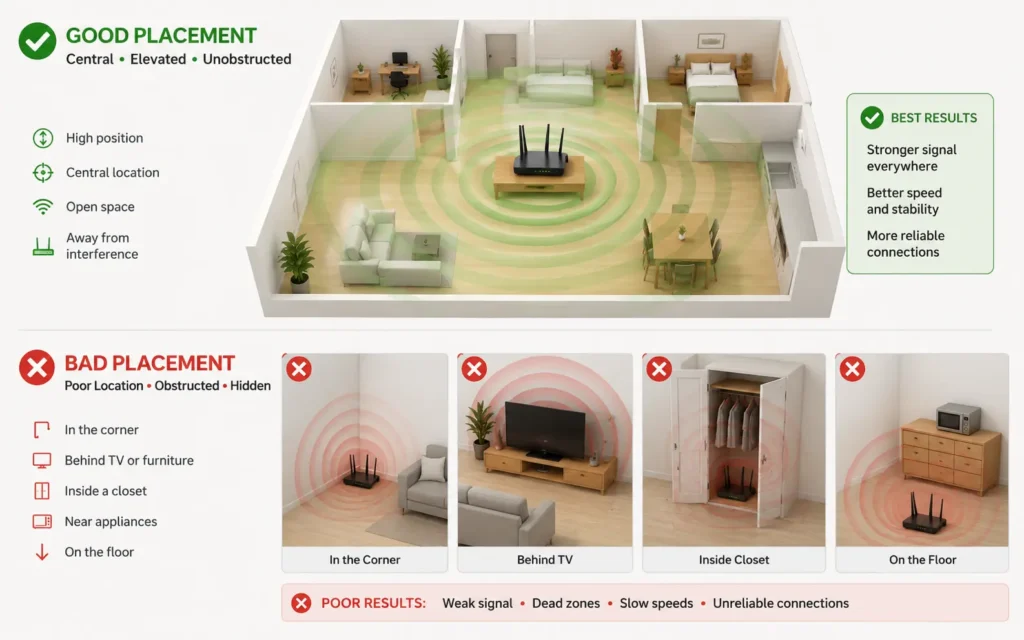
Worst placements:
- Inside a cabinet or closet (metal and wood block signals)
- Behind a TV or monitor (metal backs reflect signals)
- On the floor (signals spread outward and downward, wasting coverage)
- In a corner (half your signal goes into walls)
- Next to a microwave, fridge, or fish tank (interference and absorption)
Best placement:
- Central location in your home (not necessarily where the modem is)
- Elevated on a shelf or table (chest height is ideal)
- Out in the open, not behind objects
- Away from metal, concrete, and appliances
- If two stories, place on the upper floor’s central point to cover both levels
If you can’t move the router:
- Run an ethernet cable from the modem to a central location and add an access point or mesh node there.
- Use MoCA adapters (which send ethernet over coaxial cable) if running new cable is impossible.
- Add a Wi‑Fi extender as a last resort—they cut speed in half but are better than nothing.
Verification: After repositioning, walk through your home with a Wi‑Fi analyzer app (like Wi‑Fi Analyzer for Android or NetSpot for Mac/PC). Check signal strength in problem areas. You should see at least -65 dBm or better for reliable performance.
ISP Issues: When the Problem Isn’t Yours to Fix
If your ethernet speed test shows less than 80% of your plan’s advertised speed, the bottleneck is your internet line, not your Wi‑Fi.
Common ISP-side problems:
- Line degradation from old copper wiring
- Node congestion in your neighborhood (peak hours slowdown)
- Damaged coaxial or fiber lines
- Outdated modem that doesn’t support your plan speed
- ISP throttling during high-usage periods
The fix:
- Check your modem’s compatibility. If you’re on a 500 Mbps plan but your modem only supports DOCSIS 3.0 (not 3.1), upgrade it.
- Restart your modem (unplug for 30 seconds, plug back in). Wait 5 minutes for it to fully reconnect.
- Run speed tests at different times of day. If speed is fine at 6 AM but terrible at 8 PM, it’s node congestion.
- Contact your ISP with your ethernet test results. Ask them to check line quality and signal-to-noise ratio.
- If they can’t fix it and you’re consistently getting less than 80% of your plan speed, consider switching providers.
Verification: After ISP intervention, re-run the ethernet speed test. You should see consistent speeds within 10–15% of your plan’s advertised rate.
What It Actually Costs to Fix Slow Wi‑Fi (2025–2026 rates)
Free fixes:
- Router repositioning: $0
- Switching devices to 5 GHz: $0
- Enabling QoS: $0
- Disconnecting unused devices: $0
- Restarting modem/router: $0
Low-cost fixes:
- Wi‑Fi analyzer app: Free–$15
- Ethernet cable (25 ft): $10–$20
- Basic Wi‑Fi extender: $30–$60 (cuts speed in half)
Mid-range fixes:
- New dual-band router (Wi‑Fi 6): $100–$200
- MoCA adapters (pair): $80–$150
- Mesh system starter kit (2 nodes): $150–$300
High-end fixes:
- Premium mesh system (3 nodes, Wi‑Fi 6E): $400–$700
- Professional site survey and installation: $200–$500
(2025–2026 rates — verify before purchase)
The reality: Most people can solve 60–70% of their slow wifi fix needs with free placement changes and band management. Spend money only after you’ve diagnosed the actual bottleneck.
How to Verify the Fix Actually Worked
A fix is not a fix until you can measure it.
Verification steps:
- Run a speed test in the problem room at the same time of day you usually experience slowness.
- Compare it to your baseline ethernet test.
- Test real-world performance: stream a 4K video, join a video call, download a large file.
- Monitor for 24–48 hours. Some issues (like scheduled backups or ISP congestion) only show up at certain times.
Success metrics:
- Wi‑Fi speed should be at least 70–80% of your ethernet baseline
- Video calls should not drop or pixelate
- Streaming should not buffer after the initial load
- Web pages should load in under 3 seconds on Wi‑Fi
If you don’t see improvement, re-run the diagnostic. You may have misidentified the bottleneck, or there may be multiple issues at play.
Frequently Asked Questions About Slow WiFi Fix
Why is my Wi‑Fi slow even though I pay for fast internet?
Your ISP speed and Wi‑Fi speed are different things. A slow wifi fix starts by testing ethernet speed first. If ethernet matches your plan but Wi‑Fi is slow, the problem is signal strength, congestion from too many devices, poor router placement, or interference from walls and appliances—not your internet plan.
Will a new router fix slow Wi‑Fi?
Not always. If your router is more than 4–5 years old and doesn’t support Wi‑Fi 6 (802.11ax), an upgrade may help. But if the real issue is placement—like your router sitting in a corner behind a TV—moving it to a central, elevated location costs nothing and often works better than buying new hardware.
How can I tell if my ISP is the problem?
Connect one computer directly to your modem with an ethernet cable, disable Wi‑Fi, and run a speed test at speedtest.net or fast.com. If the result is less than 80% of your plan’s advertised speed, the bottleneck is your ISP line, not your Wi‑Fi. Contact them with the test results.
Does Wi‑Fi get slower with more devices?
Yes. Wi‑Fi is a shared medium—every device competes for airtime. A 2.4 GHz network with 15+ devices will slow down even if they’re idle, because background sync, updates, and smart home pings create congestion. Switch bandwidth-heavy devices to 5 GHz or 6 GHz if your router supports it, or enable QoS (Quality of Service) to prioritize critical traffic.
What’s the best router placement for speed?
Central location, elevated (on a shelf, not the floor), away from walls, metal objects, microwaves, and cordless phones. Avoid closets and cabinets. If your home is two stories, place the router on the upper floor’s central point. Concrete and brick walls block 2.4 GHz and 5 GHz signals significantly—line of sight matters more than raw router power.
Continue Exploring
- For deeper router configuration and advanced troubleshooting, see our Tech Troubleshooting, How-To guide covering device-specific fixes and account issues.
- If placement is your bottleneck, our router placement guide shows exact positioning for different home layouts.
- To reduce congestion, learn Wi‑Fi channel selection to avoid neighbor interference.