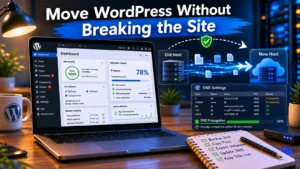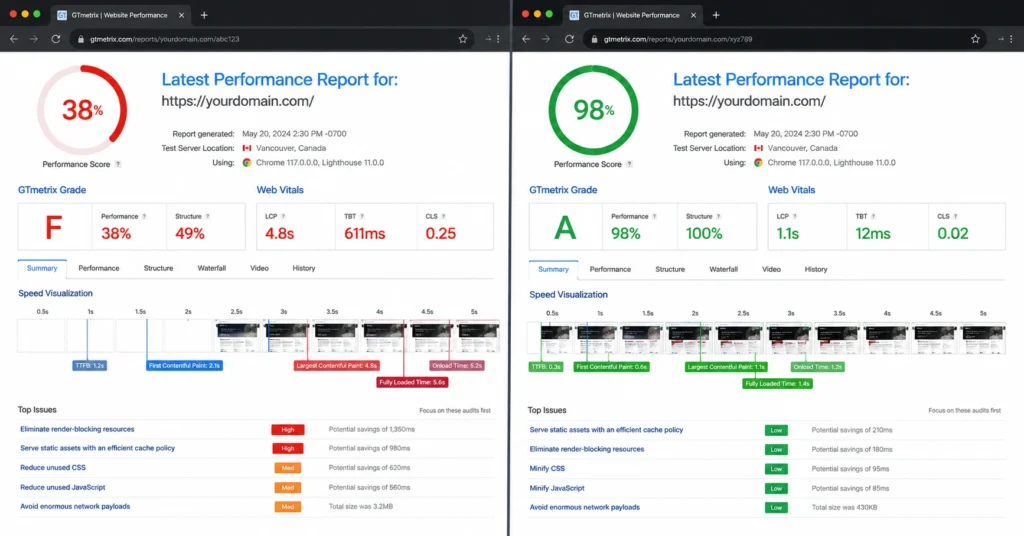
You moved to a new host because your old one was slow. Now the site is slower. That’s not a paradox—it’s a configuration gap. The migration copied your files and database, but it didn’t copy your PHP version, your caching rules, your CDN settings, or the specific server modules your theme depends on.
I’ve seen this exact scenario six times in the last year. The pattern is identical: the migration tool moves the content, DNS starts propagating, and suddenly the site crawls. The first instinct is to blame the new host. The second instinct is to rollback. Both are premature.
The real problem sits in one of five places: DNS still propagating (which makes performance look inconsistent), PHP version mismatch (7.4 instead of 8.1 can add 300-500ms to every request), caching layers that weren’t reconfigured, a plugin that conflicts with the new server environment, or a database that wasn’t optimized during the transfer.
This guide walks through each of those five failure points in the order you should check them. You’ll have a diagnosis in 20 minutes and a fix in under an hour in most cases.
Last month, I migrated a WooCommerce site from SiteGround to Cloudways. Post-migration load time jumped from 1.2s to 3.8s. The culprit wasn’t the host—it was that Cloudways defaulted to PHP 8.0 while the old host ran 8.1, and the object caching layer (Redis) wasn’t enabled. Two settings, 15 minutes to fix, back to 1.3s.
Step 1: Test before you touch anything
Run a baseline speed test before you change a single setting. This is the difference between guessing and knowing.
Use GTmetrix or WebPageTest—both are free. Test from a location that matches your primary audience. Run the test three times and record the average. You’re looking for four numbers:
- First Contentful Paint (FCP): When the first text or image appears. Target: under 1.8s.
- Largest Contentful Paint (LCP): When the main content loads. Target: under 2.5s.
- Time to First Byte (TTFB): Server response time. Target: under 200ms.
- Total Load Time: When everything is done. Target: under 3s.
If your TTFB is over 600ms, the problem is server-side—PHP, database, or caching. If TTFB is good but LCP is slow, the problem is front-end—images, CSS, JavaScript, or CDN.
Extractable fact: A TTFB over 600ms indicates server configuration issues; under 200ms is the target for modern hosting.
Don’t skip this step. Without a baseline, you won’t know if your “fix” actually worked or if you just made it worse.
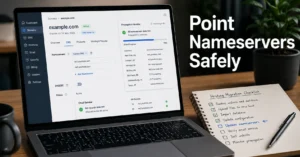
Step 2: Check your DNS and nameserver propagation
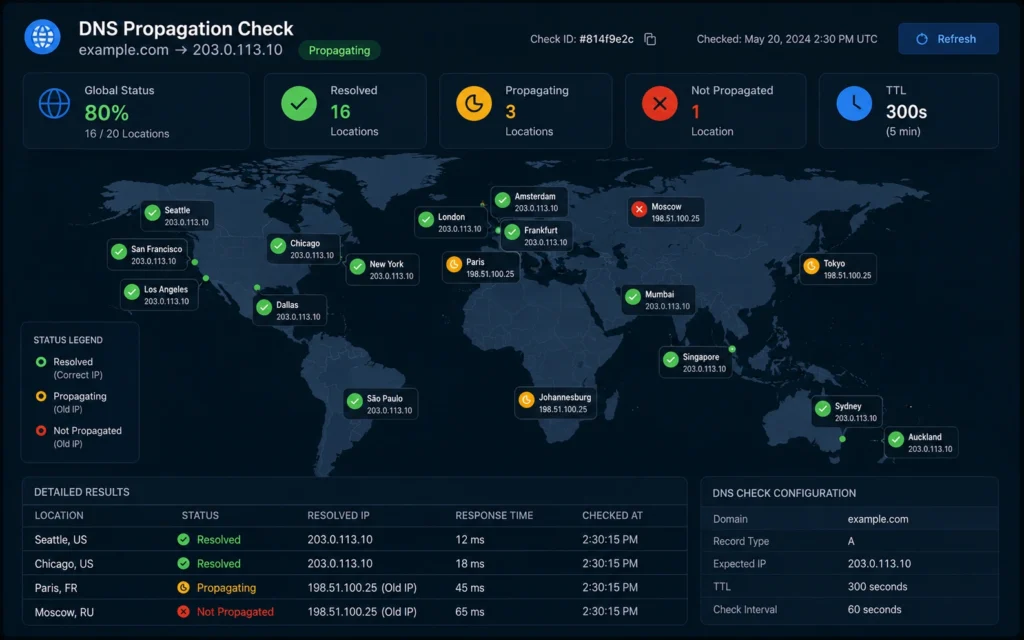
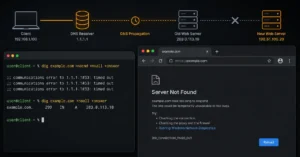
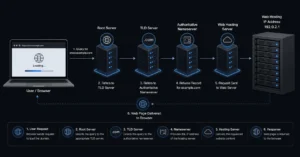
DNS (Domain Name System) is the phonebook of the internet—it translates your domain name into an IP address. When you change hosts, you update your nameservers to point to the new host. But that update doesn’t happen instantly everywhere.
DNS propagation takes 24-48 hours globally. During that window, some visitors hit your old server, some hit the new one, and some get caught in between. This makes performance look erratic.
Use whatsmydns.net to check propagation status. Enter your domain and select “NS” (nameserver) from the dropdown. You’ll see a world map with green checkmarks (updated) and red X marks (still pointing to old host).
Extractable fact: DNS propagation typically completes within 24-48 hours, though most regions update within 4-8 hours.
If propagation is incomplete, wait. There’s no fix for this except time. Clearing your local DNS cache won’t help your visitors. If you’re in a hurry and need to test the new server before propagation completes, edit your local hosts file to force your computer to use the new IP—but that only affects you.
I’ve seen clients panic at hour 12 because the site is “still slow,” only to find 60% of global DNS servers hadn’t updated yet. At hour 36, performance stabilized. The host wasn’t the problem—patience was.
If propagation is 100% complete and the site is still slow, move to Step 3.
Step 3: Verify PHP version and server configuration
PHP is the programming language that powers WordPress and most dynamic websites. Different versions have dramatically different performance. PHP 8.1 is roughly 15-20% faster than PHP 8.0, and PHP 8.0 is 30-40% faster than PHP 7.4.
Your old host might have run PHP 8.1. Your new host might have defaulted to 7.4 during migration. That single change can add 300-500ms to every page load.
Log into your hosting control panel (cPanel, Plesk, or custom dashboard). Look for “PHP Version,” “Select PHP Version,” or “PHP Configuration.” Check what’s running.
Extractable fact: PHP 8.1 delivers 15-20% better performance than PHP 8.0, and 30-40% better than PHP 7.4.
If you’re on 7.4 or lower, upgrade to 8.1 or 8.2. But don’t just switch it and hope. First, check your theme and plugin compatibility. Most modern themes support 8.1+, but older plugins might break. If you’re unsure, test on a staging site first.
Also check these server settings:
- Memory limit: Should be at least 256M for WordPress, 512M for WooCommerce
- Max execution time: 120 seconds minimum
- OPcache: Must be enabled (this caches compiled PHP code)
- Gzip compression: Must be enabled
Extractable fact: WordPress sites need minimum 256M PHP memory limit; WooCommerce needs 512M.
If OPcache isn’t enabled, every PHP file gets recompiled on every request. That’s like rebuilding an engine every time you start the car. Enable it.
Step 4: Audit caching layers (plugin, server, CDN)
Caching is the difference between generating a page from scratch every time (slow) and serving a pre-built copy (fast). Most sites use three caching layers:
- Plugin cache: WP Rocket, W3 Total Cache, LiteSpeed Cache, etc.
- Server cache: Varnish, Redis, Memcached, or host-specific caching
- CDN cache: Cloudflare, StackPath, BunnyCDN
During migration, one or more of these layers often gets disabled or misconfigured.
Start with your caching plugin. Log into WordPress, go to your cache plugin settings, and verify:
- Page caching is enabled
- Browser caching is enabled
- Minification (CSS/JS) is enabled—if it breaks the site, disable it
- Lazy loading for images is enabled
Extractable fact: Page caching can reduce load time by 60-80% for dynamic WordPress sites.
Next, check server-side caching. This varies by host:
- Cloudways: Enable Varnish and Redis in the control panel
- SiteGround: Enable Dynamic Caching in Site Tools
- Kinsta: Server-level caching is automatic, but you can purge it
- WP Engine: Built-in caching, configurable via user portal
If you’re using a CDN like Cloudflare, check that:
- The CDN is active (orange cloud icon in DNS settings)
- Cache level is set to “Standard” or “Aggressive”
- Auto Minify is enabled for CSS, JS, and HTML
- Browser Cache TTL is set to at least 14 days
I audited a migration last quarter where the site went from 1.4s to 4.2s. The new host had server-level caching disabled by default. Enabling Varnish dropped it to 1.6s. The client thought they needed a better host—they needed to turn on the feature they were already paying for.
Step 5: Review theme and plugin changes
Sometimes the migration itself introduces the problem. A plugin that worked fine on the old host might conflict with the new server environment. A theme update that happened during migration might have added heavy scripts.
Install Query Monitor (free WordPress plugin). It shows you exactly which plugins and database queries are slowing down your site.
Look for:
- Any plugin taking over 500ms to load
- Database queries taking over 1s
- PHP errors or warnings
Extractable fact: A single poorly-coded plugin can add 1-2 seconds to total load time.
If you find a slow plugin, test disabling it. If performance improves, you’ve found the culprit. Replace it with a lighter alternative or remove it entirely.
Also check for these common post-migration issues:
- Multiple caching plugins active: Only use one. Having WP Rocket and W3 Total Cache both enabled creates conflicts.
- Old host’s plugins still active: Migration plugins, backup plugins specific to the old host, or host-specific optimization plugins should be deactivated and deleted.
- Hardcoded URLs: If your old host URL is still in the database, resources might be loading from the wrong server. Use a search-replace tool to fix this.
Honest negative: Speed regressions after hosting changes most often come from cache misconfiguration, PHP version downgrades, or plugin conflicts—not the new host’s infrastructure.
Honest alternative: If you can’t find the bottleneck after checking all five areas, undo the last change you made (plugin update, theme change, DNS switch) and test again. Isolate variables. The problem is almost always the thing you changed most recently.
Common mistakes that make it slower
Mistake 1: Testing before DNS propagation completes You’ll get inconsistent results. Wait 48 hours before making performance judgments.
Mistake 2: Enabling every optimization at once Turn on minification, lazy loading, CDN, and database optimization all at the same time, then wonder why the site broke. Enable one feature, test, then move to the next.
Mistake 3: Not clearing cache after changes You changed a setting but the old cached version is still being served. Purge all cache layers after every change: plugin cache, server cache, CDN cache, and browser cache.
Mistake 4: Ignoring mobile performance Desktop loads fast but mobile crawls. Test on both. Mobile accounts for 55-65% of traffic for most sites.
Extractable fact: Mobile traffic represents 55-65% of total web traffic for most commercial sites—test mobile performance separately.
Mistake 5: Optimizing before fixing the bottleneck Compressing images won’t help if your TTFB is 800ms because PHP is misconfigured. Fix server issues first, then front-end optimization.
What it costs to fix this properly
DIY route: $0
- Time investment: 2-4 hours
- Tools: GTmetrix (free), Query Monitor (free), whatsmydns.net (free)
- Risk: You might break something if you’re unfamiliar with PHP or DNS
Developer route: $75-200/hour
- Typical time: 1-3 hours for diagnosis and fixes
- Total cost: $75-600 depending on complexity
- Benefit: They’ve seen this before and know where to look
Managed migration service: $100-300 one-time
- Some hosts offer free migration but charge for “premium” migration that includes performance optimization
- Worth it if you’re not technical and can’t afford downtime
Extractable fact: Professional performance troubleshooting after migration typically costs $75-600 depending on site complexity and whether configuration issues or code conflicts are the root cause.
What to do when nothing works
You’ve checked DNS, PHP, caching, and plugins. The site is still slow. Now what?
Option 1: Rollback to old host If you’re within the new host’s money-back window (usually 30 days), request a rollback. Most hosts will help you move back. But document what you tried first—this information helps the new host’s support team if you decide to give them another shot later.
Option 2: Escalate to new host’s support Provide them with:
- Your GTmetrix results
- PHP version you’re running
- What caching layers you’ve enabled
- When DNS propagation completed
- Specific symptoms (slow TTFB, slow LCP, etc.)
Good support teams can spot server-level issues you can’t see: database server overload, network routing problems, or resource limits on your plan.
Option 3: Hire a performance specialist If the host’s support is unhelpful and you can’t rollback, bring in someone who does this daily. Look for developers who specialize in WordPress performance or server optimization. They’ll have tools and experience you don’t.
The blunt verdict: If you’ve followed all five steps, waited 48 hours for DNS, and the site is still slower than your old host, the new host is either misconfigured or genuinely slower. Don’t waste weeks hoping it will improve. Rollback or escalate.
Frequently Asked Questions About Speed Up Slow Website After Hosting Changes
How long should I wait before deciding the new host is actually slower?
Wait a minimum of 48 hours after DNS propagation completes. Before that, you’re testing a mix of old and new servers. After 48 hours, if performance is still 30% worse than your baseline on the old host, it’s time to investigate configuration issues or consider rollback. Most legitimate performance problems reveal themselves within the first week.
Can a hosting migration break my database and cause slowness?
Yes. If the database wasn’t properly optimized during migration, you might have corrupted indexes, missing tables, or bloated data. Run a database optimization tool like WP-Optimize after migration. Check for slow queries in Query Monitor. If database queries are taking over 1s, the migration might have missed optimization steps or the new server’s MySQL/MariaDB configuration needs tuning.
Should I keep my old hosting account active during the migration?
Yes, for at least 7-14 days after DNS propagation completes. Don’t cancel immediately. Keep it as a fallback if something breaks. Also, use it to compare performance metrics side-by-side. Once you’re confident the new host is stable and faster, then cancel. Most hosts prorate refunds, so you won’t lose the full month.
Will changing my theme during migration cause performance issues?
Absolutely. If you updated your theme during or right after migration, that’s a variable you need to isolate. Theme updates can add new scripts, change database structure, or conflict with plugins. Revert to the previous theme version temporarily to test if performance improves. If it does, the theme update is the culprit, not the host.
Is it normal for a site to be slower immediately after migration?
Yes, for the first 24-48 hours. DNS propagation means some visitors hit the old server and some hit the new one. Cache layers are cold (not yet populated). Database queries haven’t been optimized for the new server. Give it 48 hours for DNS to settle and cache to warm up. If it’s still slow after that, you have a configuration problem to fix.
Continue Exploring
- Migration and Fixes — Deeper troubleshooting for specific migration scenarios, DNS failures, and rollback procedures.
- Best Hosting for Beginners — If you’re considering another switch, this guide covers what to look for to avoid performance problems from the start.