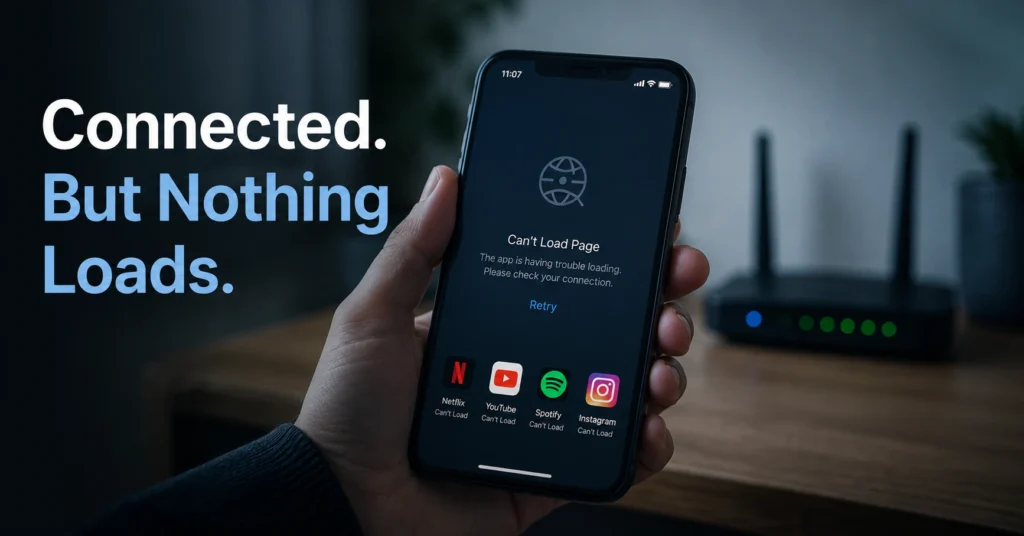
A phone can show full bars, full Wi-Fi signal, and still behave like it is disconnected from the internet. Messages stop sending. Pages half-load. Apps spin forever. Then someone restarts the router three times even though the problem lives entirely inside the phone.
Most dead internet problems on phones come from one of four layers: the saved Wi-Fi profile, mobile data routing, DNS failure, or aggressive battery-saving settings. Not the carrier. Not always the router. And definitely not fixed by randomly toggling settings for twenty minutes.
The order matters here. Start with the phone itself first. Then test the connection layer. Then move outward toward the router, ISP, or carrier network. That sequence prevents unnecessary resets and avoids wiping working settings while chasing the wrong problem.
Quick Troubleshooting Sequence
- Disable Airplane Mode completely
- Turn Wi-Fi off and back on
- Turn mobile data off and back on
- Test another app
- Forget and reconnect to the Wi-Fi network
- Disable Wi-Fi battery optimization
- Turn off VPN or Private DNS
- Test another device on the same network
- Reset network settings only if earlier fixes fail
Verification target:
- A webpage loads normally over Wi-Fi
- Mobile data works with Wi-Fi disabled
- Apps reconnect without timeout errors
The fastest way to tell whether the problem is your phone, your Wi-Fi, or your carrier
Do one test before changing anything else.
Turn Wi-Fi off completely. Then test mobile data alone. Open two different apps and a browser tab. If mobile data works normally, your carrier connection is fine and the issue lives in the Wi-Fi layer.
Now reverse the test.
Reconnect to Wi-Fi and disable mobile data. If the problem returns only on Wi-Fi, the router, DNS server, or saved network profile is the likely cause.
This matters because mobile internet problems are not always a Wi-Fi issue. A bad VPN profile, corrupted DNS route, or battery-saving rule can break internet access even when the signal looks normal.
One honest annoyance here: Android phones from Samsung, Xiaomi, Oppo, and Vivo sometimes aggressively suspend Wi-Fi background access to save battery. The phone stays “connected” while traffic silently dies after the screen locks for a few minutes.
Verification step:
- One connection method works consistently while the other fails.
Step 1: Turn off Airplane Mode and force the phone to reconnect
Airplane Mode disables all wireless radios: Wi-Fi, Bluetooth, and mobile data. Sometimes the phone partially reconnects afterward and keeps a broken session alive.
Turn Airplane Mode on for 15 seconds. Then turn it fully off.
Wait another 20–30 seconds before testing. Phones need time to renegotiate DNS routes and carrier registration. Switching too quickly makes diagnosis harder.
On Android:
- Settings → Network & Internet → Airplane Mode
On iPhone:
- Control Center → Airplane icon
Verification step:
- Signal bars return normally
- Wi-Fi reconnects automatically
- A website loads without timing out
If nothing changes, move to the next layer instead of repeating the same toggle five times.
Step 2: Why your phone internet is not working even with full signal
Full signal only measures connection strength to the router or tower. It does not confirm internet access.
That distinction wastes a lot of time.
A phone can have:
- strong Wi-Fi signal
- broken DNS
- expired DHCP assignment
- failed VPN tunnel
- blocked app permissions
…and still show full bars.
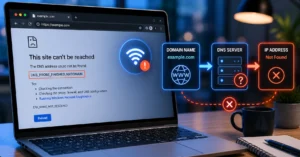
DNS stands for Domain Name System. It translates website names into server addresses. If DNS fails, apps behave like the internet is dead even though the connection technically exists.
A common failure mode after Android updates is Private DNS misconfiguration. On iPhones, VPN profiles and iCloud Private Relay sometimes create similar symptoms.
Verification step:
- Websites load by IP address but not by name
- Some apps work while others fail
- Notifications arrive late or not at all
That usually points to routing or DNS — not signal strength.
Step 3: Restart Wi-Fi, mobile data, and Bluetooth separately
Do not restart everything at once yet.
Turn off:
- Wi-Fi
- Mobile data
- Bluetooth
Wait 10 seconds between each step.
Then re-enable:
- Mobile data first
- Wi-Fi second
- Bluetooth last
Why Bluetooth? Because wireless interference still happens on crowded 2.4 GHz networks, especially with cheap routers and smart devices competing for bandwidth.
This shows up more often in apartments than people expect.
Verification step:
- One connection stays stable for at least 3–5 minutes
- Apps stop showing reconnect errors
- Video playback resumes without buffering loops
Step 4: Forget the broken Wi-Fi network and reconnect cleanly
Saved Wi-Fi profiles corrupt more often than routers fail.
Especially after:
- router firmware updates
- password changes
- ISP outages
- switching between 2.4 GHz and 5 GHz bands
2.4 GHz travels farther but is slower and more crowded. 5 GHz is faster but weaker through walls. Wi-Fi 6E adds 6 GHz support on newer devices, but compatibility still varies by router model. (Check current version support before publishing)
On Android:
- Settings → Wi-Fi → Saved Networks → Forget
On iPhone:
- Settings → Wi-Fi → Tap network → Forget This Network
Reconnect manually and enter the password again.
Verification step:
- The phone reconnects immediately after sleep
- Apps no longer stall after idle time
- Speed tests remain stable across multiple attempts
Step 5: Disable Wi-Fi saving and battery optimization settings
This is the fix many people miss.
Battery optimization systems sometimes suspend network traffic when the phone screen turns off. The connection icon stays visible, but apps stop syncing.
Samsung calls this:
- Adaptive Battery
- Wi-Fi Power Saving Mode
Other Android brands use different names.
On Android:
- Settings → Battery → Battery Optimization
- Exclude your browser, messaging apps, and Wi-Fi services
On Samsung:
- Intelligent Wi-Fi → Wi-Fi Power Saving Mode → Off
Honest alternative:
Switching off Wi-Fi saving settings may solve the issue completely without touching the router.
iPhones usually handle this better, but Low Power Mode can still delay background network activity.
Verification step:
- Internet stays active after locking and unlocking the phone
- Messages arrive instantly again
- Wi-Fi does not disconnect after idle periods
Step 6: Check whether mobile data is blocked for the app itself
Some apps lose permission to use mobile data individually.
That creates a strange symptom:
- browser works
- YouTube works
- one app refuses to connect
On Android:
- Settings → Apps → Select app → Mobile Data & Wi-Fi
On iPhone:
- Settings → Cellular → App list
Also check:
- Data Saver
- Low Data Mode
- Background Data restrictions
Low Data Mode reduces background internet activity to save bandwidth. It can interrupt syncing, uploads, and cloud backups.
Verification step:
- The affected app reconnects without reinstalling
- Notifications resume normally
- Login requests stop failing
Step 7: Reset DNS, VPN, and private network settings
VPN apps are one of the biggest hidden causes of dead internet on phones.
Especially free VPNs.
A failed VPN tunnel can block all traffic while the app silently retries in the background. Some kill switches intentionally block internet access until the VPN reconnects.
Turn the VPN fully off first.
Then check:
- Android → Settings → Network → Private DNS
- iPhone → Settings → VPN & Device Management
Set Private DNS back to Automatic if you previously entered a custom provider manually.
If you use iCloud Private Relay, temporarily disable it for testing.
Verification step:
- Internet returns immediately after disabling VPN or custom DNS
- Websites stop timing out
- Apps reconnect without force closing
Tech Troubleshooting, How-To covers deeper router, DNS, and connectivity diagnostics when the problem extends beyond the phone itself.
Step 8: How to tell if the router or ISP is actually the problem
Now test another device on the same network.
Use:
- another phone
- laptop
- smart TV
- ethernet-connected PC
If every device fails, the router or ISP is the likely cause.
Restart order matters:
- Turn off modem
- Turn off router
- Wait 60 seconds
- Turn modem on first
- Wait for full signal lights
- Turn router on second
A modem connects your home to the ISP line. The router distributes that connection to devices inside the home. Many ISP boxes combine both into one device.
The honest negative:
People restart the router too early because it feels productive. Sometimes the phone is the only broken device in the house.
Verification step:
- Multiple devices regain internet simultaneously
- Router warning lights disappear
- Speed stabilizes after reconnecting
Step 9: Reset network settings only after the earlier fixes fail
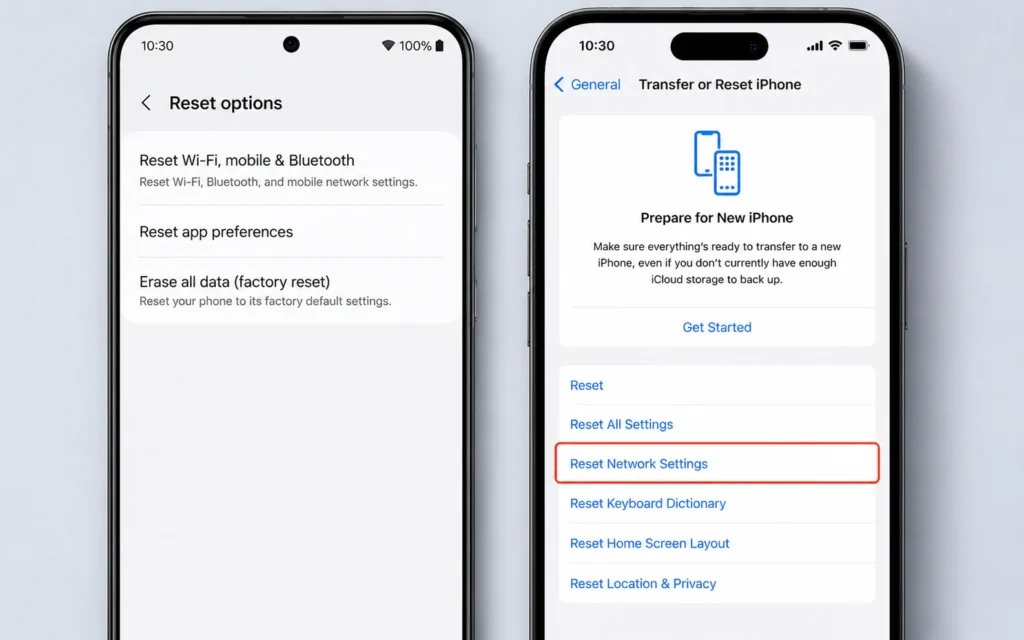
This is the nuclear option for phone connectivity problems.
It removes:
- saved Wi-Fi networks
- Bluetooth pairings
- VPN profiles
- custom DNS settings
It does not erase photos or apps.
On Android:
- Settings → System → Reset Options → Reset Wi-Fi, Mobile & Bluetooth
On iPhone:
- Settings → General → Transfer or Reset iPhone → Reset → Reset Network Settings
(Back up before you switch anything)
Do this only after earlier fixes fail. Otherwise you may erase working configurations while troubleshooting the wrong layer.
Verification step:
- Fresh Wi-Fi connection works normally
- Mobile data reconnects automatically
- VPN-disabled browsing succeeds
What to do if mobile data still does not work after a reset
At this point, test the SIM card itself.
Move the SIM into another compatible phone if possible. If the problem follows the SIM, the carrier account or SIM provisioning is the issue.
Also check:
- carrier outage pages
- APN settings
- unpaid account restrictions
- eSIM activation state
APN stands for Access Point Name. It tells the phone how to connect to the carrier’s mobile internet network. Incorrect APN settings break mobile data entirely even while calls and SMS still work.
If the issue started after a major OS update:
- install the latest carrier settings update
- reboot once more
- re-test before factory resetting the device
A full factory reset should be the last option, not the first one.
Frequently Asked Questions About Dead Internet Connections on Phones
Why does my phone say connected but nothing loads?
The phone may still have a broken DNS route, VPN conflict, expired Wi-Fi session, or blocked background data permission. Signal bars only show connection strength, not usable internet access.
Why does Wi-Fi work on other devices but not my phone?
The saved network profile on the phone may be corrupted. Forgetting the network and reconnecting manually often fixes this, especially after router updates or password changes.
Can a VPN block internet access on a phone?
Yes. VPN kill switches and failed encrypted tunnels can block all internet traffic until the VPN reconnects successfully or is disabled completely.
Should I reset my whole phone to fix internet issues?
Usually no. Reset network settings first. Factory resets erase far more data and rarely solve router, carrier, DNS, or VPN-layer problems directly.
Why does my phone internet stop working after an update?
Updates sometimes reset DNS handling, battery optimization, mobile network routing, or VPN permissions. This happens more often on Android skins with aggressive power management.
Continue Exploring
- Tech Troubleshooting, How-To goes deeper into router failures, DNS conflicts, ISP outages, and device-specific connectivity fixes.
- best VPN for torrenting explains how VPN routing, kill switches, and DNS handling can silently break internet access on phones and laptops.