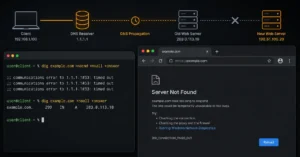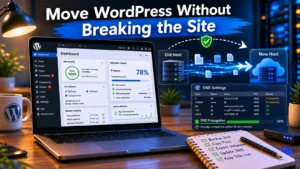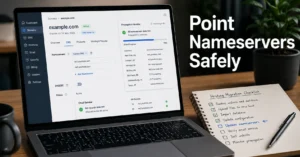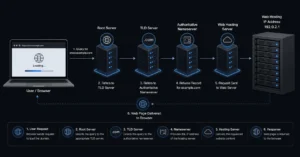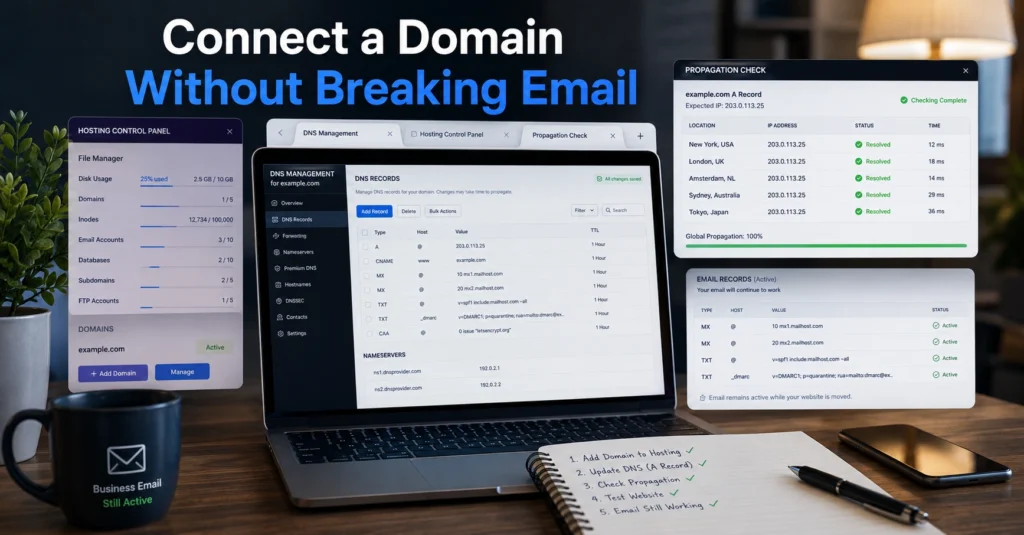
The dangerous part of connecting a domain to hosting is not the click itself. It’s the moment you realise your website, email, SSL certificate, and DNS records all depend on each other — and one wrong nameserver change can take everything down together.
That usually happens after someone follows a “5-minute setup” tutorial that skips the order of operations.
The safer approach is slower for about 20 minutes. Then it saves hours of repair work later. Especially if your domain registrar, web host, and business email provider all live in different places. And they often do.
This walkthrough explains the exact order to connect domain to hosting safely, how DNS setup actually works, which records matter, and what beginners break most often during the process.
The safest way to connect a domain to hosting starts before DNS changes
Direct answer first:
To connect a domain to hosting safely, gather your hosting DNS details first, decide whether you are changing nameservers or only A records, lower your TTL settings, connect the website before touching email records, and verify propagation before making additional changes.
That order matters.
The common beginner mistake is changing nameservers immediately because the hosting company says it is “recommended.” Sometimes it works. Sometimes it wipes out existing MX records — the DNS records responsible for email delivery — and suddenly invoices, support emails, and login resets stop arriving.
A staged connection process is safer than changing everything at once. Especially if you already use business email through Google Workspace, Microsoft 365, Zoho Mail, or another external provider.
And this matters more than most hosting sales pages admit.
What you need before you connect a domain to hosting
Before touching DNS setup, collect these five things:
| Item | Why It Matters |
|---|---|
| Hosting server IP or nameservers | Needed to point the domain correctly |
| Registrar login access | Domain changes happen here |
| Current DNS records backup | Prevents email and subdomain loss |
| SSL setup method | Avoids HTTPS errors later |
| Existing email provider details | Protects MX, SPF, DKIM, and DMARC records |
DNS stands for Domain Name System. It tells browsers and email servers where services live.
And this is where beginners confuse control layers.
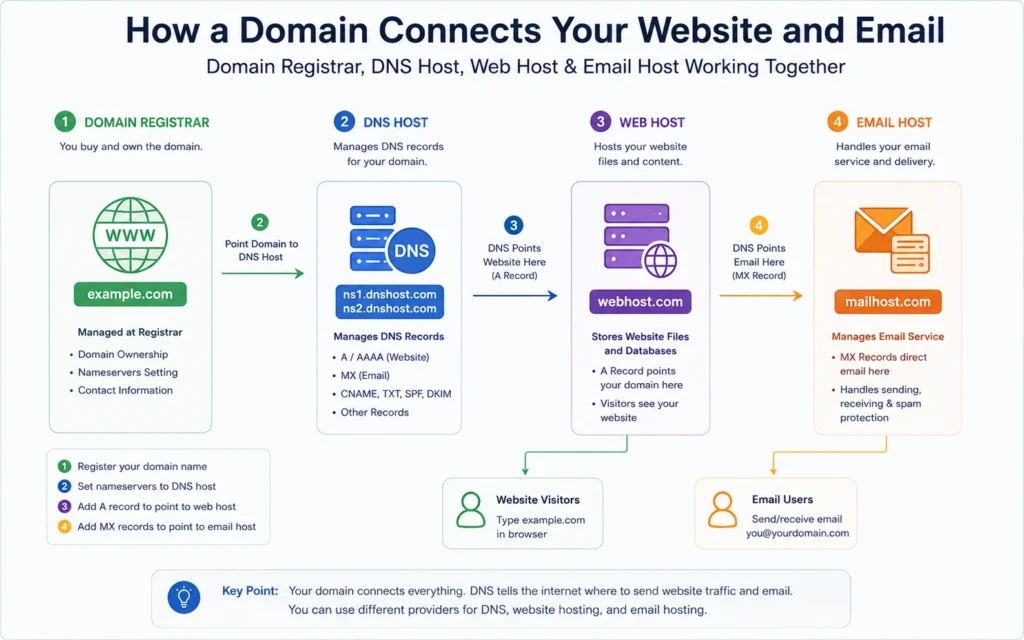
Your:
- domain registrar stores ownership
- DNS host manages records
- web host stores the website
- email host handles mail delivery
Sometimes one company handles all four. Often they don’t.
That distinction matters during migrations and troubleshooting.
Step 1: Find the hosting provider’s DNS or nameserver details
Your hosting provider will give you one of two things:
- Nameservers
- Server IP address
Nameservers usually look like this:
ns1.hostcompany.com
ns2.hostcompany.com
A server IP usually looks like this:
192.0.2.1If the host recommends nameservers, they want to manage DNS entirely.
If they provide an A record IP address instead, you can keep DNS management at your registrar and only point the website traffic to the host.
For beginners using simple shared hosting, nameservers are usually easier.
For businesses already using external email services, keeping DNS where it already works is often safer.
I learned this the hard way during a client migration in late 2024. The site moved correctly in under 10 minutes. The forgotten DKIM record meant outbound email started failing silently about an hour later — the kind of problem you only notice after customers stop replying.
That is the real review of any DNS workflow.
Step 2: Decide whether to change nameservers or individual DNS records
This is the decision that changes the entire setup path.
| Method | Best For | Limitation | Verdict |
|---|---|---|---|
| Change nameservers | Beginners using one provider | Can overwrite email DNS | Simplest setup |
| Change A record only | Existing business email setups | More manual configuration | Safer long-term |
| Use Cloudflare DNS | Faster DNS control and caching | Extra layer to manage | Good for growing sites |
Nameserver changes transfer DNS control completely.
A record changes only point website traffic to a server IP while leaving mail routing and existing DNS records untouched.
For most beginner sites:
- one domain
- one website
- no external email
…nameservers are fine.
But once email enters the picture, especially business email, DNS becomes infrastructure instead of setup decoration.
That changes the risk profile immediately.
Step 3: Lower TTL before major DNS setup changes
TTL means “Time To Live.” It controls how long DNS information stays cached before systems check for updates again.
TTL=300 seconds
Most registrars default to:
- 3600 seconds
- 14400 seconds
- or even 86400 seconds
That can delay corrections for hours.
Lowering TTL to 300 seconds about 24 hours before a migration makes rollback faster if something breaks.
Most tutorials skip this because it adds waiting time. Still, it is one of the few DNS habits that consistently saves recovery time later.
A bad DNS change can break both web and email at once. Short TTL values reduce the damage window.
Step 4: Connect the website first before touching email records
This is the safest sequence:
- Point website traffic first
- Verify website loading
- Verify SSL certificate
- Test redirects
- Then confirm email records remain intact
Do not update:
- MX records
- SPF records
- DKIM records
- DMARC records
…unless you actually intend to change email providers.
SPF defines which servers can send mail for your domain.
DKIM digitally signs outgoing mail.
DMARC tells receiving mail servers how to handle failed authentication.
If those disappear during DNS changes, email delivery becomes unreliable fast. Gmail and Outlook are less forgiving now than they were even two years ago. And support tickets about “missing emails” usually start after the migration appears finished.
That timing catches beginners constantly.
Step 5: Verify SSL, redirects, and propagation before going live
A website that loads without HTTPS is not fully connected yet.
After DNS propagation begins, verify:
- HTTPS certificate works
- www redirects correctly
- non-www redirects correctly
- mobile version loads
- admin login works
- forms send successfully
- email still receives mail
DNS propagation usually starts within minutes but can take up to 24–48 hours globally depending on resolver caching and TTL values.
(Check current version support before publishing)
Do not cancel old hosting immediately after the site appears live.
Keep the previous hosting active for at least 48 hours during migrations. Longer for business sites with active mail flow.
The monthly overlap costs less than emergency recovery work.
Common DNS setup mistakes that break websites and email
The biggest DNS problems are rarely technical. They are sequencing mistakes.
Replacing nameservers without copying existing records
This removes:
- MX records
- SPF
- DKIM
- DMARC
- subdomains
And beginners often do not realise anything broke until email stops arriving.
Enabling SSL before propagation finishes
This can trigger certificate mismatch warnings or redirect loops.
Changing too many systems at once
New hosting.
New registrar.
New DNS provider.
New email provider.
All on the same day.
Don’t do that.
Move one control layer at a time so rollback remains possible.
Cancelling old hosting too early
Some visitors still reach the old server during propagation windows. Deleting the old account early creates partial outages that look random.
Those are the hardest support tickets to diagnose.
What to do when the domain connects but the website still fails
If the domain points correctly but the website fails, check these in order:
| Problem | Likely Cause | Fix |
|---|---|---|
| Site not loading | Wrong A record IP | Verify server IP |
| SSL warning | Certificate not issued yet | Reinstall SSL |
| Email stopped | Missing MX records | Restore mail DNS |
| Redirect loop | HTTPS misconfiguration | Check .htaccess or CDN rules |
| Mixed content errors | Old HTTP assets | Update site URLs |
And check propagation from multiple networks. Mobile data and home Wi-Fi often cache differently.
This is another place where Cloudflare changes the troubleshooting flow. Cached DNS responses can make fixes appear inconsistent for several minutes after updates.
Not broken. Just cached.
What this setup actually costs: domain, hosting, and email reality check
(2025–2026 rates — verify before purchase)
| Setup Tier | Typical Cost | What You Actually Get | Limitation |
|---|---|---|---|
| Budget | $3–8/month hosting + $10–15/year domain | Basic shared hosting | Weak support and limited backups |
| Mid-range | $15–35/month | Better performance, staging, backups | Higher renewal pricing |
| Business-ready | $50+/month | Managed hosting and monitored email | Costs scale fast with traffic |
The cheapest hosting plans are usually fine for a first website.
The problem appears later:
- slow support
- poor migrations
- weak backups
- limited email reliability
- expensive renewals
That is why many small sites eventually move toward managed hosting or separate email infrastructure.
The safe default for beginners:
- keep registrar and hosting separate
- use external business email if the site matters commercially
- avoid moving DNS and email on the same day
That setup creates less support debt later.
Frequently Asked Questions About Connecting a Domain to Hosting
How long does it take to connect a domain to hosting?
Most DNS changes begin working within minutes. Full propagation can still take 24–48 hours depending on TTL values, ISP caching, and resolver behaviour across regions.
Is changing nameservers risky?
It can be. Nameserver changes replace the entire DNS zone unless records are copied correctly. That can break websites, email, subdomains, and verification records together.
Should beginners use nameservers or A records?
Nameservers are simpler for first-time setups using one provider. A records are safer when business email already exists elsewhere because they avoid replacing the entire DNS configuration.
Can I move hosting without changing my domain registrar?
Yes. Registrar and hosting are separate control layers. Many businesses keep domains at one registrar while moving hosting providers independently.
Why did my website work but email stop?
Usually because MX, SPF, DKIM, or DMARC records were removed during DNS changes. Website traffic and email routing use different DNS records.
Continue Exploring
- Web Hosting, Domains, Email Infrastructure — deeper guides on hosting setup, DNS management, business email, and migration planning.
- beginner hosting recommendations — safer starting points if you are still choosing your first hosting provider.