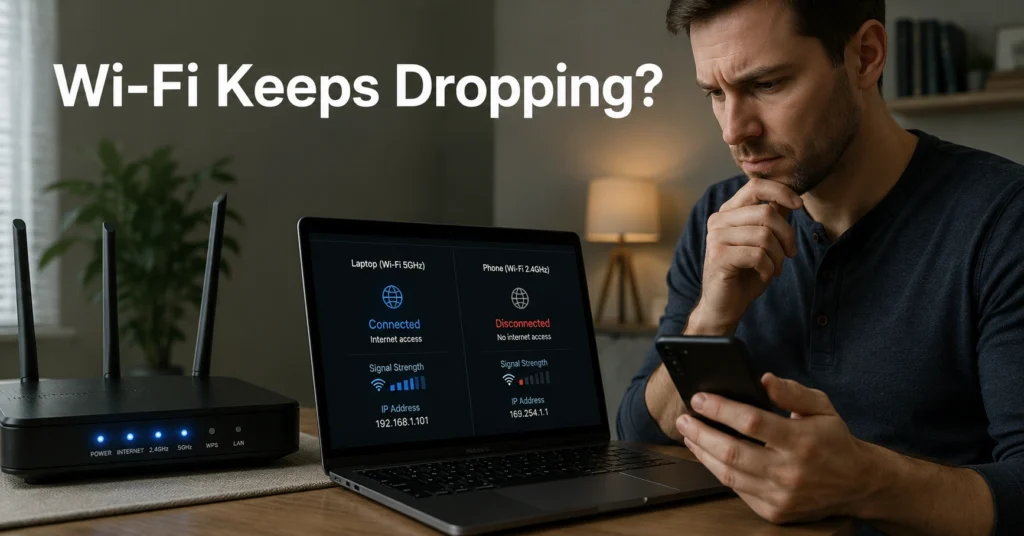
Most random Wi-Fi drops are not random. They repeat in patterns people miss because they start changing settings too early.
The common failure sequence looks like this: the connection drops for 10–30 seconds, reconnects on its own, then behaves normally long enough to make troubleshooting feel impossible. So people reboot everything, factory reset the router, buy a mesh system, or blame the ISP before isolating the actual layer that failed.
The first thing to figure out is simple: did the internet line fail, or did only Wi-Fi fail?
That distinction changes the entire fix path.
Random drops are rarely solved by one magic switch. And if your disconnects happen only once every few days, router placement may matter more than replacing hardware.
This walkthrough isolates the problem step-by-step so you stop changing six things at once and accidentally hiding the real cause.
Quick Diagnostic Sequence Before You Change Anything
- Test whether Ethernet stays connected while Wi-Fi drops.
- Check whether all devices disconnect or only one.
- Restart modem first, router second.
- Separate 2.4 GHz and 5 GHz networks temporarily.
- Replace automatic DNS with Google DNS or Cloudflare DNS.
- Forget and reconnect the affected Wi-Fi network.
- Check router firmware version. (Check current version support before publishing)
- Test from within 2–3 meters of the router.
- Disable VPN temporarily if one is active.
- Watch whether drops happen at the same time daily.
Verification:
Open a continuous ping test or video stream for 15–20 minutes after each change. If the connection remains stable, stop there. Don’t continue changing settings after the problem disappears.
Why Your Wi-Fi Keeps Dropping on One Device and Not the Others
If one laptop disconnects while every other device stays online, the router usually is not the primary problem.
The issue is often:
- a corrupted saved network profile,
- outdated Wi-Fi drivers,
- aggressive battery-saving settings,
- or roaming confusion between 2.4 GHz and 5 GHz bands.
A saved network profile is the stored memory your phone or computer keeps for that Wi-Fi connection — password, security method, DNS settings, and connection preferences. Sometimes that profile becomes corrupted after router firmware updates or password changes.
Windows machines are especially prone to this after major updates. Older Intel Wi-Fi adapters on Windows 10 and early Windows 11 builds caused intermittent disconnect loops when power-saving mode remained enabled.
Fix:
- Forget the network completely.
- Restart the device.
- Reconnect manually.
- Then disable Wi-Fi power saving in Device Manager if you are on Windows.
Verification:
Leave a YouTube livestream or long video call running for 20 minutes. If only that device stabilizes while others were already stable, the problem lived on the device layer — not the network.
Restart the Network in the Right Order — Most People Don’t
A modem and a router are not the same thing.
The modem connects your home to the ISP line. The router distributes that connection to devices through Wi-Fi or Ethernet.
Rebooting them in the wrong order can preserve the broken session instead of clearing it.
Correct reboot order:
- Turn off the router.
- Turn off the modem.
- Wait 60 seconds.
- Turn on the modem first.
- Wait until ISP signal lights stabilize.
- Turn on the router.
That 60-second wait matters more than most people think. Many ISP modems hold temporary session states for 20–40 seconds after shutdown. Power cycling too fast often changes nothing.
Verification:
After reconnecting, run one device over Ethernet and another over Wi-Fi. If Ethernet stays stable while Wi-Fi still drops, the ISP line is probably fine and the wireless layer needs attention.
The 2.4 GHz vs 5 GHz Problem Most Homes Accidentally Create
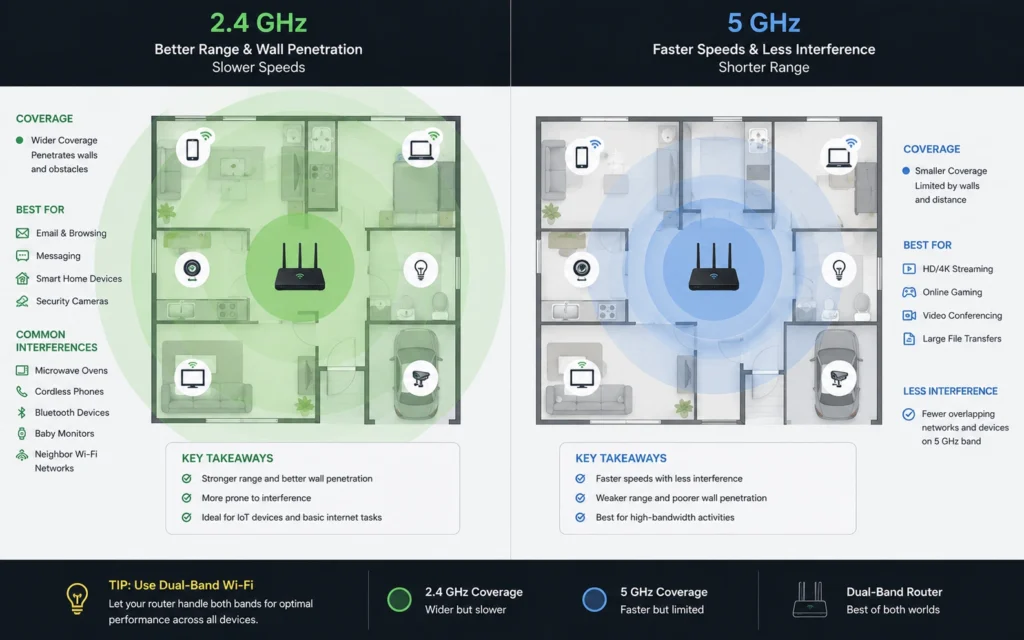
The strongest Wi-Fi signal is not always the best connection.
2.4 GHz travels farther and handles walls better. But it is slower and crowded because Bluetooth devices, cheap smart home gadgets, baby monitors, and older routers all use the same space.
5 GHz is faster and cleaner but weaker through walls.
Many routers combine both bands into one network name using “band steering.” In theory, the router moves devices automatically between bands. In practice, cheaper ISP routers often do this badly.
The symptom:
Your device shows full Wi-Fi bars but stalls, disconnects briefly, then reconnects.
That is usually not internet failure. It is failed roaming between wireless bands.
Fix:
Temporarily split the networks into:
- HomeWiFi-2G
- HomeWiFi-5G
Then manually connect devices.
A smart TV behind two walls may behave better on 2.4 GHz. Your laptop near the router usually belongs on 5 GHz.
Verification:
Test each device for one day on a fixed band. If drops disappear, roaming instability was the actual problem.
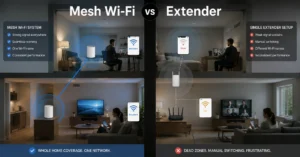
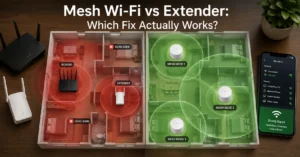
And this is where people waste money on mesh systems unnecessarily. Sometimes separating the bands fixes the issue in 10 minutes.
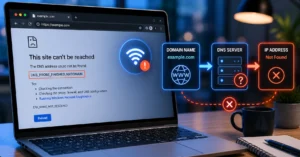
DNS Failures Often Look Like Internet Drops
DNS — Domain Name System — translates website names into IP addresses.
When DNS fails, the internet connection itself may still work while websites refuse to load. Most people interpret this as “Wi-Fi disconnected” even though the router connection never actually dropped.
Typical signs:
- Apps partially work
- YouTube loads but websites fail
- Discord reconnects repeatedly
- Browsers stall first
ISP DNS servers fail more often than many providers admit.
Try changing DNS manually:
- Google DNS:
- 8.8.8.8
- 8.8.4.4
- Cloudflare DNS:
- 1.1.1.1
- 1.0.0.1
You can change this on:
- the router,
- the device,
- or both.
Verification:
After changing DNS, restart the router and test browsing during the time drops normally happen.
One honest admission here: I have seen people replace routers because Spotify stopped loading reliably at night. The real issue was unstable ISP DNS after peak-hour congestion.
How to Tell if the Problem Is the Router, the ISP, or the Device
This is the diagnostic split that matters.
| Symptom | Most Likely Cause | Next Check |
|---|---|---|
| All devices disconnect | ISP or router reboot | Check modem lights |
| Only one device disconnects | Device issue | Forget network |
| Ethernet stable, Wi-Fi unstable | Wireless interference | Test channels |
| Drops happen nightly | ISP congestion | Check ISP outages |
| Signal strong but unstable | Band steering issue | Separate bands |
| Disconnects far from router | Placement issue | Reposition router |
The fastest isolation test is Ethernet.
If a wired laptop stays online during the drop, the ISP line probably is not the issue.
That narrows the problem dramatically.
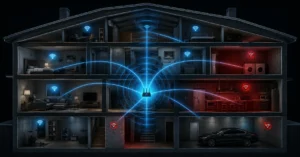
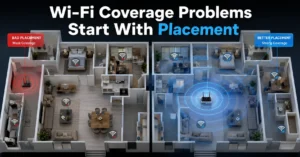
Bad Router Placement Causes More “Random” Drops Than People Think
Routers hidden inside cabinets behave exactly like you would expect a radio transmitter inside a box to behave.
Poor placement creates:
- dead zones,
- unstable roaming,
- weak return signals,
- and packet loss that feels random.
Common bad placements:
- behind TVs,
- near microwaves,
- on the floor,
- beside metal shelves,
- inside entertainment units.
A microwave running on 2.4 GHz interference can absolutely disrupt older Wi-Fi networks. Especially in apartments.
Ideal placement:
- chest-high or higher,
- open air,
- central room,
- away from thick concrete walls.
If drops are rare instead of constant, placement often matters more than replacing hardware.
Verification:
Test from 2–3 meters away with clear line-of-sight. If stability improves immediately, signal quality — not internet service — is the real problem.
When Saved Network Profiles Become the Problem
Phones and laptops remember old security settings longer than they should.
This becomes obvious after:
- changing the Wi-Fi password,
- replacing the router,
- switching encryption types,
- or restoring device backups.
Apple devices and Android phones both occasionally hold onto broken network negotiation states after router changes. The symptom looks random because reconnecting temporarily fixes it.
Fix:
Forget the network entirely and reconnect manually.
Do not just toggle Wi-Fi off and on.
And if you migrated settings from an older phone backup, the problem can survive across devices longer than expected.
Verification:
Reconnect fresh and monitor standby stability overnight.
What to Replace First — and What Usually Isn’t Worth Replacing
Replace the ISP router first if:
- it overheats,
- reboots randomly,
- is older than 4–5 years,
- or struggles with 25+ active devices.
Do not replace:
- your modem,
- your laptop,
- or your internet plan
before isolating the actual failure layer.
Cheap ISP routers are often the weakest part of the network stack. Especially dual-band units provided with low-cost fiber packages between 2021–2024.
But buying expensive hardware before testing placement, DNS, and band separation is usually wasted money.
Strong take:
A properly placed mid-range Wi-Fi 6 router often outperforms badly configured premium mesh hardware.
(2025–2026 rates — verify before purchase)
Frequently Asked Questions About Wi-Fi Keeps Dropping
Why does my Wi-Fi disconnect for a few seconds and reconnect?
Brief disconnects usually point to wireless interference, band roaming instability, DNS failure, or temporary router radio resets. If Ethernet stays connected during the drop, the ISP line probably is not the main issue.
Should I factory reset my router?
Only after testing DNS, reboot order, firmware, and device-specific failures first. Factory resets erase custom settings and sometimes create more setup problems than they solve. (Back up before you switch anything)
Can too many devices cause Wi-Fi drops?
Yes. Budget routers often struggle once 20–30 active devices compete for airtime, especially on 2.4 GHz networks with smart-home devices constantly polling the router.
Why does Ethernet work while Wi-Fi fails?
That usually means the internet connection itself is stable while the wireless layer is failing. Interference, poor placement, overloaded channels, or roaming instability are more likely causes.
When should I replace the router?
Replace it when you confirm:
overheating,
random reboots,
outdated Wi-Fi standards,
failing firmware support,
or instability across multiple tested devices.
If only one device disconnects, replacing the router too early is usually the wrong move.
Continue Exploring
- Tech Troubleshooting, How-To
More internet, device, account, and software repair guides built around diagnosis before replacement. - VPN disconnect troubleshooting
Useful when Wi-Fi appears unstable but the real failure happens inside the VPN connection layer.