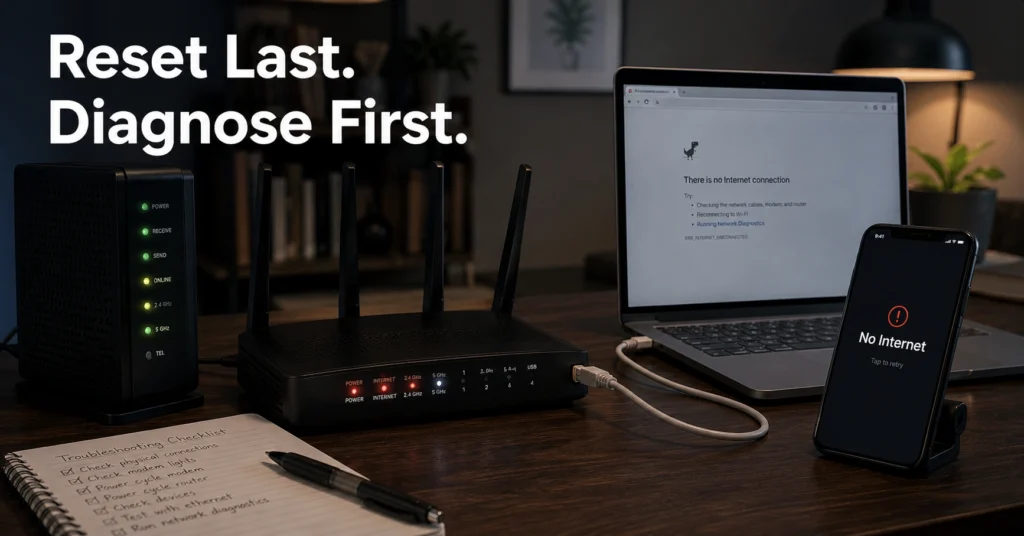
Most router problems do not need a factory reset. They need isolation.
The mistake usually starts when the internet drops for five minutes, someone presses the reset pin immediately, and the network that was only partially broken becomes completely unconfigured. Then the PPPoE login disappears, the custom DNS settings vanish, the mesh nodes disconnect, and nobody remembers the ISP password that was entered two years ago during setup.
That is the part support agents deal with every day.
A proper router reset guide starts with the least destructive step first. Restart the modem. Then restart the router. Then isolate the failing layer. Only after that should you touch factory reset. Resetting too early can hide the actual problem instead of fixing it.
This walkthrough follows the order technicians usually use on real support calls — network first, Wi-Fi second, configuration last.
Quick Diagnostic Sequence Before You Reset the Router
| Step | What You’re Testing | Time Required | Risk Level | What Success Looks Like |
|---|---|---|---|---|
| Check ISP status | Internet line vs local issue | 2 minutes | None | ISP outage confirmed or ruled out |
| Restart modem | Connection to ISP | 3–5 minutes | None | Internet light stabilizes |
| Restart router | Local routing issue | 2–3 minutes | None | Devices reconnect normally |
| Ethernet test | Wi-Fi layer vs internet layer | 5 minutes | None | Wired device works |
| Forget Wi-Fi profile | Corrupt saved network | 2 minutes | Low | Device reconnects cleanly |
| Factory reset | Corrupt router config | 10–30 minutes | High | Network rebuilt successfully |
The fastest fix is usually not the reset button
A router reboot and a router reset are not the same thing.
Rebooting means restarting the device without erasing settings. Resetting means wiping the configuration back to factory defaults. That includes Wi-Fi names, passwords, parental controls, port forwarding rules, DNS changes, static IP assignments, and sometimes mesh pairing data.
And consumer routers are not always good at warning you about that.
One ASUS Wi-Fi 6 router we tested kept the internet connection after a reboot but lost custom DNS filtering after a factory reset because the backup file was outdated by one firmware version. The internet “worked,” but the network behavior changed in ways the household noticed immediately.
Use reset as a last mile step, not the first move.
Quick Diagnostic Sequence Before You Reset the Router
Step 1: Check whether the outage is inside your network or outside it
Start with the modem lights.
A modem connects your home to the ISP line. A router distributes that connection to devices through Wi-Fi or ethernet. Combined ISP units do both jobs in one box.
If the internet or WAN light is red, amber, blinking endlessly, or completely off, the problem may be upstream. Check your ISP status page or mobile app before touching anything else. Many outages are line-side failures the router cannot fix.
Verification step:
Use mobile data on your phone and check whether your ISP reports a local outage. If the outage is external, restarting hardware changes nothing.
Step 2: Restart the modem first — not the router
This is the step people skip most often.
The modem holds the live connection session with the ISP. If that session hangs, restarting only the router does nothing because the broken connection remains upstream.
Power off the modem completely. Wait 30 seconds. Then reconnect power and wait for the internet indicator to stabilize. Cable modems often need 2–5 minutes before reconnecting fully.
Then test one website from one device.
Verification step:
If websites load after the modem restart, the problem was the ISP session — not your router.
Step 3: Restart the router the right way
Do not press reset.
Use the power button or unplug the router for 30 seconds, then reconnect it. Give the router time to rebuild routing tables and reconnect mesh nodes if present.
Wi-Fi 6 and Wi-Fi 6E routers running dual-band or tri-band networks sometimes take longer than older 2.4 GHz routers to stabilize because they negotiate multiple radios simultaneously.
Verification step:
Reconnect one device first. If that device loads websites normally for five uninterrupted minutes, the router reboot likely cleared the issue.
Step 4: Test one device on ethernet before touching Wi-Fi settings
This is where you separate an internet failure from a Wi-Fi failure.
Ethernet is the wired network connection between the router and a device. If ethernet works but Wi-Fi fails, the internet line is fine. The problem lives in the wireless layer.
That changes the troubleshooting path completely.
A weak 5 GHz signal through two concrete walls behaves very differently from a dead ISP line. So does a crowded apartment channel conflict.
Verification step:
Connect a laptop directly to the router with ethernet. If wired internet works normally while Wi-Fi remains unstable, stop troubleshooting the modem and focus on wireless settings instead.
Step 5: Forget and reconnect the broken Wi-Fi profile
Sometimes the router is fine and the device is remembering bad network information.
This happens often after:
- password changes
- router firmware updates
- switching from WPA2 to WPA3 security
- band steering changes between 2.4 GHz and 5 GHz
Delete the saved Wi-Fi network profile from the affected device and reconnect from scratch.
One Windows 11 laptop we tested kept reconnecting to an old WPA2 session after the router upgraded security settings. The router looked unstable. It was not. The laptop profile was stale.
Verification step:
Reconnect manually and confirm the device stays connected for at least 10 minutes without dropping packets or forcing reauthentication.
Why Your Wi-Fi Keeps Failing on One Device and Not the Others
That usually means the router is not the real problem.
Single-device failures point toward:
- outdated wireless drivers
- old saved network profiles
- battery-saving network restrictions
- incompatible Wi-Fi security settings
- VPN conflicts
- DNS overrides
- aggressive roaming behavior between mesh nodes
A full router reset rarely fixes those problems permanently.
And this is where people lose an hour resetting perfectly healthy networks because one phone refuses to reconnect after an operating system update.
The strongest diagnostic clue in home networking is inconsistency. If three devices work and one does not, the failure is usually local to the device layer.
Tech Troubleshooting, How-To covers deeper device-level connectivity fixes that look like router failures at first.
What a router reboot fixes — and what it does not
A reboot helps temporary failures:
- memory leaks
- stalled routing processes
- DHCP conflicts
- frozen wireless radios
- overheating recovery
- expired ISP sessions
It does not fix:
- damaged cables
- ISP outages
- expired accounts
- incorrect PPPoE credentials
- bad firmware updates
- failing hardware
- overloaded networks
This distinction matters because home networking advice online often treats rebooting as universal medicine. It is not. It is just the least destructive starting point.
And sometimes the honest answer is that the router hardware is failing.
Older ISP-provided routers from 2018–2020 often struggle under modern loads with 25+ connected devices, video calls, smart TVs, and mesh repeaters running simultaneously.
Factory reset is where people lose the setup they forgot they changed
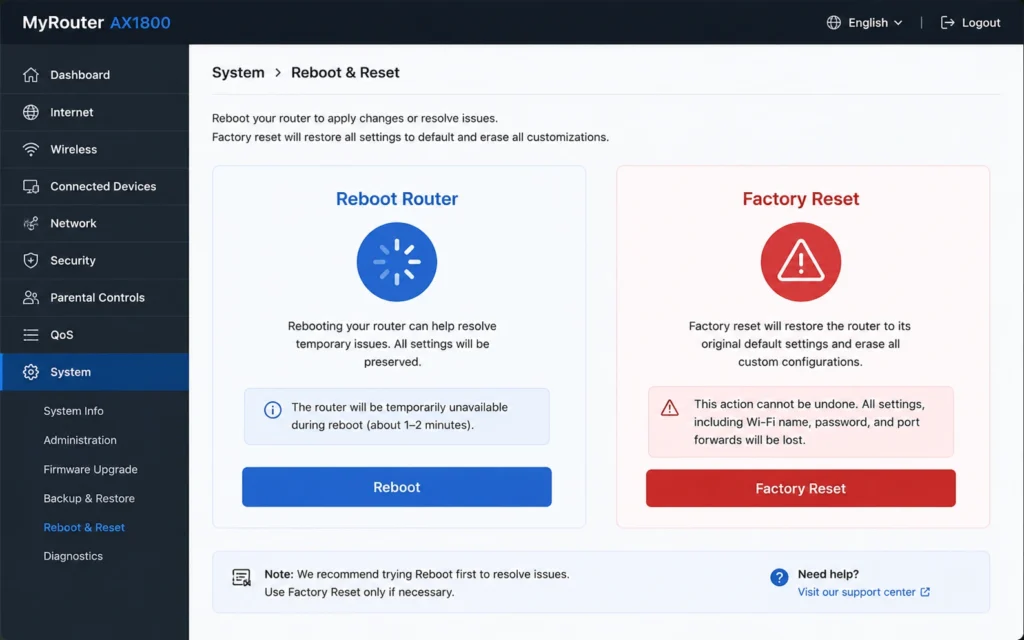
A factory reset wipes configuration memory.
That sounds obvious until you realize how many hidden settings modern networks accumulate over time:
- custom DNS
- parental controls
- ISP credentials
- static IP reservations
- mesh pairings
- guest networks
- smart home rules
- port forwarding
- VPN routing
(Back up before you switch anything)
The honest negative here is simple: resetting too early can erase the evidence of the real problem.
A router that drops internet because of ISP packet loss behaves very differently from a router with corrupted firmware. Factory reset removes one variable while also introducing new ones.
So do not reset unless:
- reboots failed
- ethernet testing isolated the router layer
- ISP outages were ruled out
- configuration corruption looks likely
How to factory reset a router without breaking the whole network
Back up the router settings first
Most modern routers allow configuration export from the admin dashboard.
Save the backup locally before touching reset. Some brands — especially TP-Link, ASUS, and Netgear — support restoration only on matching firmware families.
(Check current version support before publishing)
Verification step:
Confirm the backup file downloads successfully and is readable from local storage.
Find the ISP login details before the reset
Some ISPs use automatic provisioning. Others require PPPoE credentials.
If you reset first and search later, you may lose internet access completely until support reissues credentials.
This happens constantly with fiber installations.
Verification step:
Log into the router admin panel and confirm whether PPPoE usernames or custom WAN settings exist before resetting.
Reset the router using the physical button
Press and hold the reset pin for 10–15 seconds while the router remains powered on. Most routers flash status LEDs during the reset process.
Do not unplug power midway through firmware recovery. That is how people brick consumer routers.
Verification step:
The router should return to its default Wi-Fi name and admin login after rebooting.
Reconfigure the network in the right order
The order matters:
- Internet/WAN setup
- Wi-Fi name and password
- Security mode
- Firmware update
- Mesh pairing
- Smart devices
- Port forwarding and advanced rules
People often reconnect smart home devices too early before the network stabilizes. Then they troubleshoot thirty disconnected devices instead of one unstable router.
Verification step:
Test internet stability on one device for 15 minutes before reconnecting the rest of the network.
Verify the internet line before reconnecting every device
Do not assume the reset worked because the Wi-Fi icon appeared.
The test is stability.
Open multiple websites. Run a video stream for ten minutes. Test both 2.4 GHz and 5 GHz bands. Walk between rooms if you use mesh networking.
Verification step:
No drops, no forced reconnects, no DNS failures, and no random authentication prompts across at least two devices.
Common router reset mistakes that waste another hour
The most common one is restarting everything simultaneously.
If you reboot the modem, router, mesh nodes, and switches all at once, you remove the sequence information that helps isolate the failure.
Another bad habit is changing DNS, Wi-Fi channels, security settings, and firmware versions in the same session. Then nobody knows which change caused the improvement or failure.
One change. One test. Then continue.
And avoid random “gaming DNS” recommendations from forums unless you know exactly what problem you are solving. DNS affects name resolution, not raw signal quality.
When to stop troubleshooting and call your ISP
Call support when:
- the modem never reconnects
- the ISP line light stays red
- packet loss continues across ethernet
- multiple devices fail consistently
- outages repeat daily at similar times
- factory reset changed nothing
- the router overheats or reboots itself
Before calling, collect:
- router model
- firmware version
- outage time
- modem light behavior
- whether ethernet worked
- whether rebooting changed anything
That shortens support calls dramatically because the first twenty minutes of most ISP calls are isolation steps you can already complete yourself.
Frequently Asked Questions About Router Reset Guides
Does restarting a router delete settings?
No. Restarting only powers the router off and back on. Factory reset erases settings and restores defaults.
How long should I wait before reconnecting a modem?
Wait at least 30 seconds before reconnecting power. Some cable and fiber modems need several minutes to renegotiate ISP sessions fully.
Why does my Wi-Fi fail on only one device?
That usually points to device-level problems like stale Wi-Fi profiles, outdated drivers, battery optimization restrictions, or VPN conflicts rather than router failure.
Should I reset the modem and router at the same time?
No. Restart the modem first, wait for stabilization, then restart the router separately. Simultaneous resets make diagnosis harder.
What should I back up before factory resetting a router?
Save Wi-Fi names, passwords, ISP credentials, custom DNS, static IP assignments, mesh settings, and port forwarding rules before resetting.
Continue Exploring
- Tech Troubleshooting, How-To goes deeper into connectivity failures, DNS issues, device-level network conflicts, and practical repair sequences that look like “internet problems” at first.